We've added several new charts to the Home screen to let you see more information at a glance. We call it Dashboard and we hope you like it!
We also know that one size does not fit all - you can customize the Home screen the way you like it - move items around, remove items you don't need, and even switch back to the old Home screen!
To customize the Home screen, please use the "Configure Dashboard" button at the bottom of the Home screen.
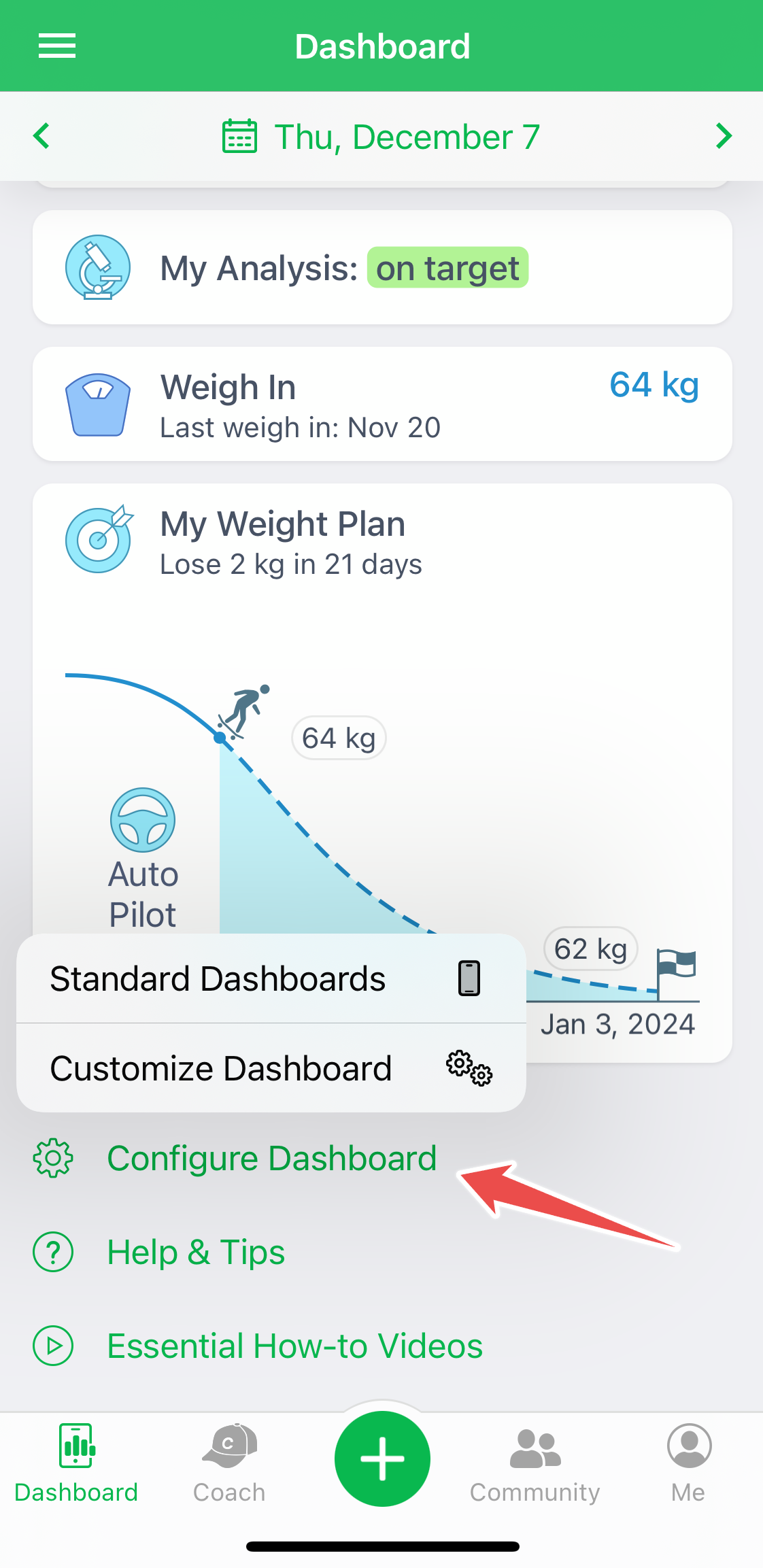
On the popup menu, you can select "Standard Dashboards" (to choose from pre-configured options).
Swipe to the left or to the right to see available Home screens:
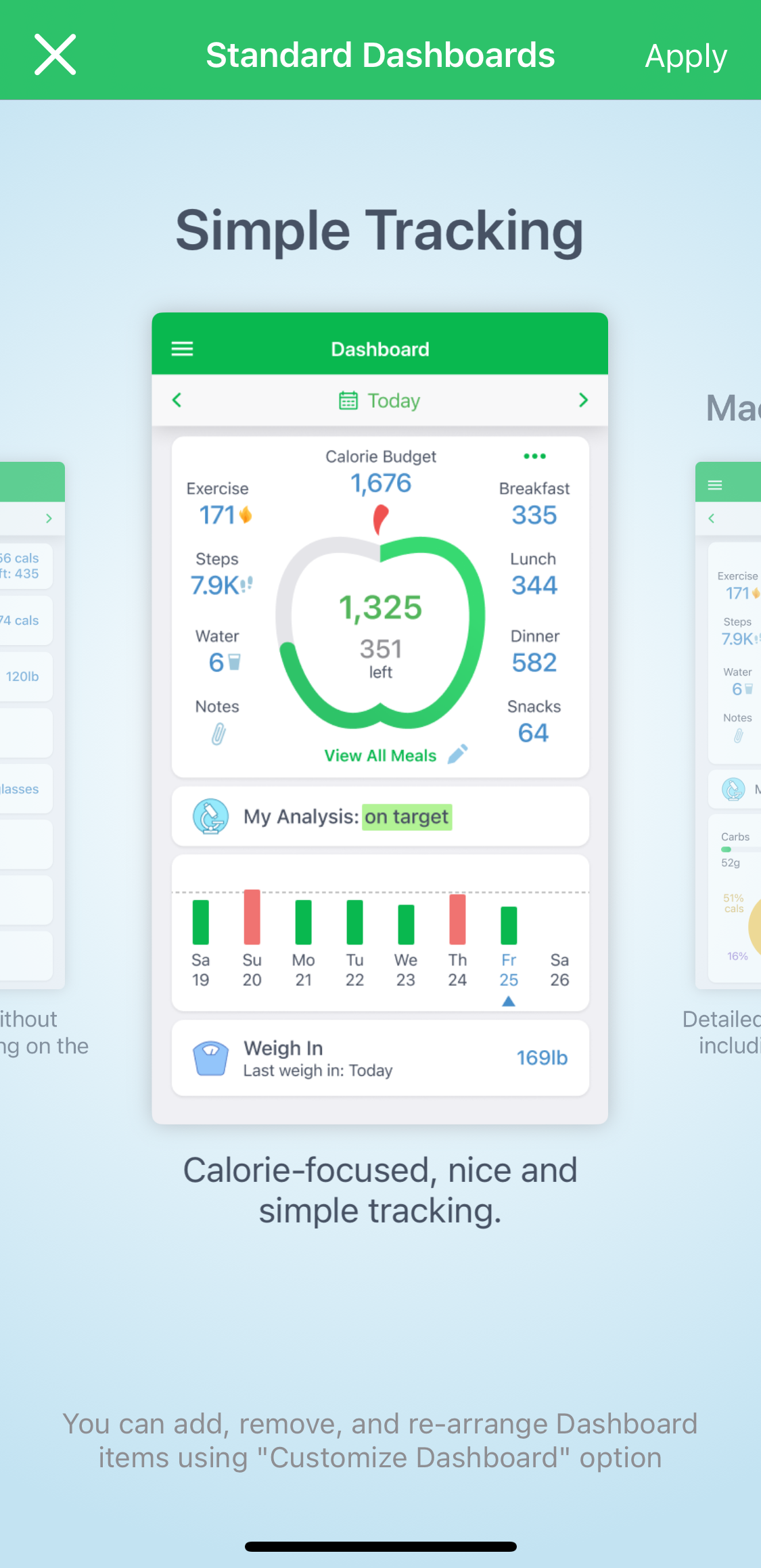
Tap Apply.
Or, you can tap "Customize Dashboard" to customize Home screen as you wish. Just tap, hold and drag the particular tab to desired place (to Dashboard, to Upper-Left-Popup Menu, or to Inactive-Items section).
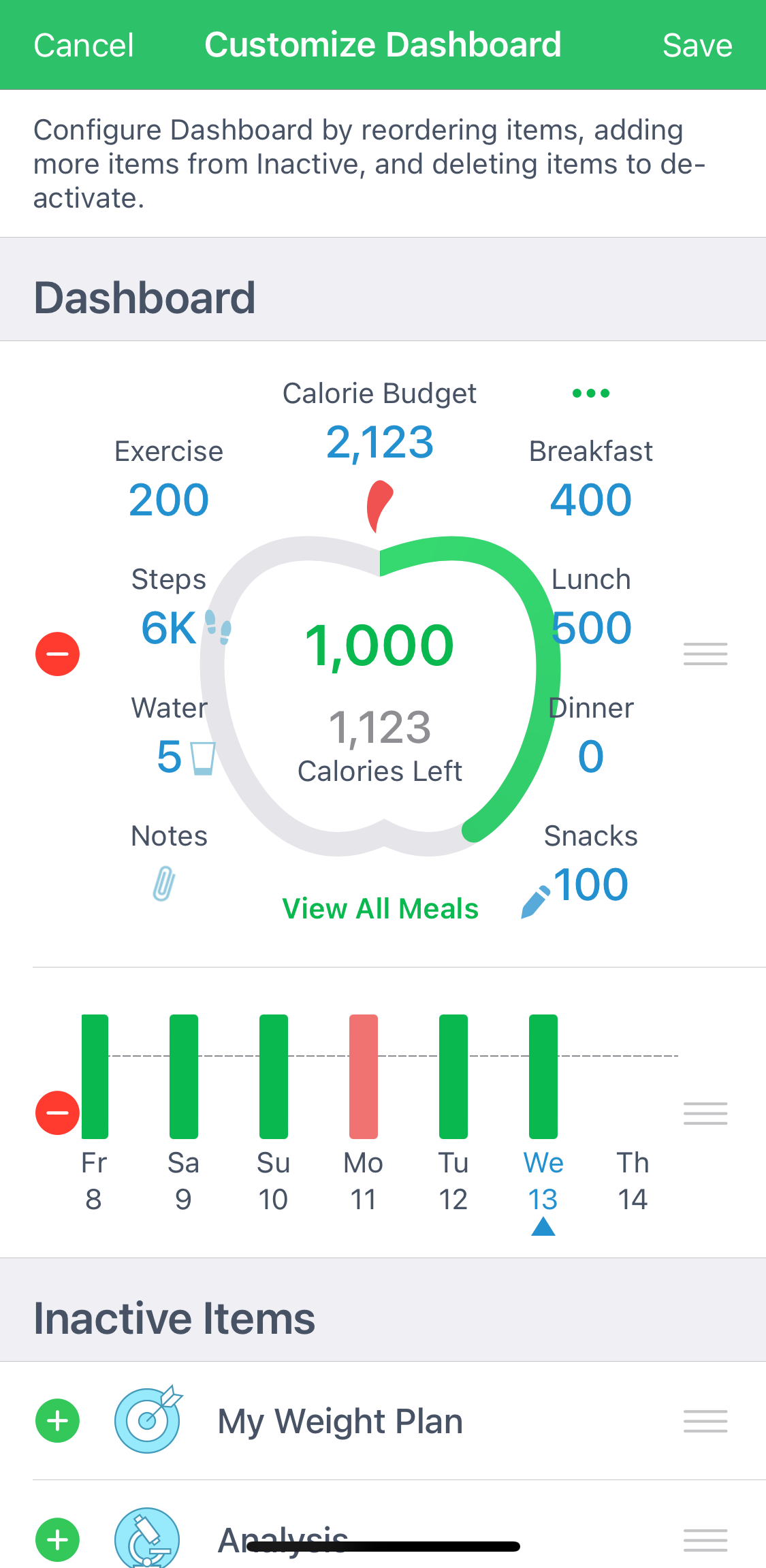
Tap Save.
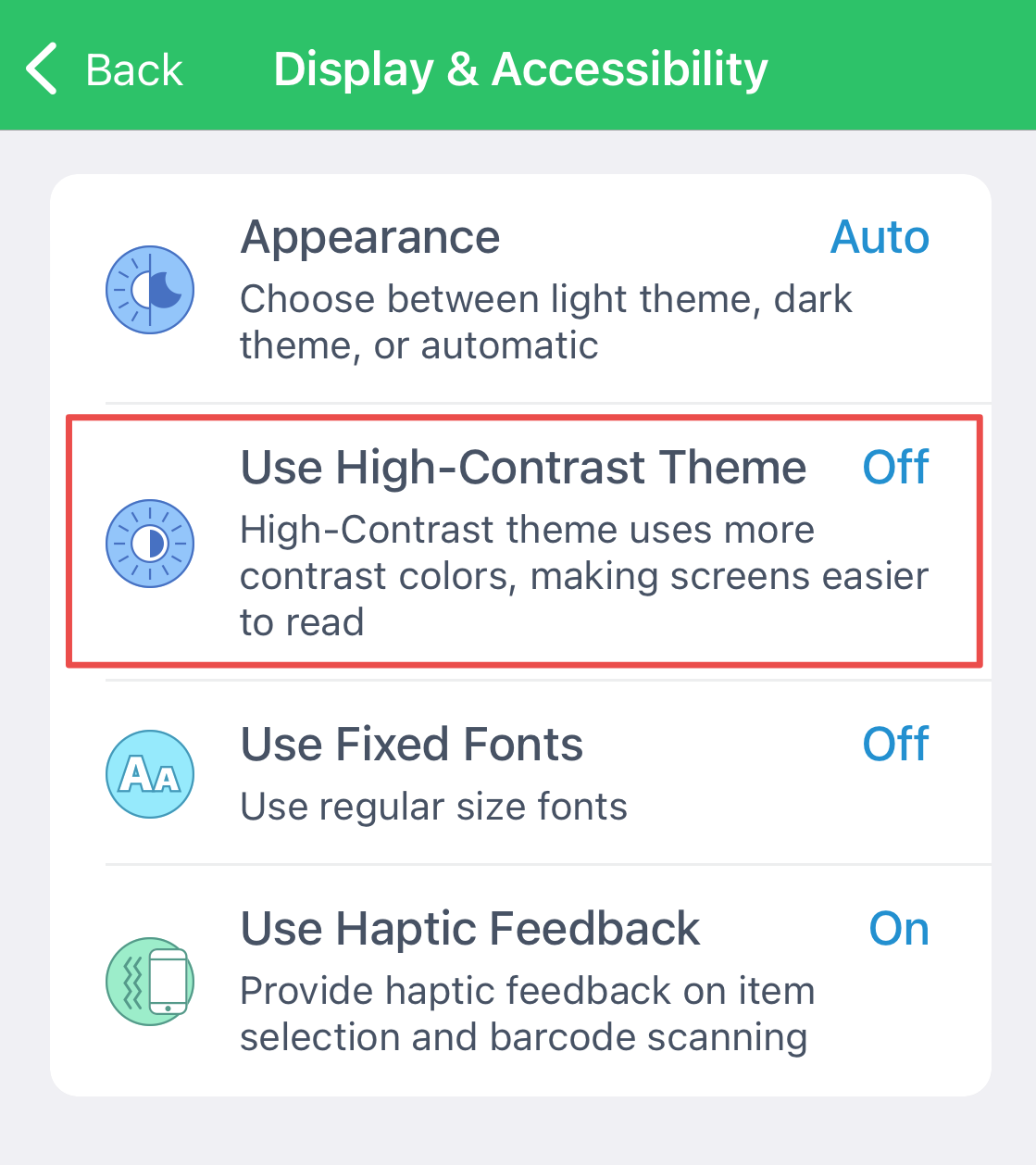
You can also change colours to a more contrast on the App Settings - Display and Accessibility screen of the app. Most colors will change at once, but some will change only after an app restart.
The above functionalities of reconfiguring the Home screen are yet unavailable for the Android app; the Android app supports just limited ones (hidingDay Bars For Week, enabling Pie Chart, filling Carbs-Protein-Fat with grams or percentages, enabling nutrient totals and Health Trackers on the Dashboard.)
Check out the tutorial video for more visual guidance.
We do hope this helps to make MyNetDiary and PlateAI look and work exactly as you want them to, to help you achieve your diet goals!