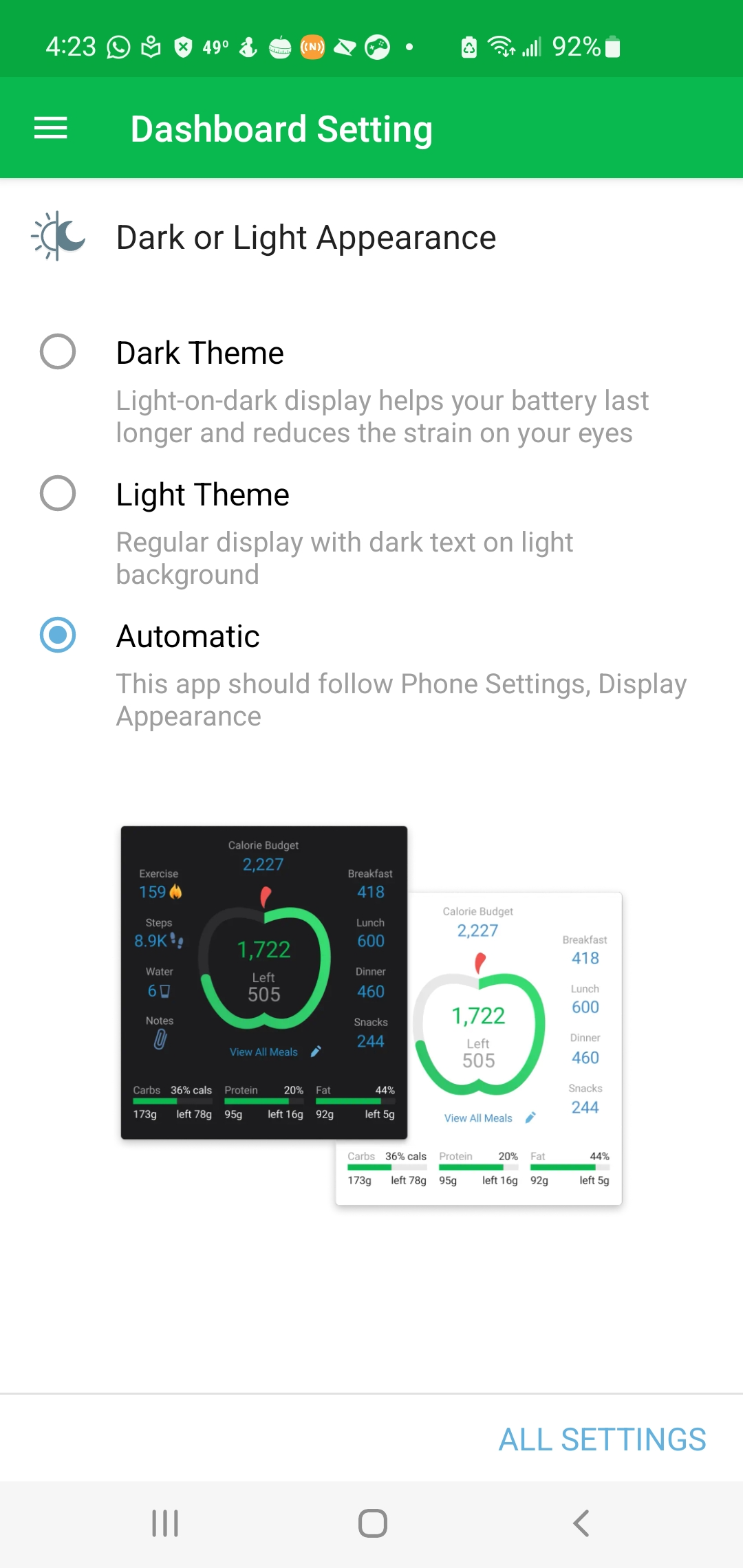
MyNetDiary and PlateAI fully support Dark Mode. By default, the app follows system-wide dark mode settings configurable in the Settings app "built-in" to your iPhone, iPad, or Android device.
To switch between the Dark or Light Modes on the iOS device, open the Settings app "built-in" to your iPhone or iPad, tap Display & Brightness and select Dark or Light under the Appearance section. To adjust the Dark Theme option on the Android device, open the Settings app "built-in" to your phone or tablet, tap Display, and choose the desired option for the Dark mode setting. MyNetDiary and PlateAI will immediately recognize this setting and show the MyNetDiary app's screens according to the chosen option.
If you want to have the phone mode itself separate from the MyNetDiary apps mode, you can toggle the Dark or Light Appearance via the App Settings section: