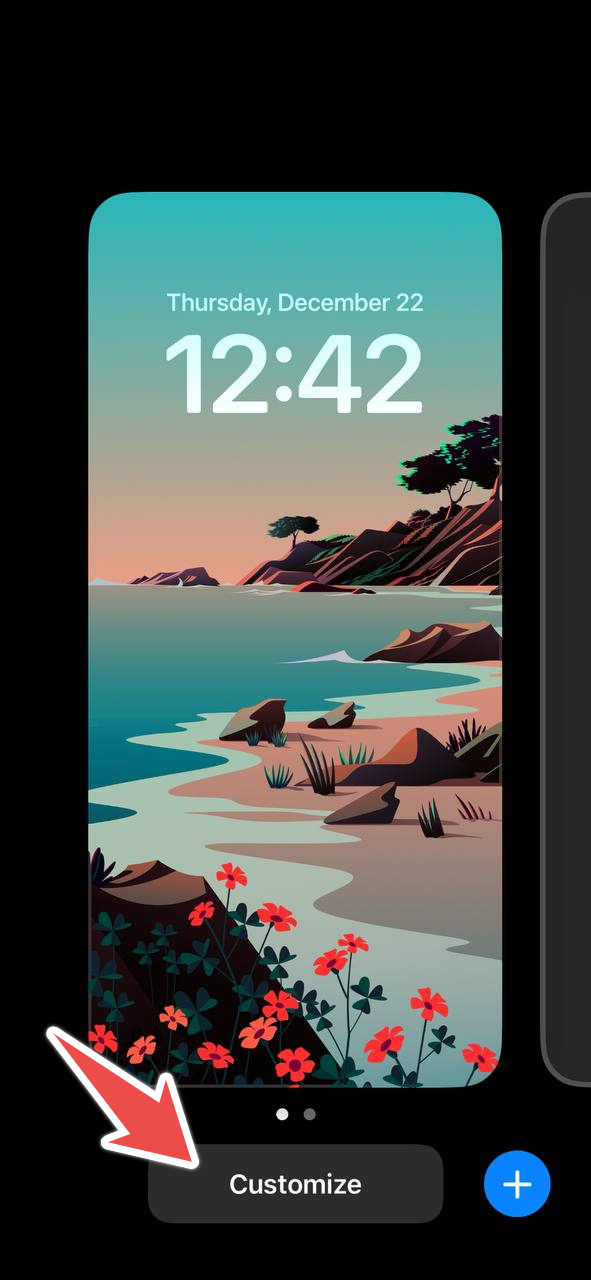
Adding a lock screen widget: tap and hold your lock screen, enter the password if you have one, then tap Customize:
Note: if you are using a lock screen configured with iOS 15 or earlier, the following message will be displayed:
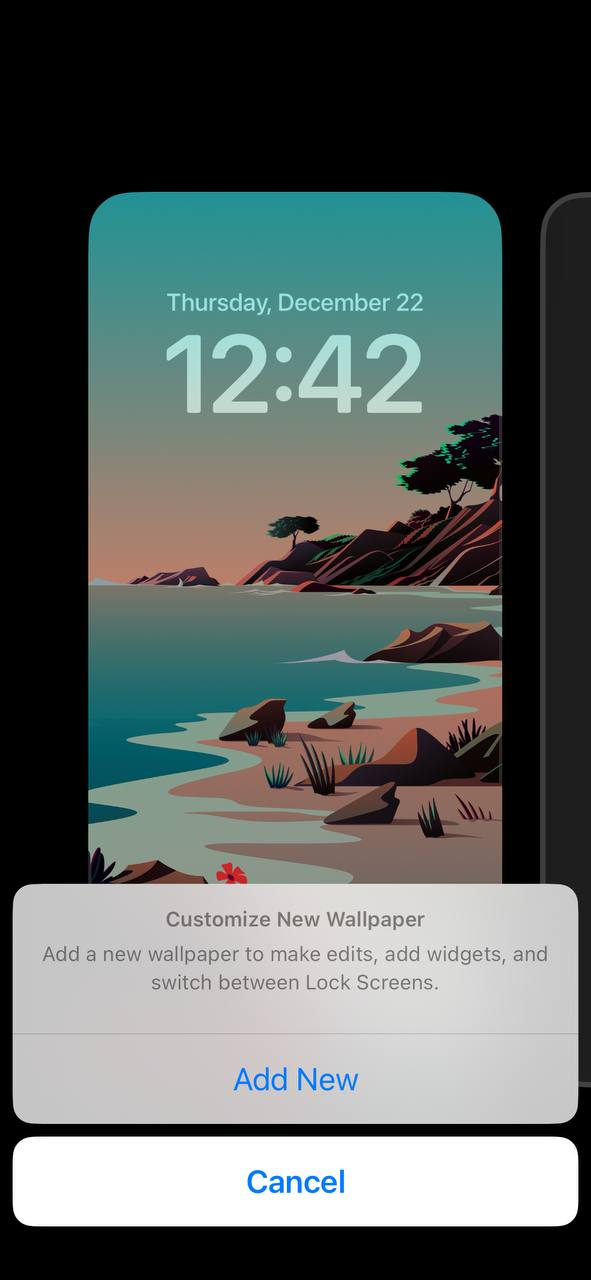
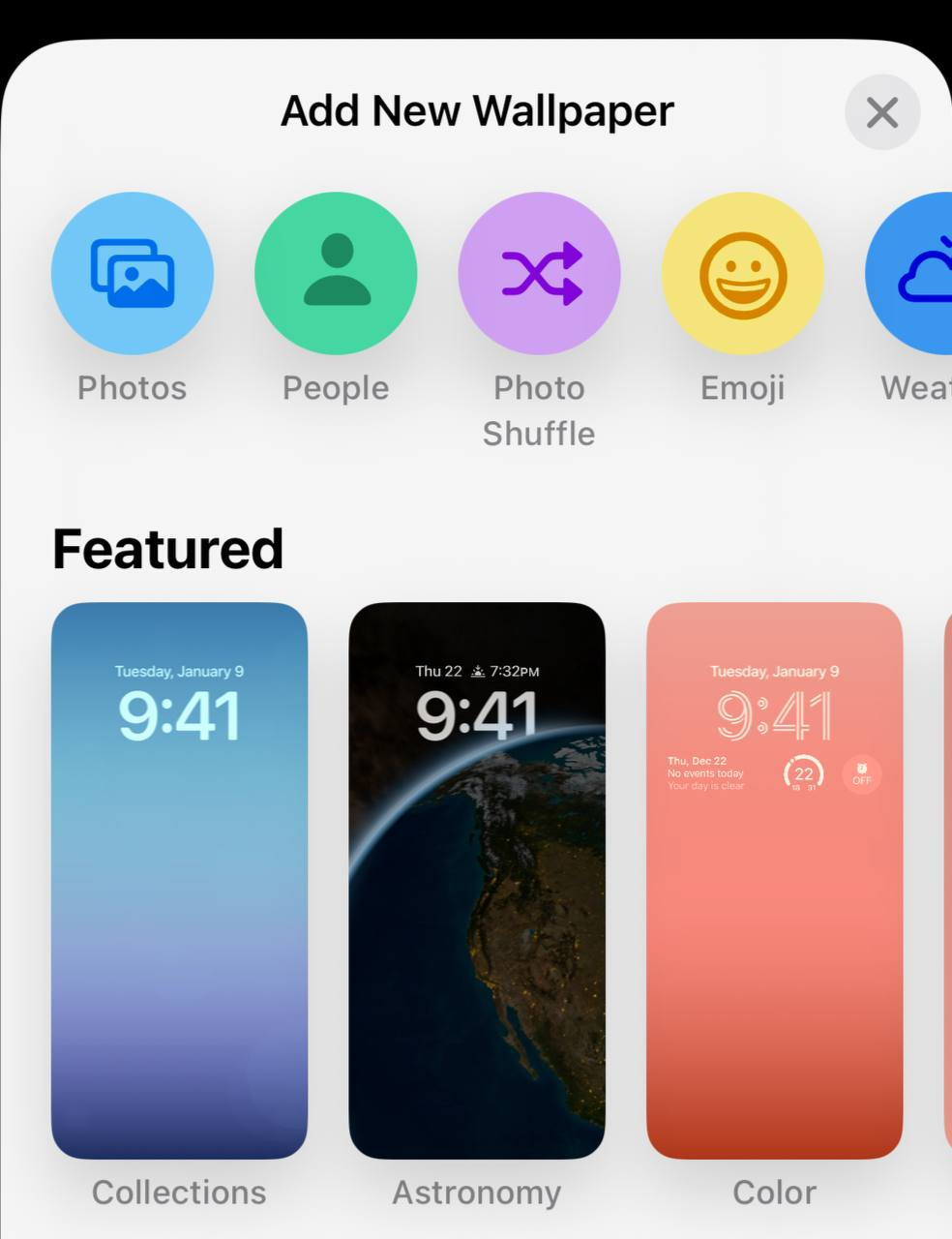
Tap Add New, then select a wallpaper. This new wallpaper will support widgets.
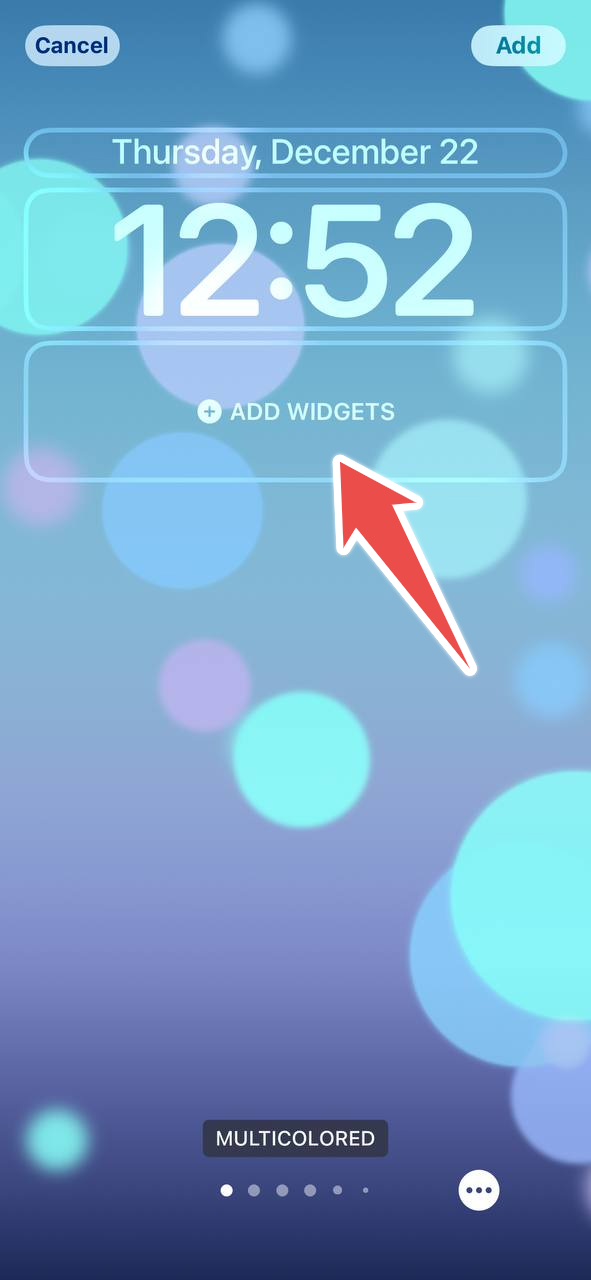
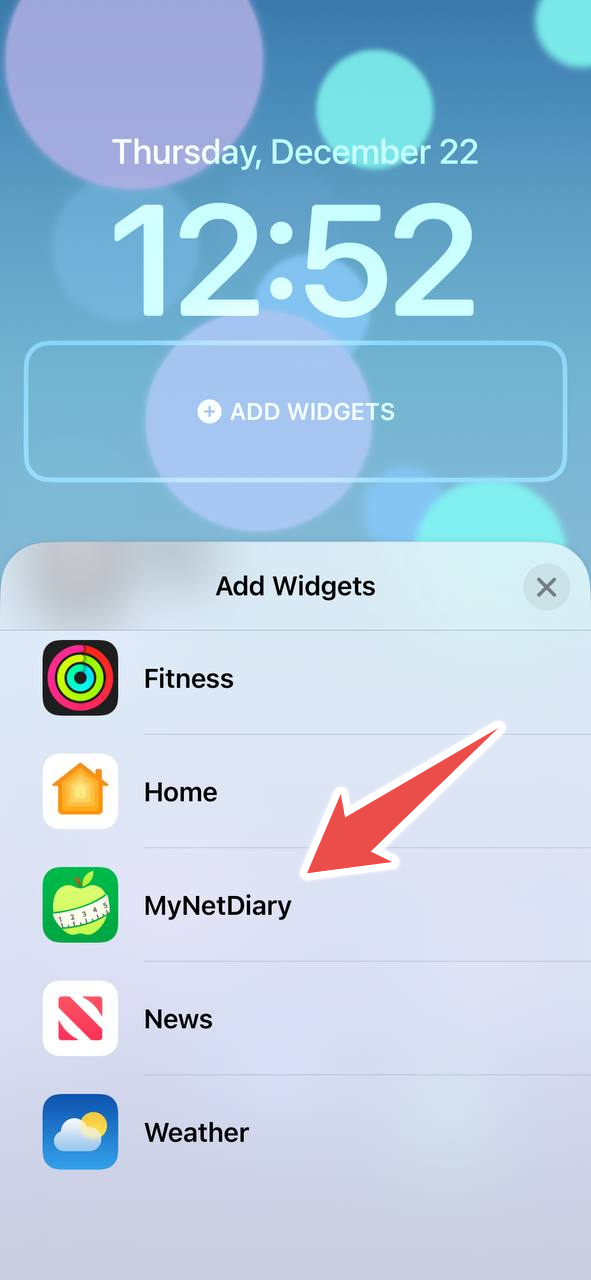
Once you are in the Customize mode, tap Add Widgets or the widget area (if you have widgets already), and scroll down to find the MyNetDiary app, then tap it. You will see a list of widgets available in MyNetDiary:
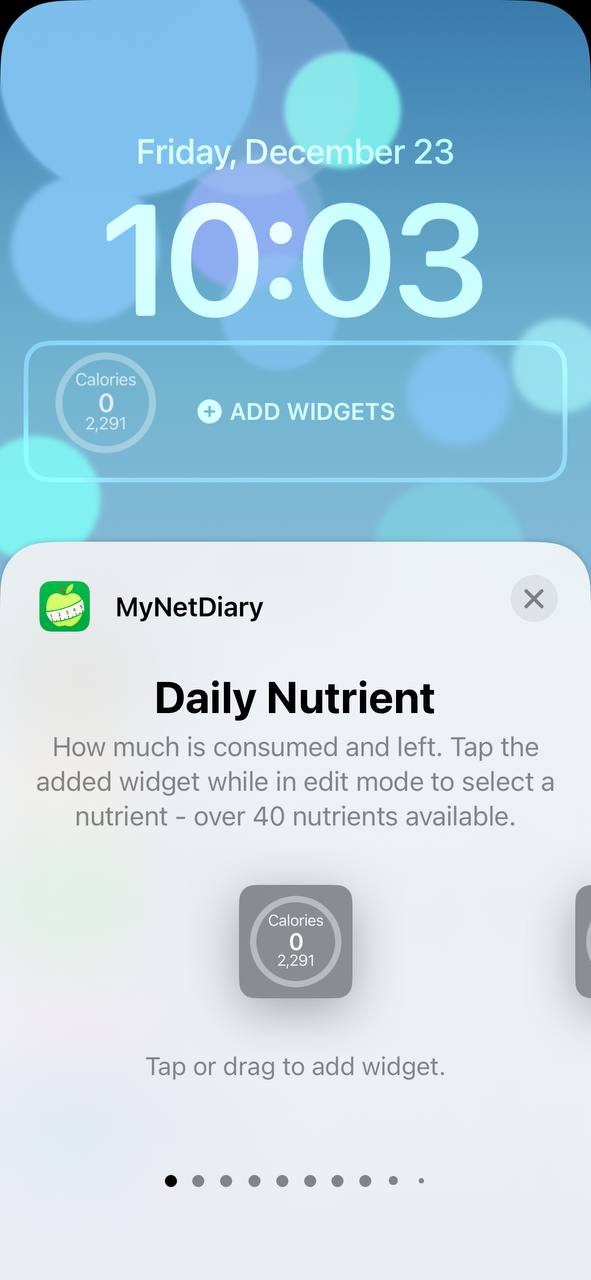
Here is the full list of widgets in MyNetDiary or PlateAI:
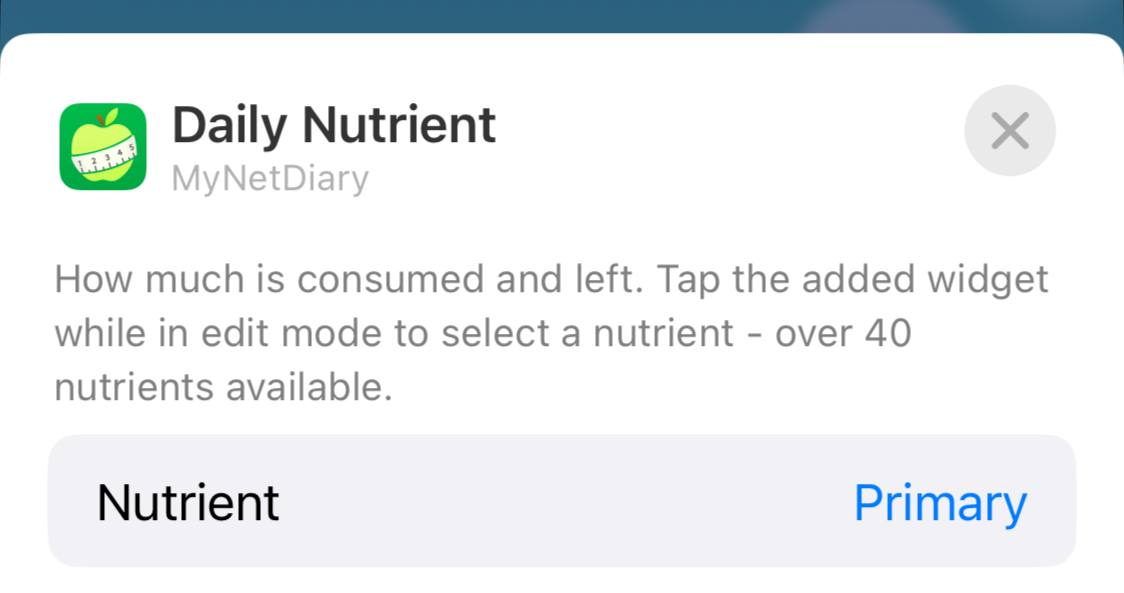
- Daily Nutrient. How much is consumed and left. This is a configurable widget - you can select a nutrient to display. After adding the widget, while in edit mode, tap the widget to select a nutrient - over 40 nutrients available.
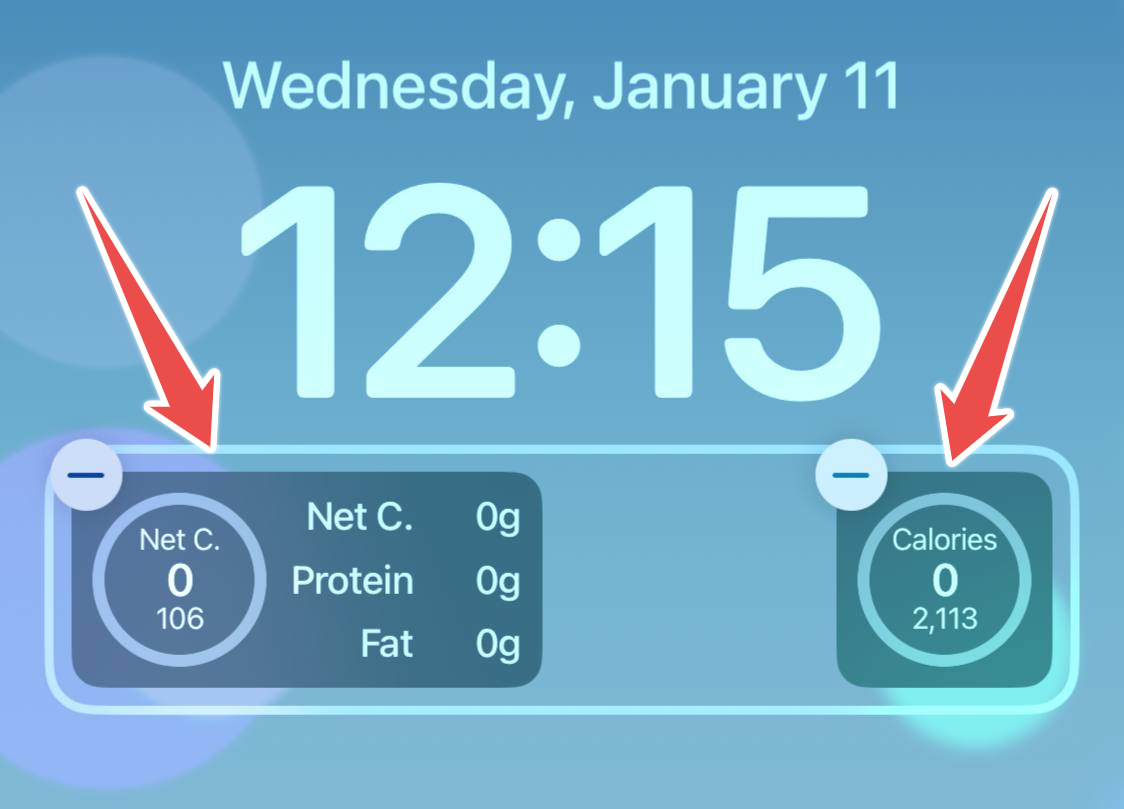
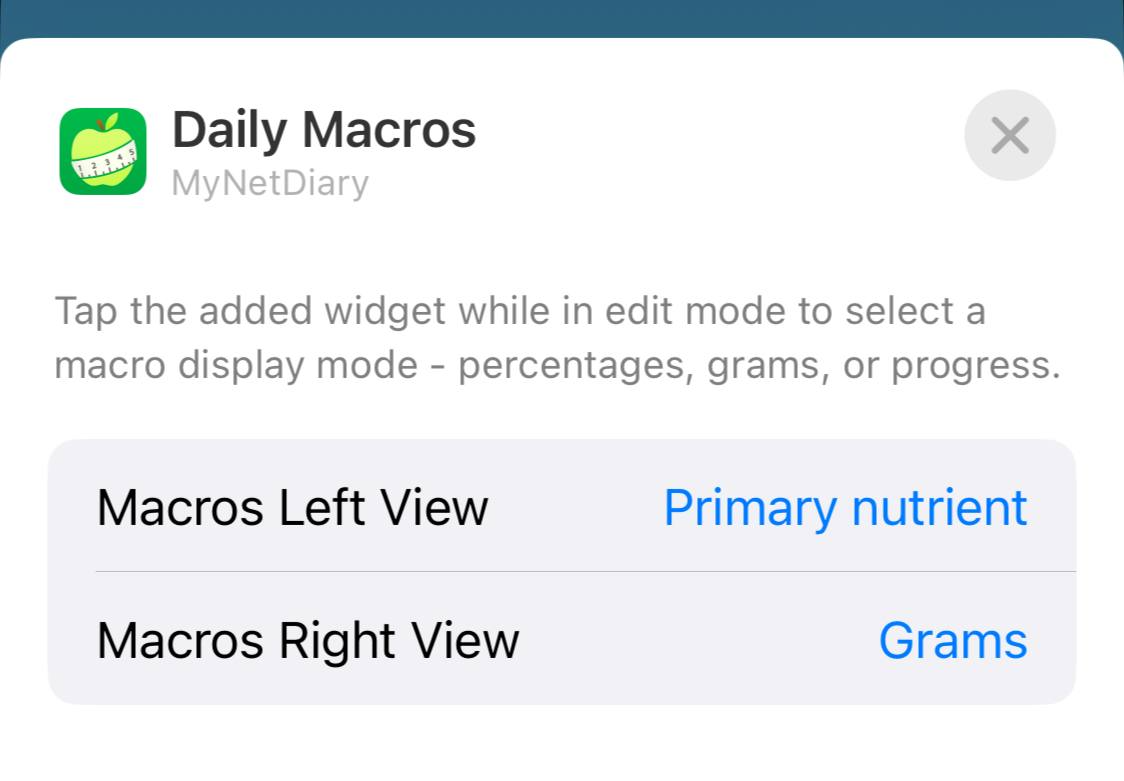
- Daily Macros. This is also a configurable widget. After adding the widget, while in edit mode, tap the widget to select 1) chart type - calories or macros pie chart and 2) macro display mode - percentages, grams, or progress.
- Daily Steps. Daily step count and progress toward your daily step goal.
- Daily Water. Water glasses logged and progress toward your daily water goal.
- Weight Progress. Your weight tracker - your progress toward the weight goal.
- Weigh In. Shortcut to log your weight. You can choose whether the widget displays your weight on the lock screen or not.
- Exercise Tracking. Daily calories burned and exercise tracking.
- Barcode Scanner. Shortcut to quickly scan and log food.
- Grocery Check. Shortcut to the Grocery Check tool - to scan and compare foods while shopping.
- Shopping List. Shortcut to the Shopping List tool.
- Fasting. Timer and shortcut to the Intermittent Fasting tool.
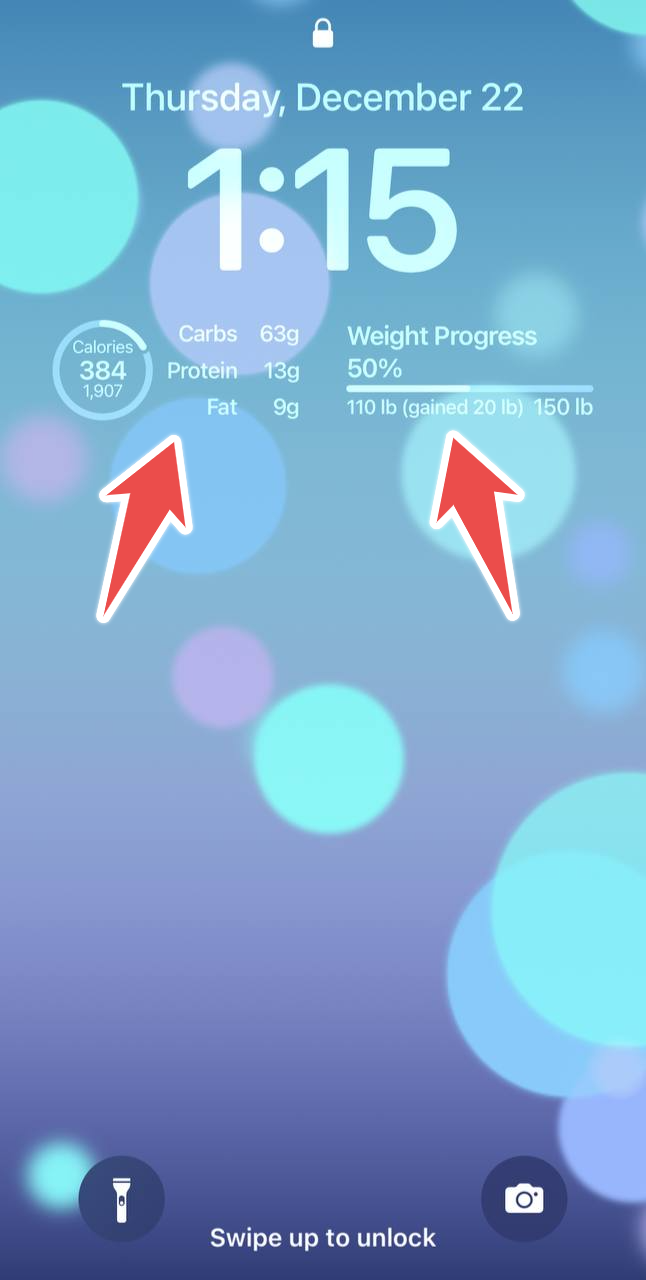
After selecting widgets and applying the wallpaper, the widgets will be displayed on your Lock Screen, so when you tap them, they will open the corresponding screen in the app:
We also recommend checking out Apple's article about widget configuration: Add and edit widgets on your iPhone.