Welcome to the Advanced AutoPilot Guide! This feature is designed to dynamically adjust your calorie and nutrient goals based on your progress and changing needs. Follow this guide to make the most of the AutoPilot feature and achieve your health and wellness goals effectively.
Getting Started with AutoPilot
Set Your Goals:
- Define your weight goal, whether it’s losing, maintaining, or gaining weight.
- Input your target weight and the time frame in which you aim to achieve it.
Enable AutoPilot:
- Open the app.
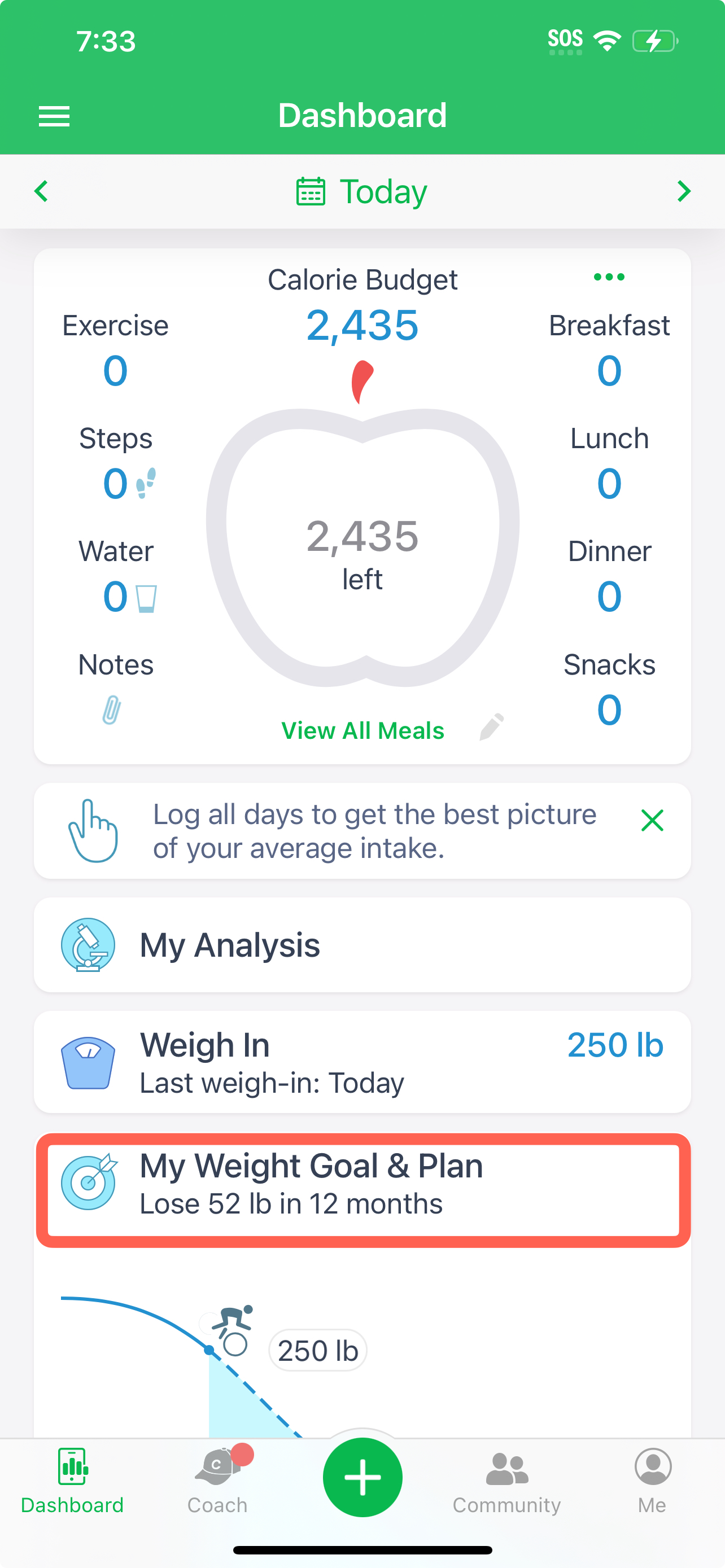
- Navigate to the 'My Weight Goal & Plan' > 'Weight & Calories'.
- Select AutoPilot and choose the Advanced AutoPilot to enable it.
Understanding AutoPilot Adjustments
AutoPilot adjusts your daily calorie and nutrient targets based on several factors:
- Weight Changes: AutoPilot recalculates your calorie budget as you log your weight changes, ensuring you stay on track.
- Personal Info Changes: Adjustments are made based on changes in your age, activity level setting, and any changes in your height.
- Weekly Progress: The system reviews your weekly progress and makes necessary adjustments to keep you aligned with your goals.
Customizing AutoPilot
Calorie Cycling:
Access the AutoPilot settings and enable Calorie Cycling to allow different calorie targets on different days, perfect for those with varying daily activities or training schedules.
Nutrient Goals:
Set custom macro (including Macronutrient Cycling) and micronutrient goals that AutoPilot will consider when adjusting your targets. Ensure your nutrient goals are balanced to support your overall health.
Advanced Features
Dynamic Adjustments:
AutoPilot automatically adjusts your calorie budget if it detects significant changes in your weight or activity levels. It takes into account any deviations from your planned progress and recalibrates your targets accordingly.
Weekly Reviews:
Every week, AutoPilot reviews your logged data, including weight, activity, and food intake. Based on this review, it adjusts your upcoming week's targets to optimize your progress.
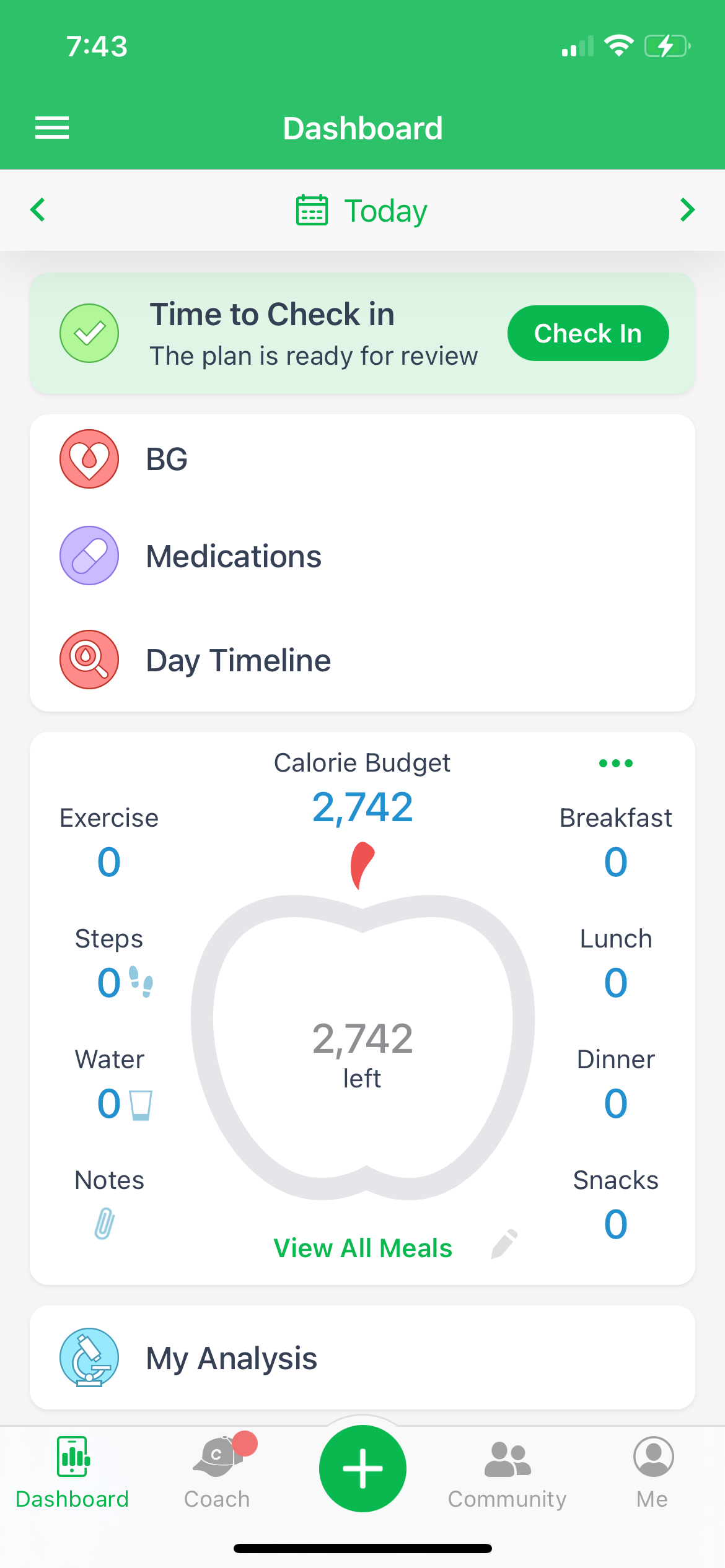
Weekly Check-In: Ensure you have logged your food intake consistently for accurate AutoPilot adjustments.
Integration with Wearable Devices:
Sync your account with wearable fitness trackers (like Fitbit or Apple Watch) to provide AutoPilot with real-time activity data. This integration allows for more precise adjustments based on your actual activity levels.
Tips for Maximizing AutoPilot
- Consistent Logging: Ensure you log your weight, food intake, and activities consistently for the most accurate adjustments.
- Regular Check-ins: Review your progress regularly and adjust your goals as needed to stay motivated and on track.
- Feedback Loop: Pay attention to the adjustments made by AutoPilot and provide feedback if you notice any discrepancies or have specific needs.
Troubleshooting
Not Seeing Adjustments?
- Ensure that AutoPilot is enabled and that you’ve logged sufficient data for it to make adjustments.
- Check your app version and update if necessary.
Unexpected Adjustments?
- Review your logged data to ensure accuracy.
- Contact our tech support for further assistance if needed.
The Advanced AutoPilot is a powerful tool to help you stay on track with your health goals by dynamically adjusting your targets based on your progress. By enabling and customizing AutoPilot, you can ensure a more personalized and adaptive approach to your diet and fitness journey.
By following these steps and using the Advanced AutoPilot feature, you can effectively manage your dietary goals and work toward your desired outcomes.
For more detailed information, visit our Support & FAQs section or email us at support@mynetdiary.com. If you have any questions or need assistance, our support team is here to help.
Happy tracking!