If you're using the Advanced Autopilot feature in our mobile app and want to change the day of the week for your weekly check-in, you can easily do so through the app. This guide will walk you through the steps to change your check-in day.
Steps to Change the Weekly Check-In Day
- Open the App:
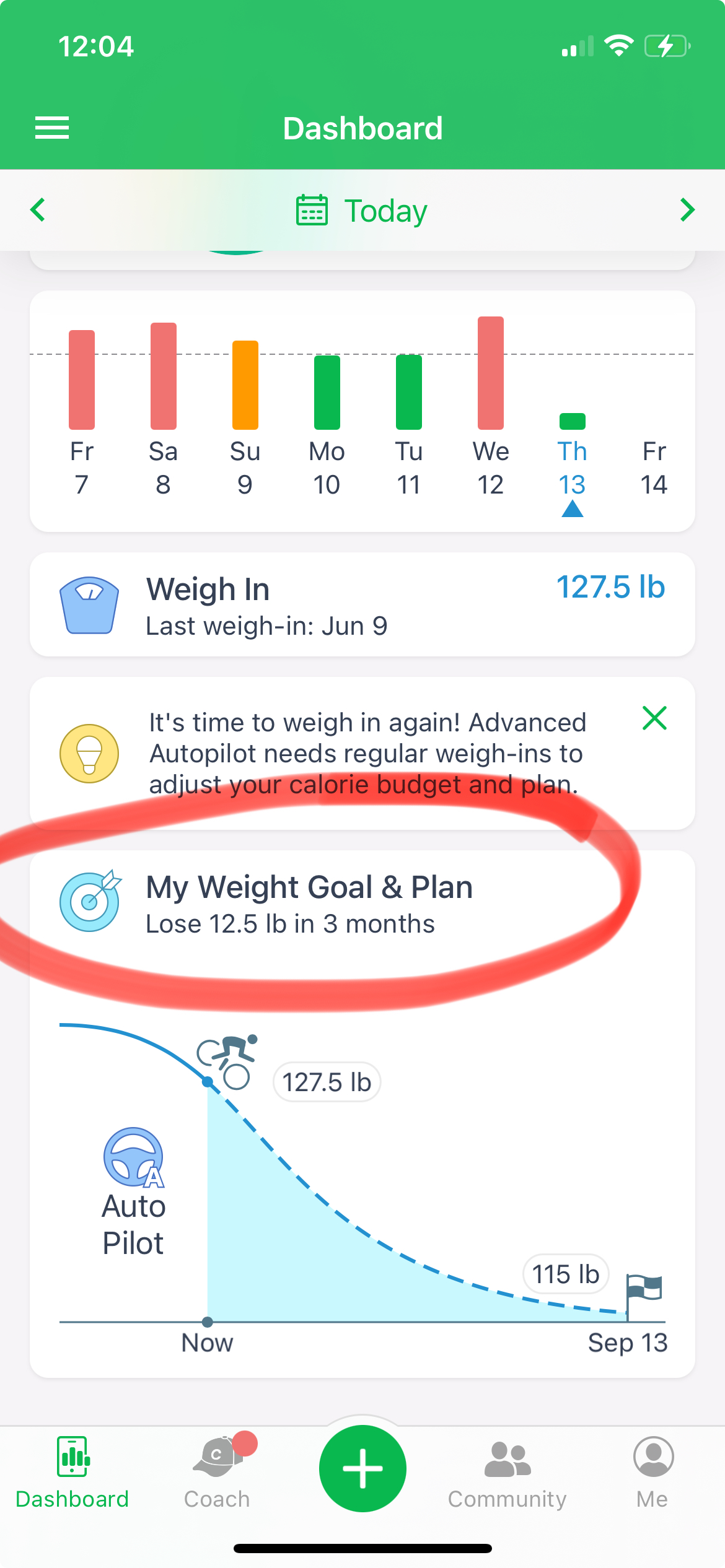
- Navigate to the Home/Dashboard screen of our app.
- Access Weight Goal & Plan:
- Tap on 'My Weight Goal & Plan.'
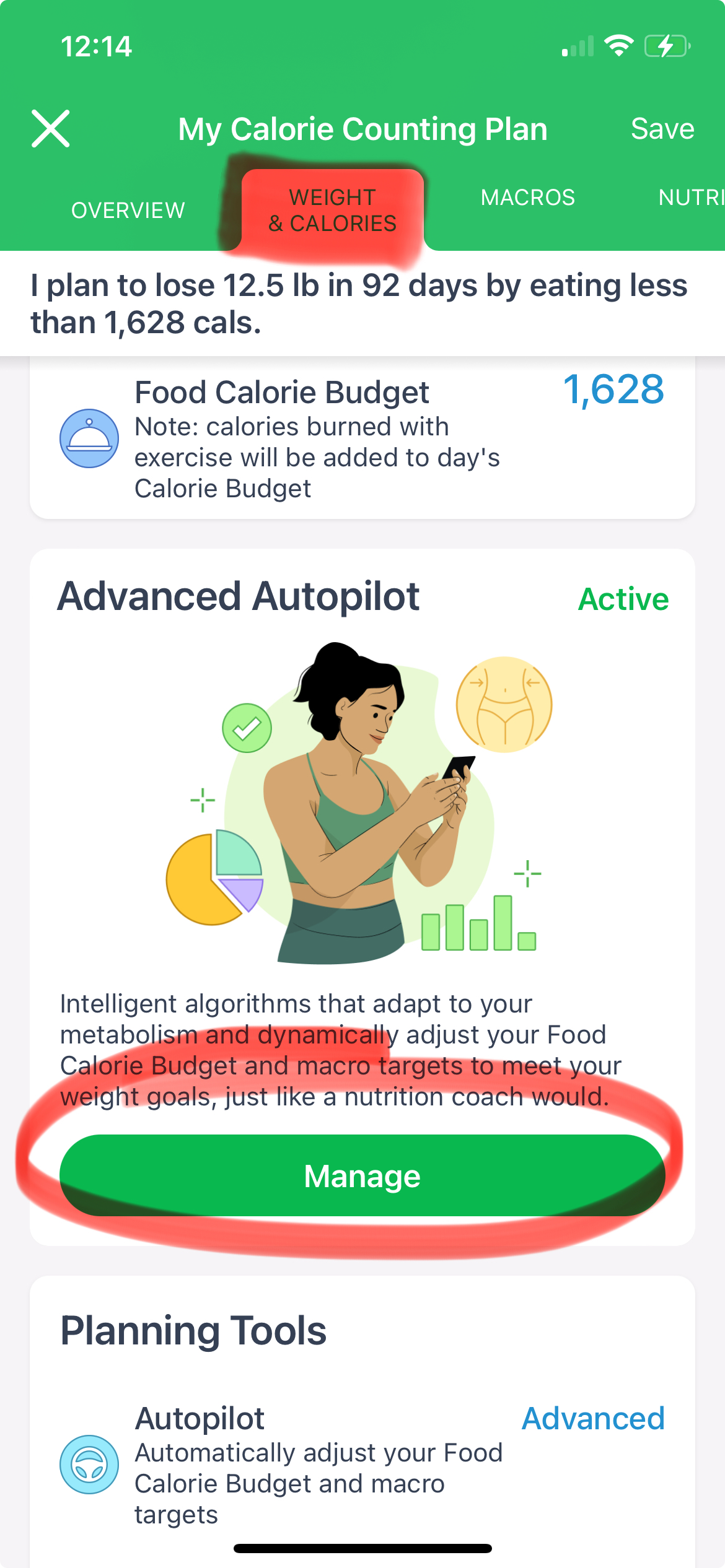
- Select Weight & Calories:
- From the top navigation bar, select 'Weight & Calories.'
Manage Advanced AutoPilot:
- Scroll down to the 'Advanced AutoPilot' section.
- Tap on the green 'Manage' button.
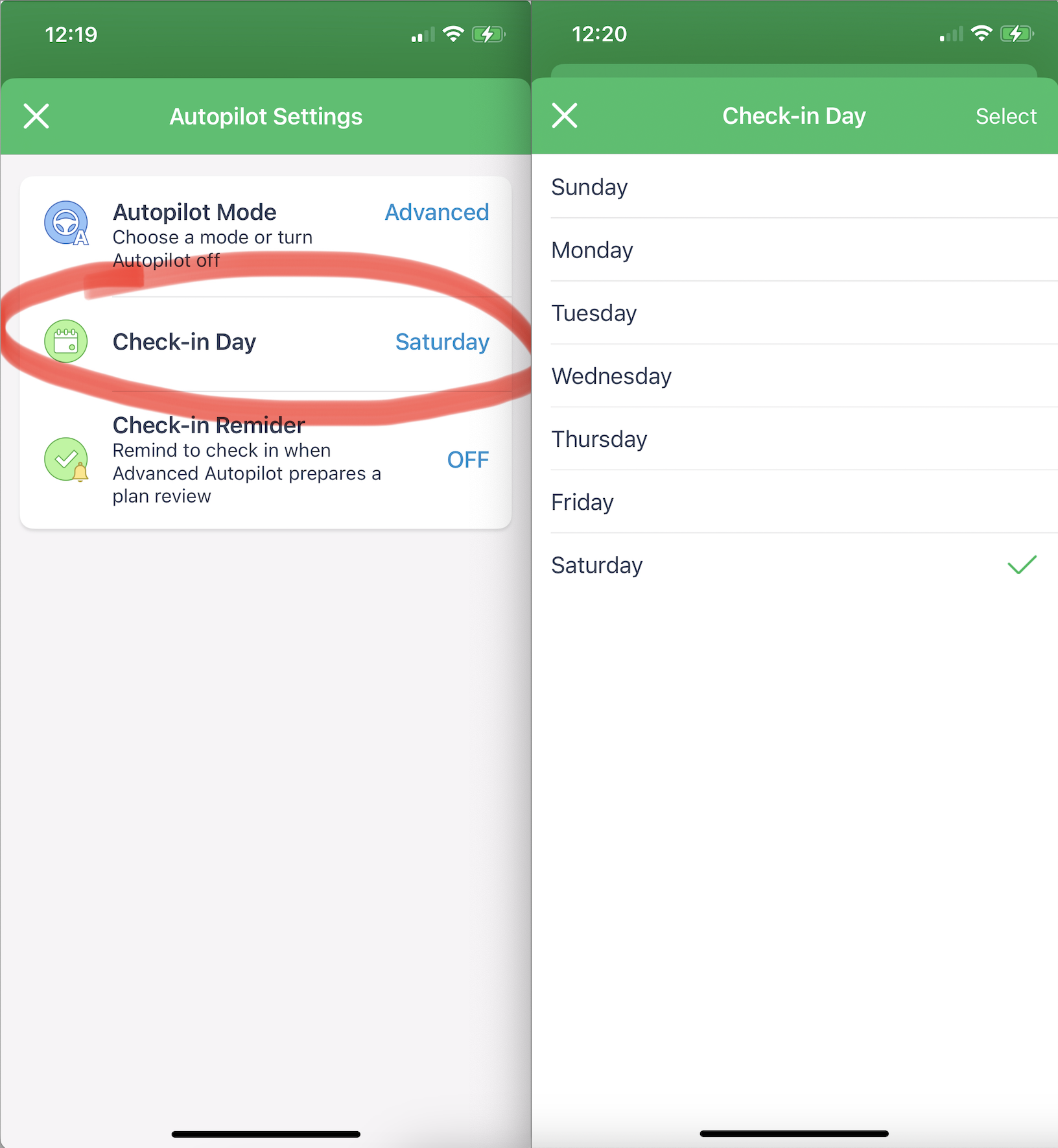
- Set Check-In Day:
- Tap on the 'Check-in Day' option.
- Choose your preferred day for check-ins.
Tips
Reminders: You can also set a reminder to check in on your chosen day by enabling the 'Check-in Reminder' option in the Autopilot Settings.
Stay Consistent: Try to weigh yourself at the same time of day and under similar conditions each week for the most accurate tracking.
Changing your check-in day for Advanced Autopilot is a simple process that can help you stay on track with your weight management goals. If you have any questions or encounter any issues, feel free to reach out to our support team for assistance.
If you need further assistance, please contact us at support@mynetdiary.com.