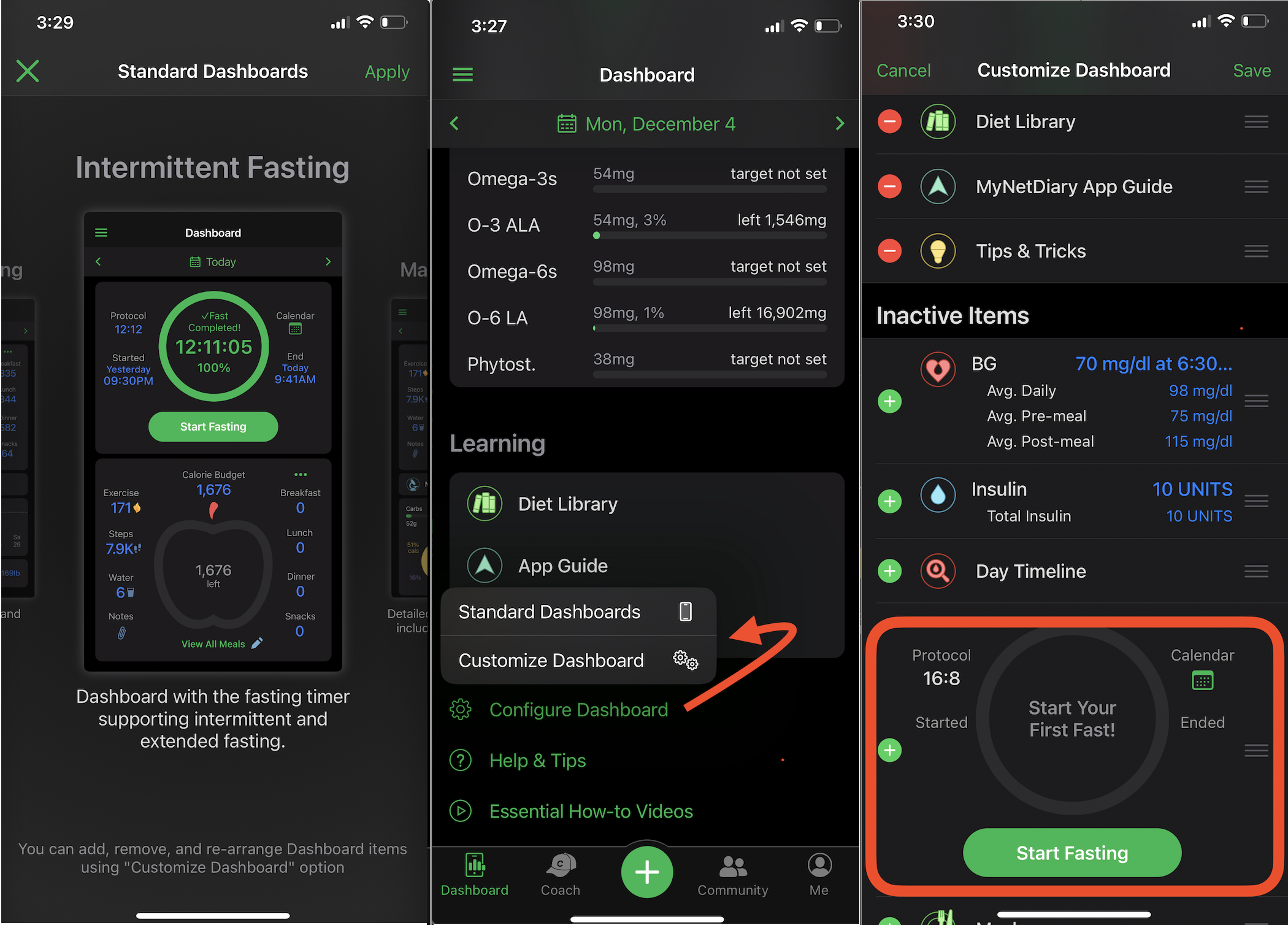
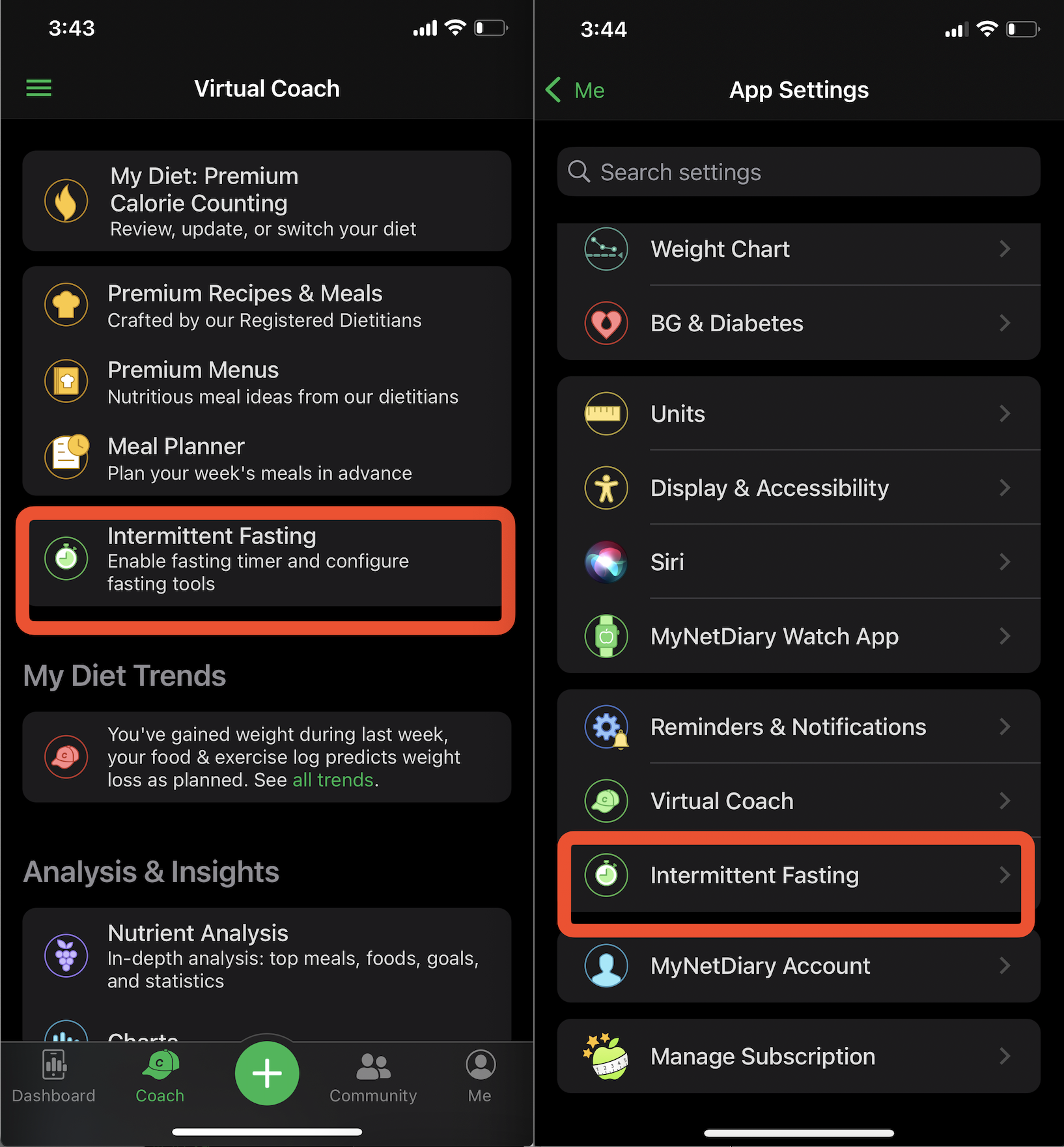
Yes, the apps and website are suitable for tracking intermittent fasting. You can enable Fasting Tracking in the app using one of the following methods:
- While reconfiguring the Home/Dashboard screen (MyNetDiary iPhone app only):
- Select the Standard 'Intermittent Fasting' Dashboard type.
- Customize the Dashboard and add the 'Intermittent Fasting' item to the Home screen.
- Turn it ON from the 'Diet Tools' > 'Intermittent Fasting' section.
- Configure it via App Settings > Intermittent Fasting.
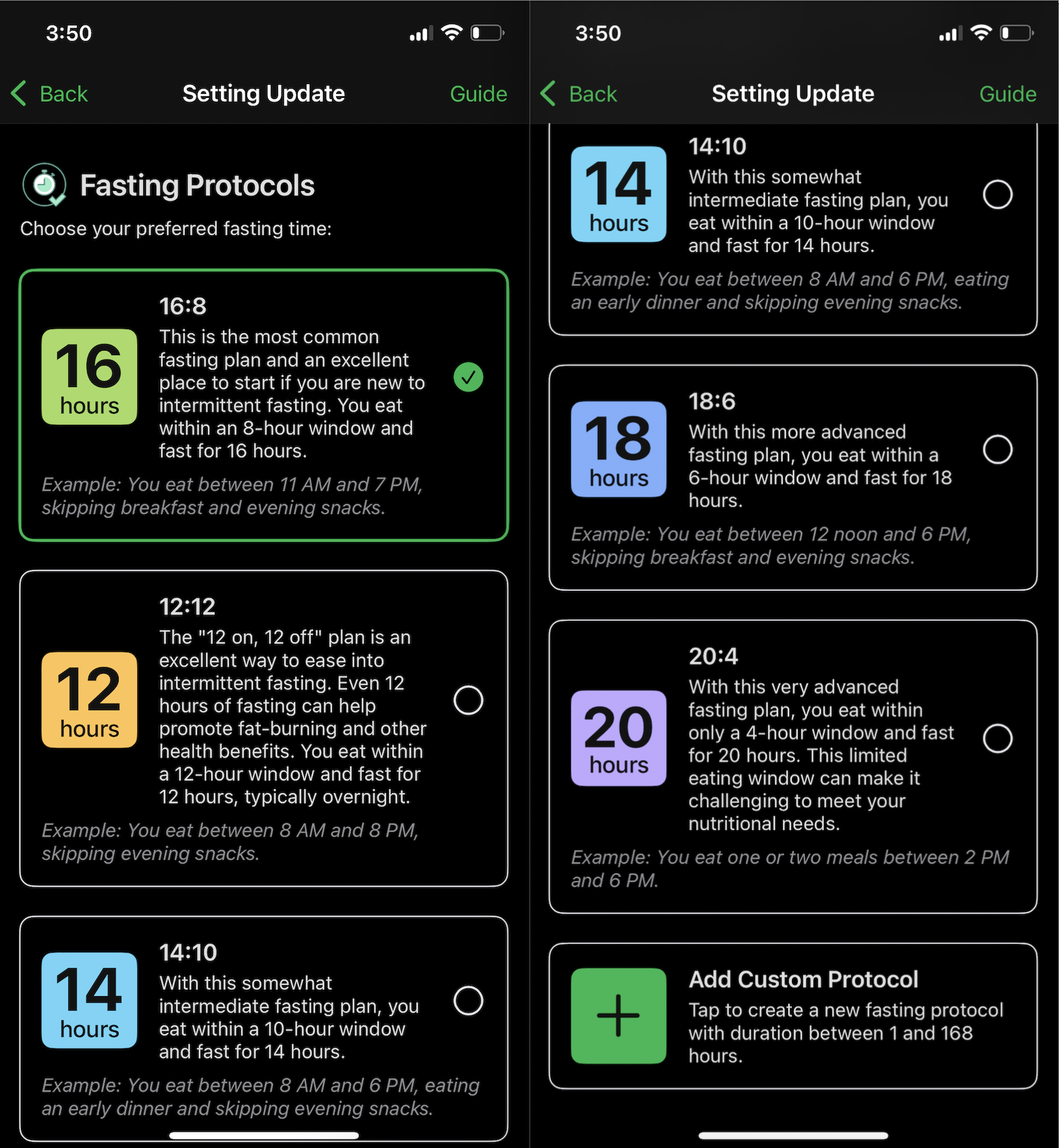
Before enabling Fasting Tracking, you need to choose a fasting protocol, which defines how many hours you intend to fast and how many hours you plan to eat. The default plan is '16:8' (16 hours of fasting and 8 hours of eating). You can also set up a custom fasting protocol, but it must be at least 1 hour and no longer than 168 hours. Please note that custom protocols cannot overlap with the existing standard protocols.
You can adjust the Fasting Tracking settings, including fasting and eating window lengths, fasting reminders, and more, in the 'App Settings' section. You can also choose whether to represent fasting time as 'Elapsed' or 'Remaining' on the Dashboard.
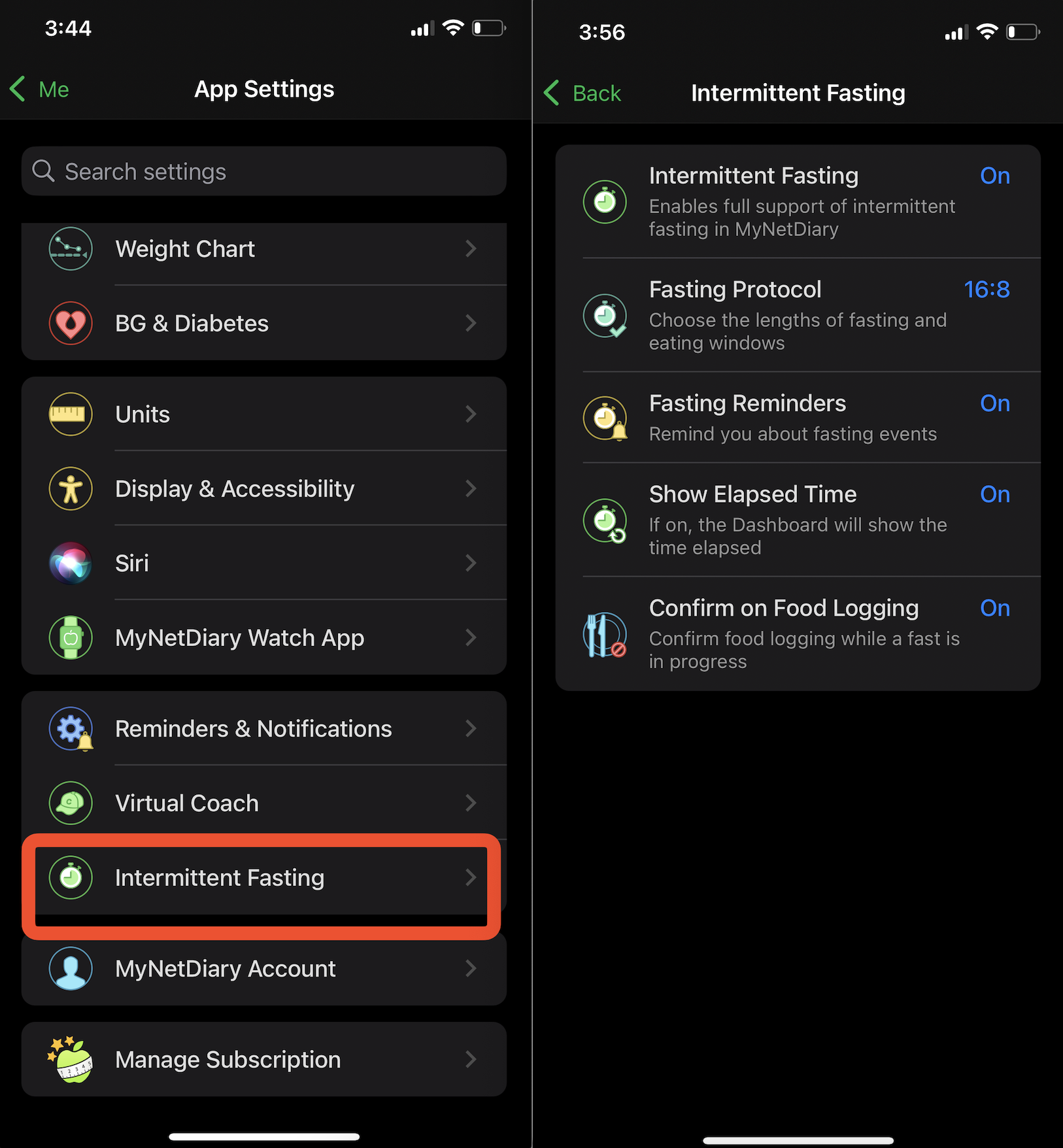
To start or stop a fasting session, you will receive reminder notifications during your chosen fasting hours. If Fasting Reminder is ON, one notification will appear an hour before fasting starts and another one at the moment when it's supposed to finish. The system does not start or stop fasting tracking automatically; you need to confirm it manually.
If you choose to log food during an active fasting period, the app will ask for confirmation to ensure you want to log food during the fasting period. You can log different foods to different meal sections, future entries in advance, or log past meals that you may have forgotten earlier.
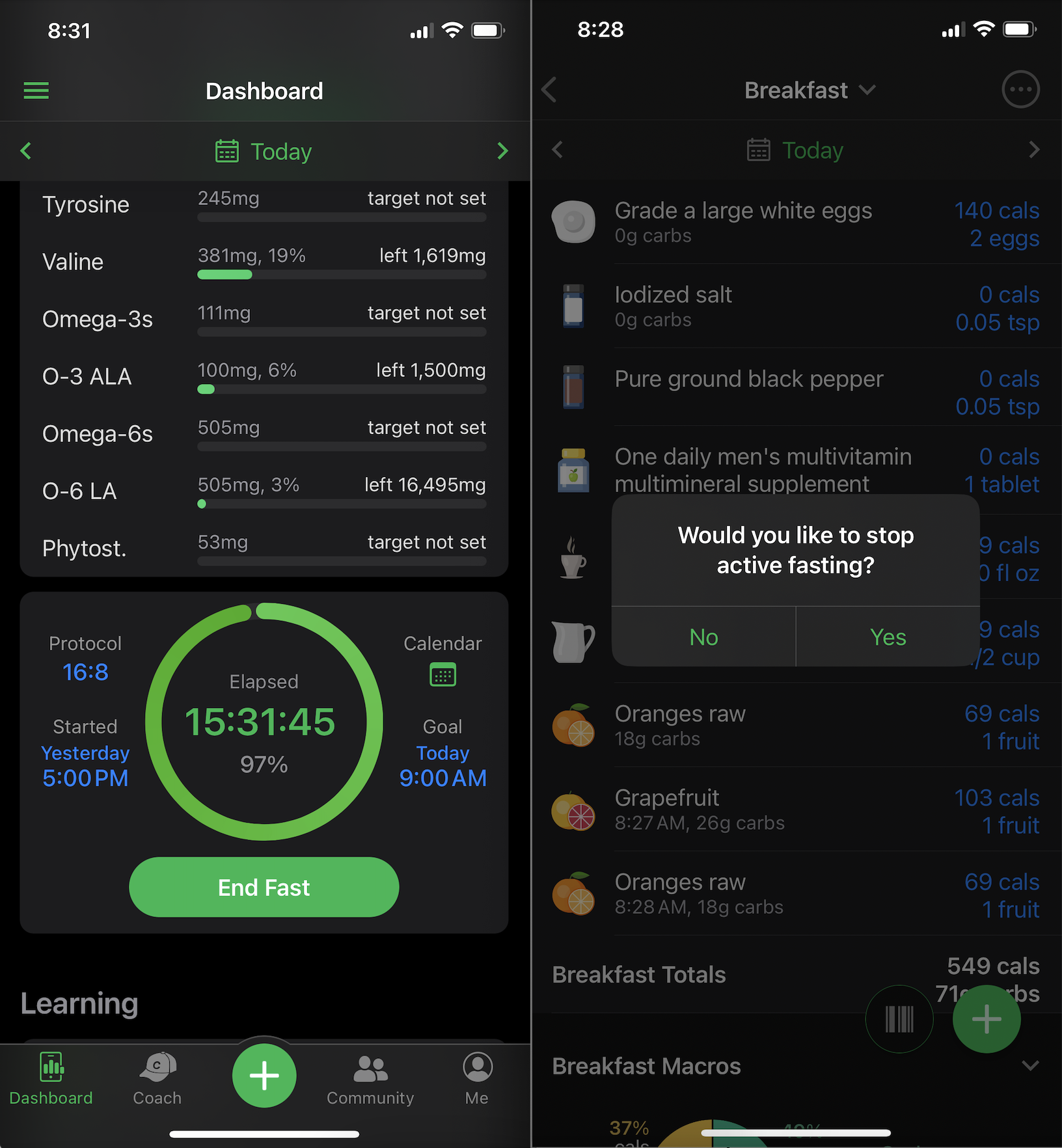
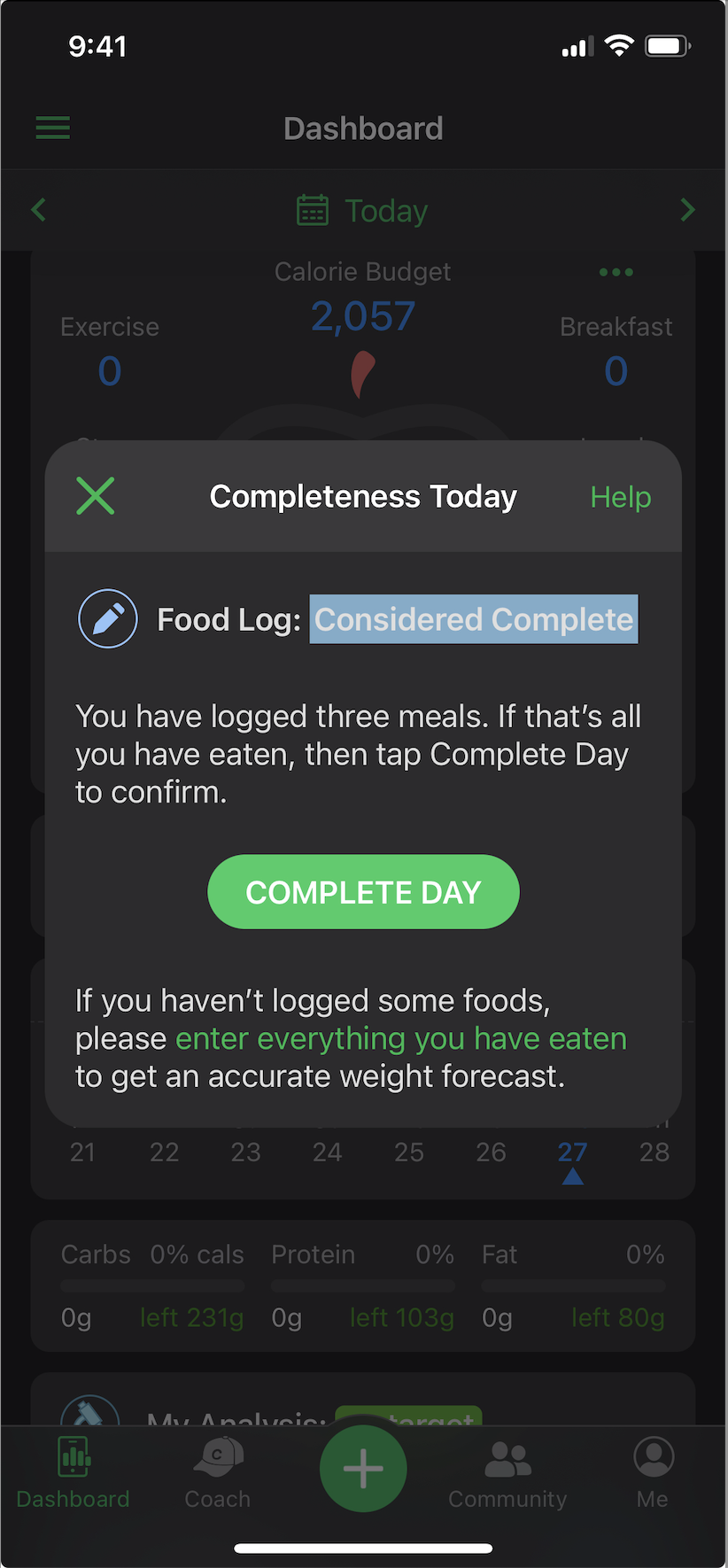
The Fasting period covering the default times of the main three meals impacts the 'Complete Day' functionality. The Calorie and Nutrient Analyzes 'consider' the day 'completed' by default, even if you haven't logged any foods to these three main meals.
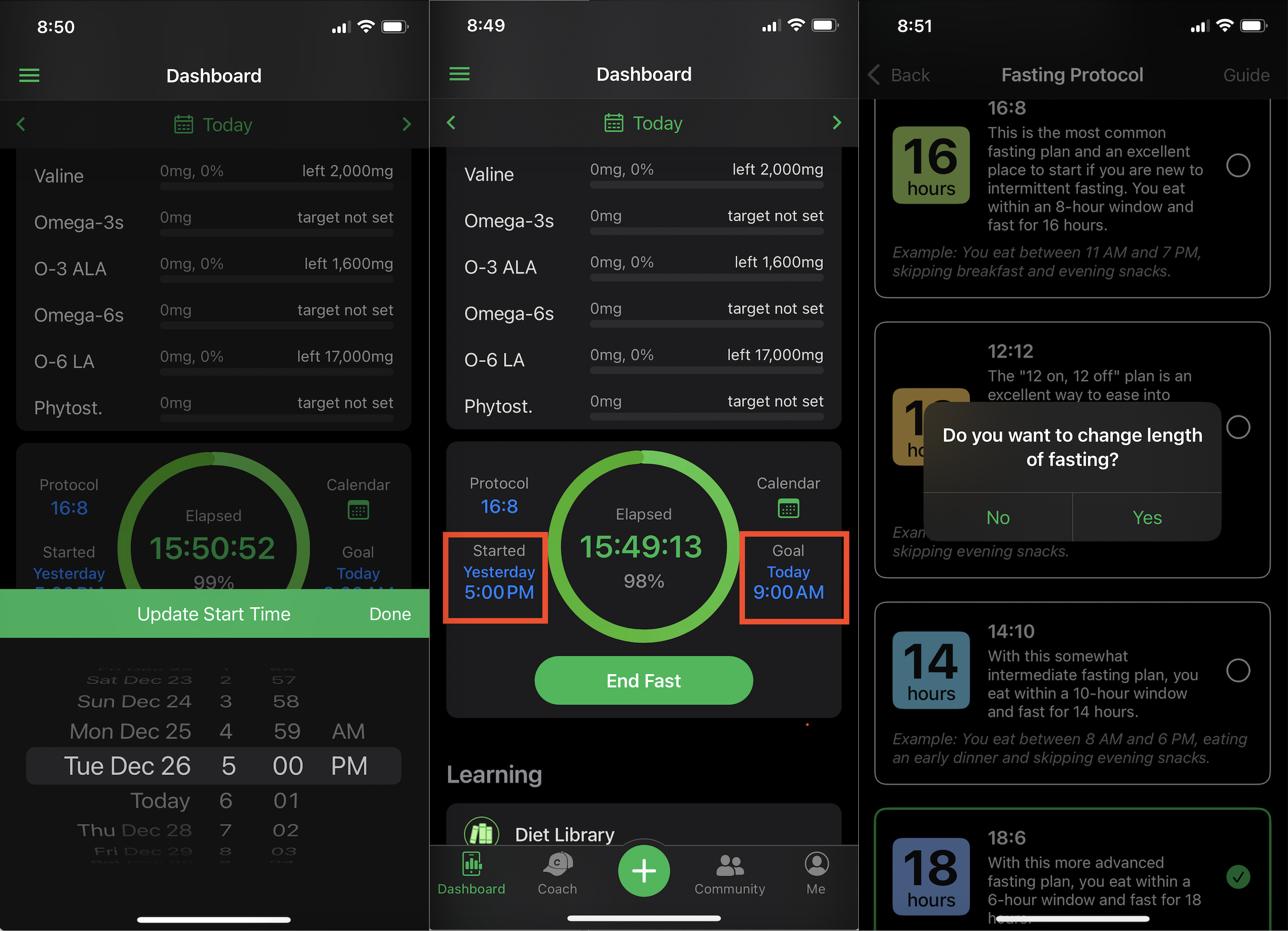
If you wish to modify the fasting protocol while an active fasting session is ongoing, you'll need to confirm your decision. During an active fasting session, you have the flexibility to adjust the start time to an earlier or later time. However, when making changes to the current fasting window length during an active fasting session, please be aware that you cannot set the start time to a future time, i.e., a time that has not occurred yet:
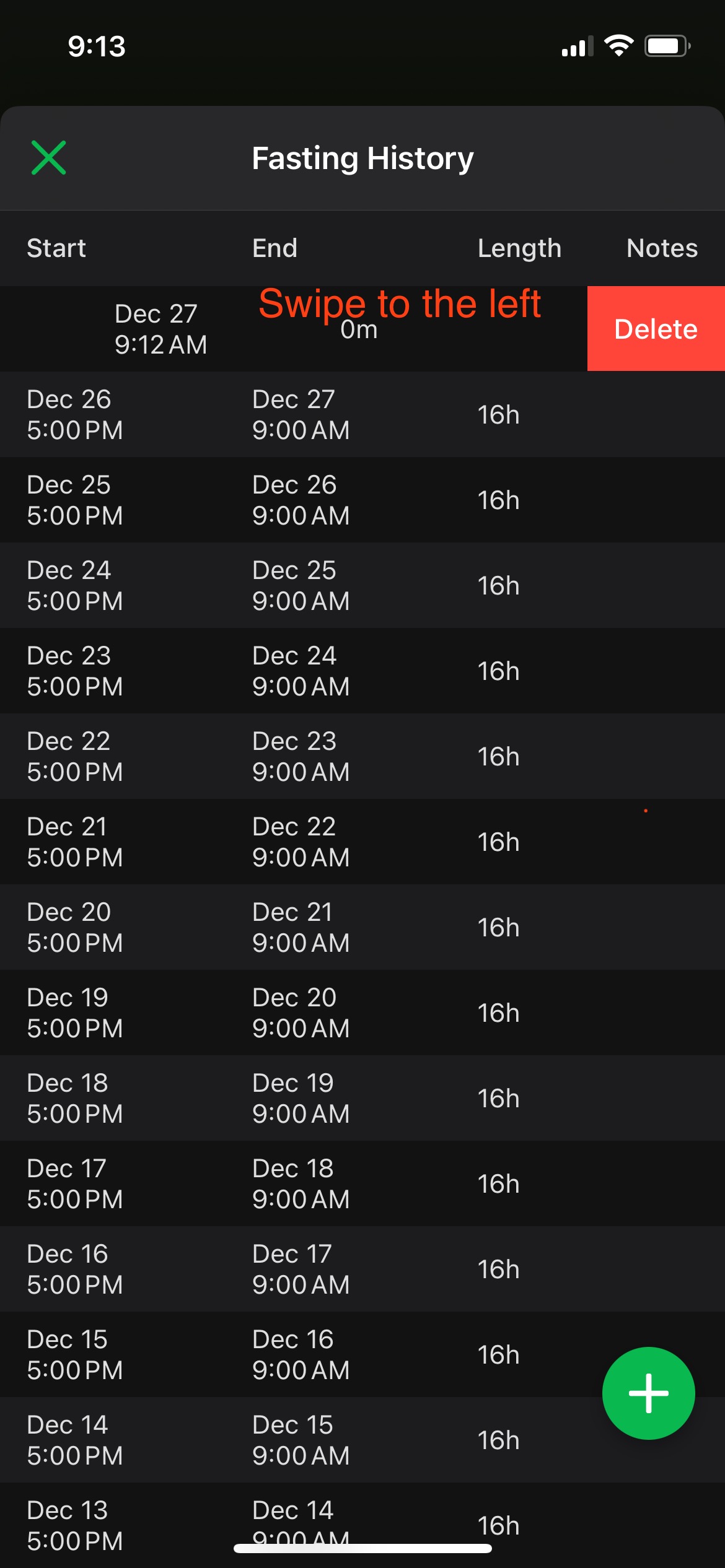
The Fasting Calendar accessed from the 'Diet Tools' section provides a visual representation of your fasting history, showing completed and uncompleted fasting windows. It also displays statistics such as the number of fasted days, total fasting time, average fasting duration, number of fasts, and the longest fast. You can view a table with historical records of your fasts, including start and end times, lengths, and notes:
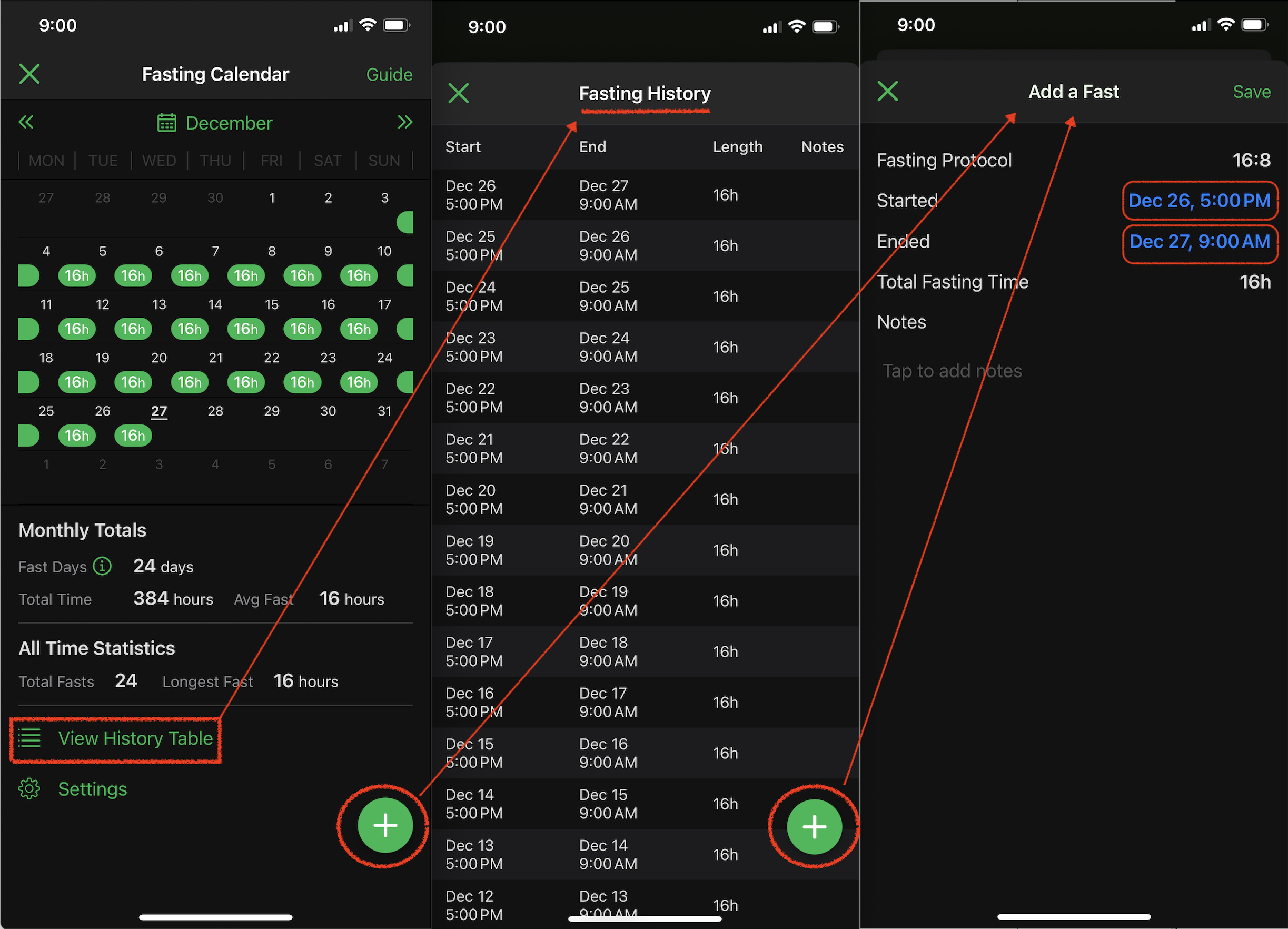
Along with adding the missing previous fasting times (if you forgot to track them in the past), it's also possible to delete the unwanted records:
Additionally, you can use widgets to display fasting timers on your iPhone and Android Home Screens, Lock Screens, and on Apple Watch, Galaxy Watch, and Pixel Watch. The smartwatch apps also allow you to start and stop fasting sessions, as well as change fasting protocol types.
Please note that the Fasting Tracker feature requires a subscription.
The Fasting Tracker helps our system better understand whether you intentionally fasted or simply forgot to log your food, leading to improved analysis and trend projections in the Diet Tools or Diet Tools section. Disabling 'Fasting Tracker' during an active fast session will automatically stop the session.
Tips for Fasting Without Using the Fasting Tracker:If you prefer not to use the built-in Fasting Tracker, there are still several ways to support intermittent fasting manually across the apps and website:
- Skipping Food Logging on Fasting Days: Days with no logged meals or total calories under 400 are not included in your calorie average by default. These days can still be marked as Completed, allowing them to count toward your energy balance without affecting your calorie trends.
- Using Calorie Cycling for Fasting Days: You can plan for lower-calorie fasting days by customizing your weekly calorie goals using the Calorie Cycling feature in the Plan section. This lets you allocate fewer calories to your chosen fasting days and more to eating days, supporting flexible fasting strategies.
- Pairing Fasting with Meal Planner: The Meal Planner tool (currently available on iOS) allows you to plan meals for upcoming days. On fasting days, you can simply delete the planned meals and mark the day as Completed, or mark it as Completed with partial logging if you consumed minimal food.