Our app, when running on iPhone with iOS 15 or later, can sync foods, nutrients (including water), body fat percentage, weight, height, BMI, lean body mass, blood pressure, heart rate, blood glucose, workouts, sleep, and more with the Apple Health app.
To protect your privacy, syncing is off by default. You are always in control of which data you allow to be shared.
Connecting to Apple Health
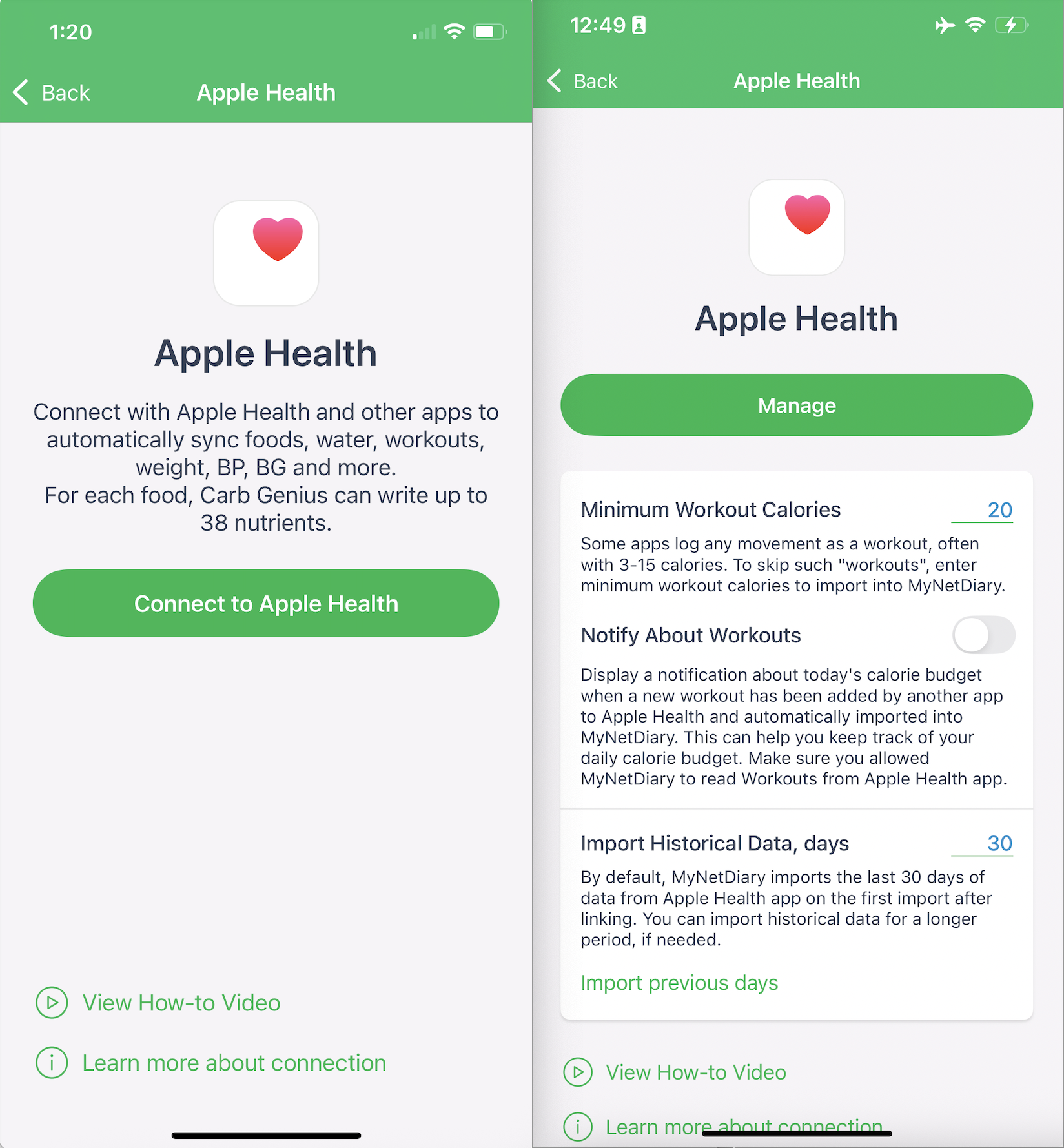
Open the app and go to Me > Apps & Devices > Apple Health.
- If this is your first time setting it up, tap the green Connect to Apple Health button.
- Choose which types of data you want to allow (both Read and Write).
- Be sure to tap the blue Allow button in the top-right corner when finished.
Managing Apple Health Sync
If you want to change your sync or linking settings later:
- Go to Me > Apps & Devices > Apple Health > Manage.
- Here you can adjust:
- Minimum Workout Calories – skip small “workouts” (default is 20 calories).
- Notify About Workouts – get alerts when a new workout is imported.
- Import Historical Data – by default, the last 30 days are imported, but you can extend this.
Adjusting Permissions in Apple Health
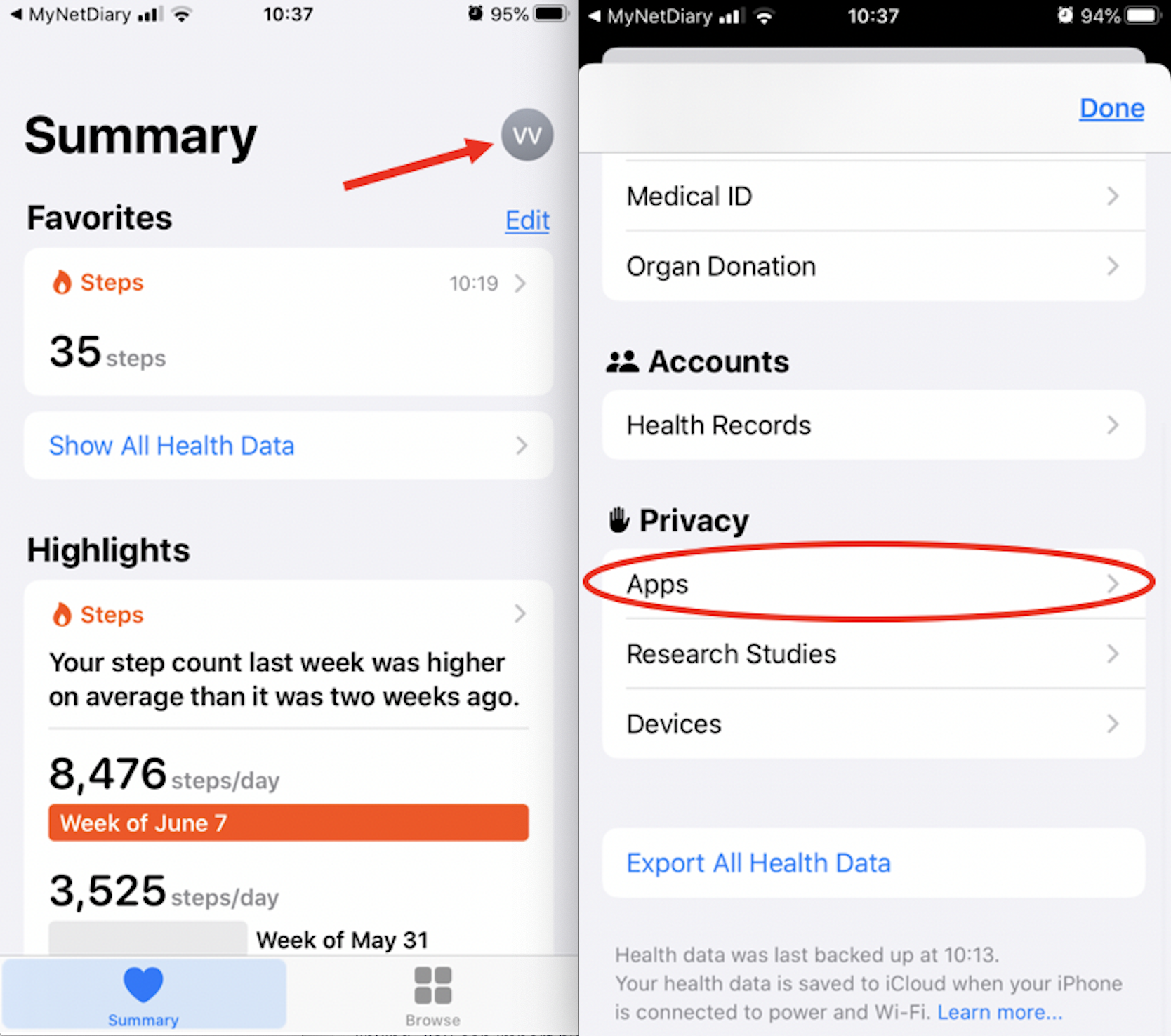
You can also manage permissions directly inside the Apple Health app:
- Open Apple Health on your iPhone.
- Tap your profile icon (top-right corner).
- Scroll to Privacy > Apps.
- Select the app, then adjust the sliders for the data you want to allow.
Data Exported to Apple Health
When enabled, the app can export:
- Detailed food and nutrient information (up to 38 nutrients).
- Workouts, weight, blood pressure, heart rate, resting heart rate, height, blood glucose, body fat percentage, BMI, lean body mass, and waist circumference.
Data Imported from Apple Health
You can import:
- Workouts
- Steps
- Weight
- Blood pressure
- Blood glucose
- Water
- Body fat percentage
- Lean body mass
- Resting heart rate
- Sleep
- Waist circumference
Troubleshooting Apple Health Sync
If data is not syncing:
- Verify that the proper permission slider is enabled in Apple Health (Allow to Read or Allow to Write).
- Check that the data is present in Apple Health itself. If another app writes the data, make sure that app is allowed to write to Apple Health.
- For workouts not showing up, confirm they meet your Minimum Workout Calories threshold (default is 20).