This interactive food label screen shows information from "Nutrition Facts" printed on packaging or published by food vendors via Internet. Tap any nutrient to see the analysis and start planning the nutrient consumption in your diet.
Important: Always start reading food label by looking at the serving size. All the other facts on the label are based on this amount. When you log food, enter the amount you ate, our app will recalculate the nutrients.
Focusing on Your Nutrients
The Food Label screen lists all visible nutrients by default. You can adjust their visibility under My Weight Goal & Plan - Nutrients - choose Food Log or Hide, respectively.
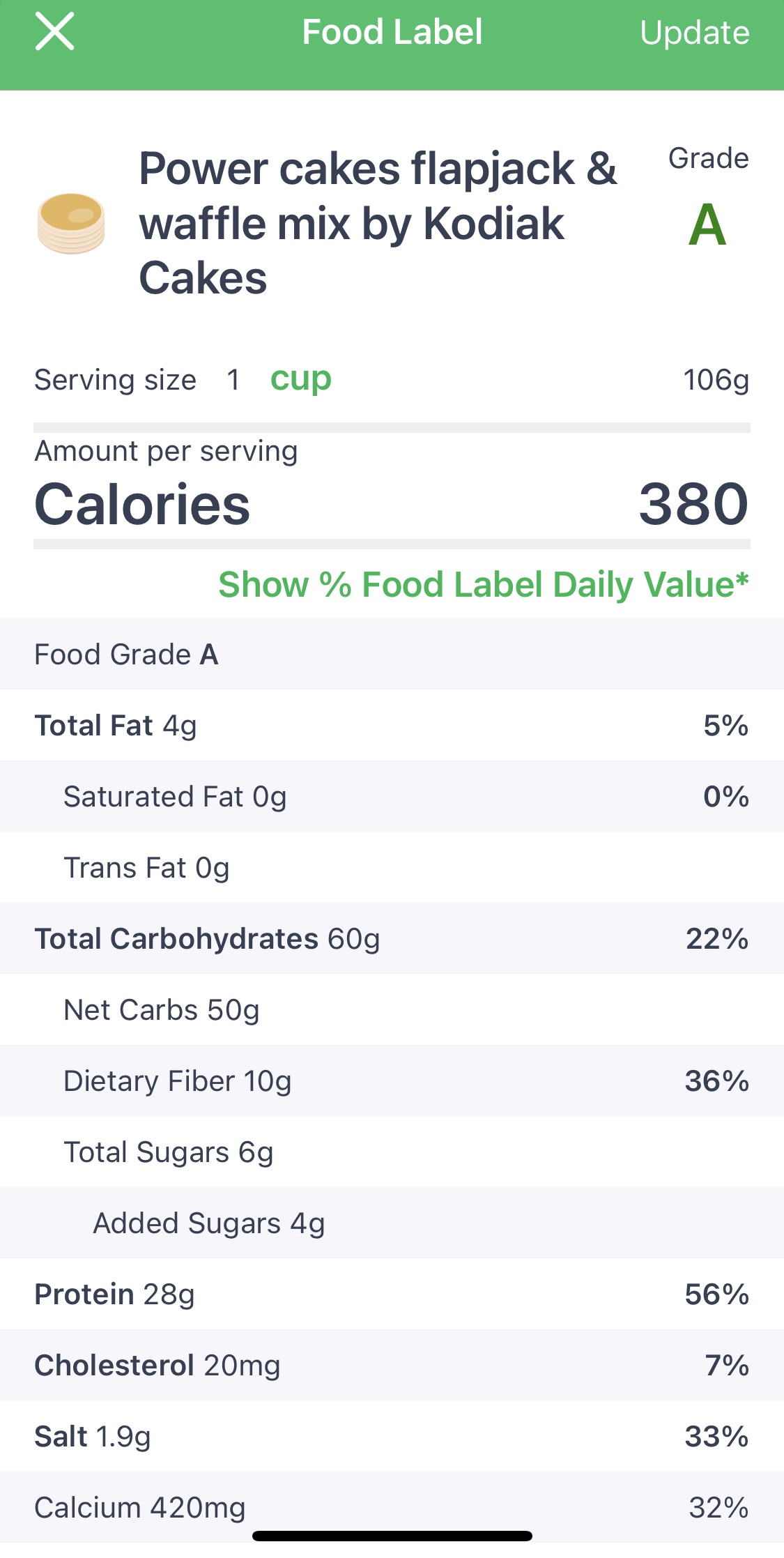
Food Grade
The Food Grade is a simple diet tool to help you compare similar foods to find the healthiest choice. Instead of reading and comparing the nutrition facts panels of several foods, Food Grade provides each food with a letter grade from A through D. Please read Food Grade article for more details.
You can always easily turn off Food Grade under App Settings - Diet Logging - Macros and Nutrients Settings - Show Food Grade.
Nutrition Facts Percentages
Percentages on Nutrition Facts allow you to evaluate quickly whether a food is rich with a particular nutrient and compare percentages for different foods. Our system stores exact nutrient values and allows you to choose how percentages are calculated on Food Label:
- % Daily Value - How much a nutrient in a serving of food contributes to a daily diet. 2,000 calories a day is used for general nutrition advice. Read more about FDA standard.
- % of My Nutrient Target - Your personal target or the standard recommendation.
Verifying Nutrition Facts
If you want to verify the Food Label against printed Nutrition Facts, make sure the serving is the same, then compare actual nutrient values, not percentages. If you do not have actual values for Vitamins & Minerals, select Show % Food Label Daily Value option and compare percentages.
You can also update Custom Food manually.
If you notice a problem with a particular food, you can submit PhotoFood request to update this specific item.