Search for or scan the food, open it, then tap the star in the top right corner. The star turns yellow and the food appears in the FAVS tab of the food search. You can also open Manage My Foods, tap Add New Favorites under the Favs tab, then search or scan from there.
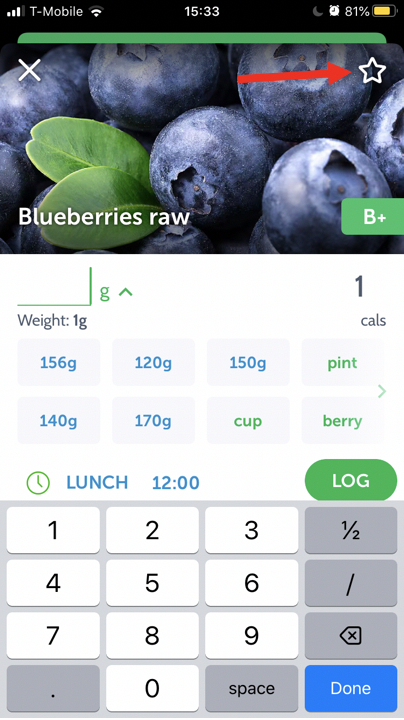
To add a food to your Favorites, search for or scan a food. Once you've found the correct food, click on it and then click the star in the top right corner:
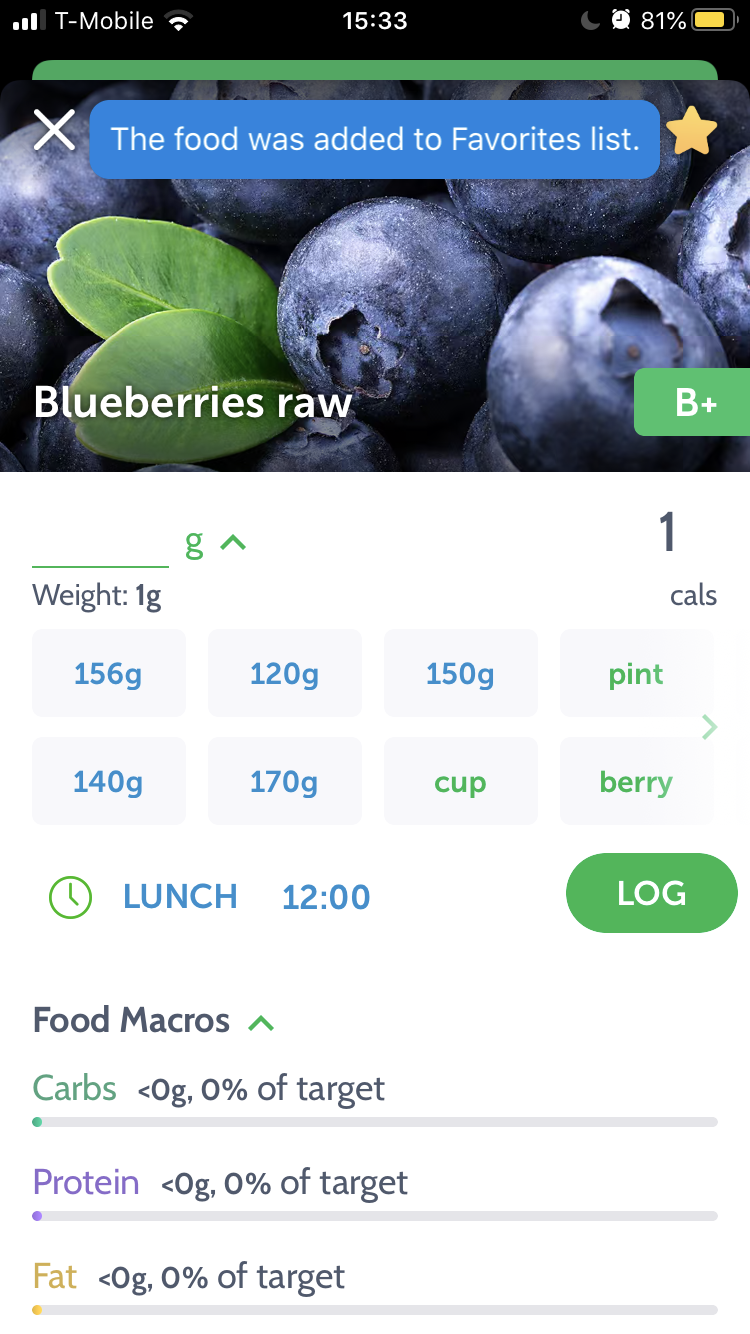
The star will turn yellow once the food has been added to your Favorites.
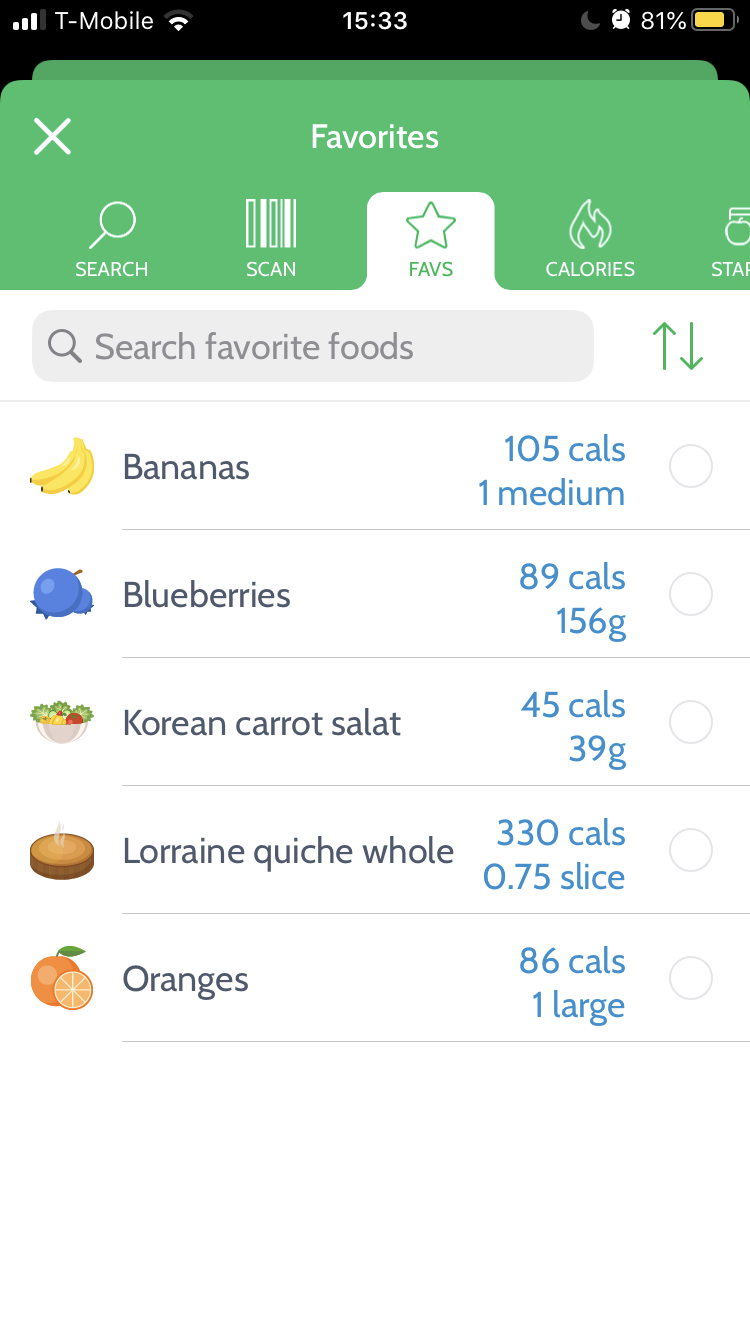
The food can now be found in the FAVS tab in the food search:
You can also add the food to Favorites (Favs) via the Manage My Foods section which can be opened via the top-right menu. Just tap the Add New Favorites green sign under the Favs tab, then, search by typing the food name or by scanning the product barcode. Tap the Add button on the top-right corner of the Food Label screen. The new item will appear in your Favorites catalog.
Related questions
How do I add a searched or scanned food to Favorites?
Search for the food or scan its barcode, open the correct food, and tap the star in the top-right corner. This adds the item to Favorites, where it becomes available from the FAVS tab in food search.
How can I tell that a food was added to Favorites?
The star in the top-right corner turns yellow after the food is added. The item then appears in the FAVS tab of food search, providing a second way to confirm that it is now in your Favorites catalog.
Can I add a Favorite from Manage My Foods?
Yes. Open Manage My Foods from the top-right menu, choose the Favs tab, and tap Add New Favorites. Search by food name or scan the barcode, then tap Add on the Food Label screen to place it in Favorites.
Was this article helpful?
23% of 115 readers found this helpful.
Did Not Find It?
Email support@mynetdiary.com or send a request from the app under Me, then Support. Most replies within one business day.