Auto Logging is a powerful feature that lets you automatically log specific foods on a schedule you define—no daily input required. It's perfect for routines like morning coffee, daily supplements, or any food you eat consistently.
The feature is simple and fully customizable. You can set the time and date when your food is logged and even set multiple schedules for the same food, different times on different days if needed.
For example, you can have your protein shake auto-logged at 10:00 AM on weekdays and 9:00 AM on weekends. Do note, however, that the auto food logging will only be triggered on app launch and won't happen if you are actively using the app during the designated logging time.
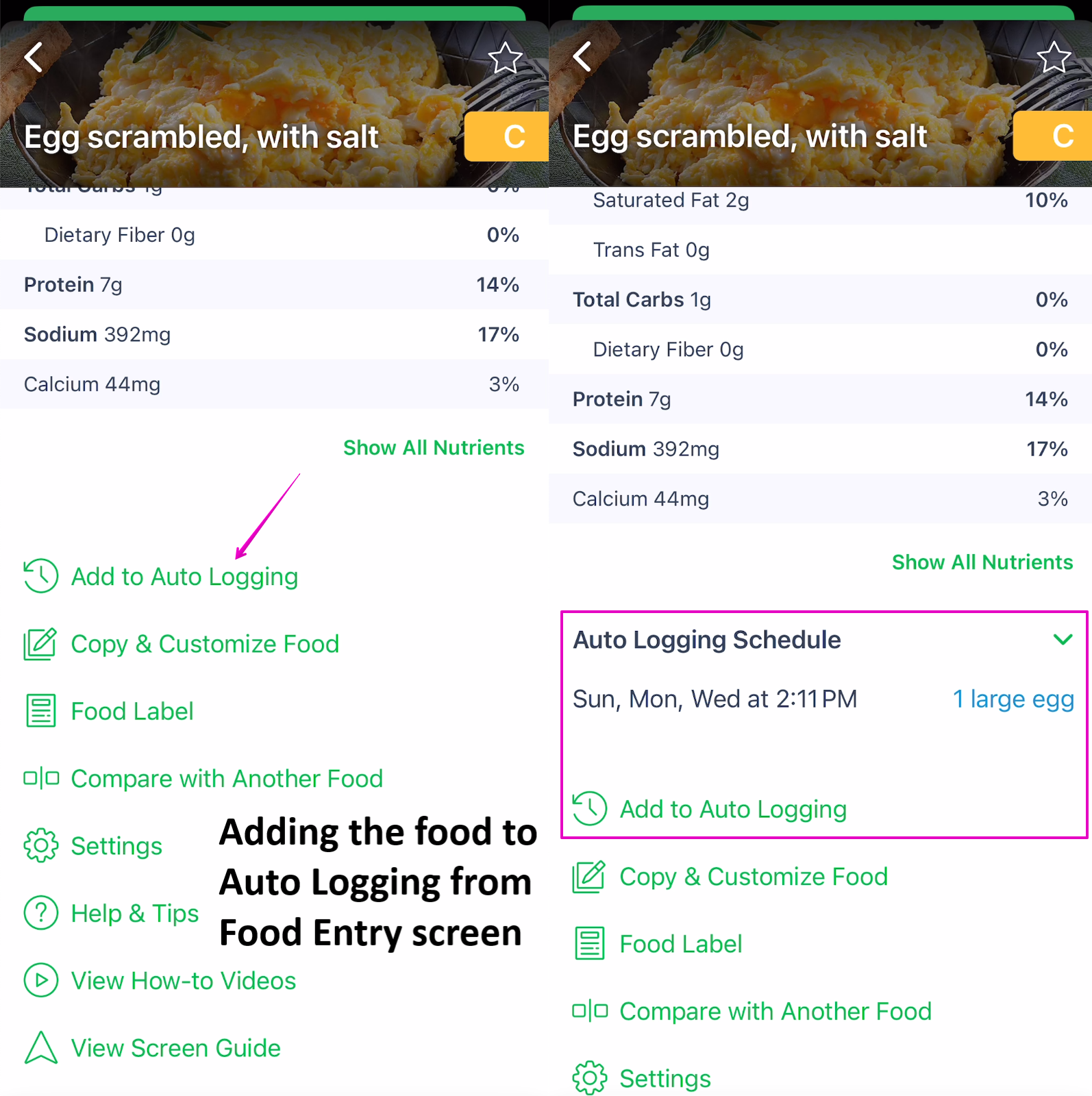
There are three ways to Set Up or Edit the Auto Logging feature. The first and most easily accessible one is via your Food Entry screen.
Tap on a food already logged in your diary and then scroll down and tap Auto Log. Set or adjust the days and times as needed.
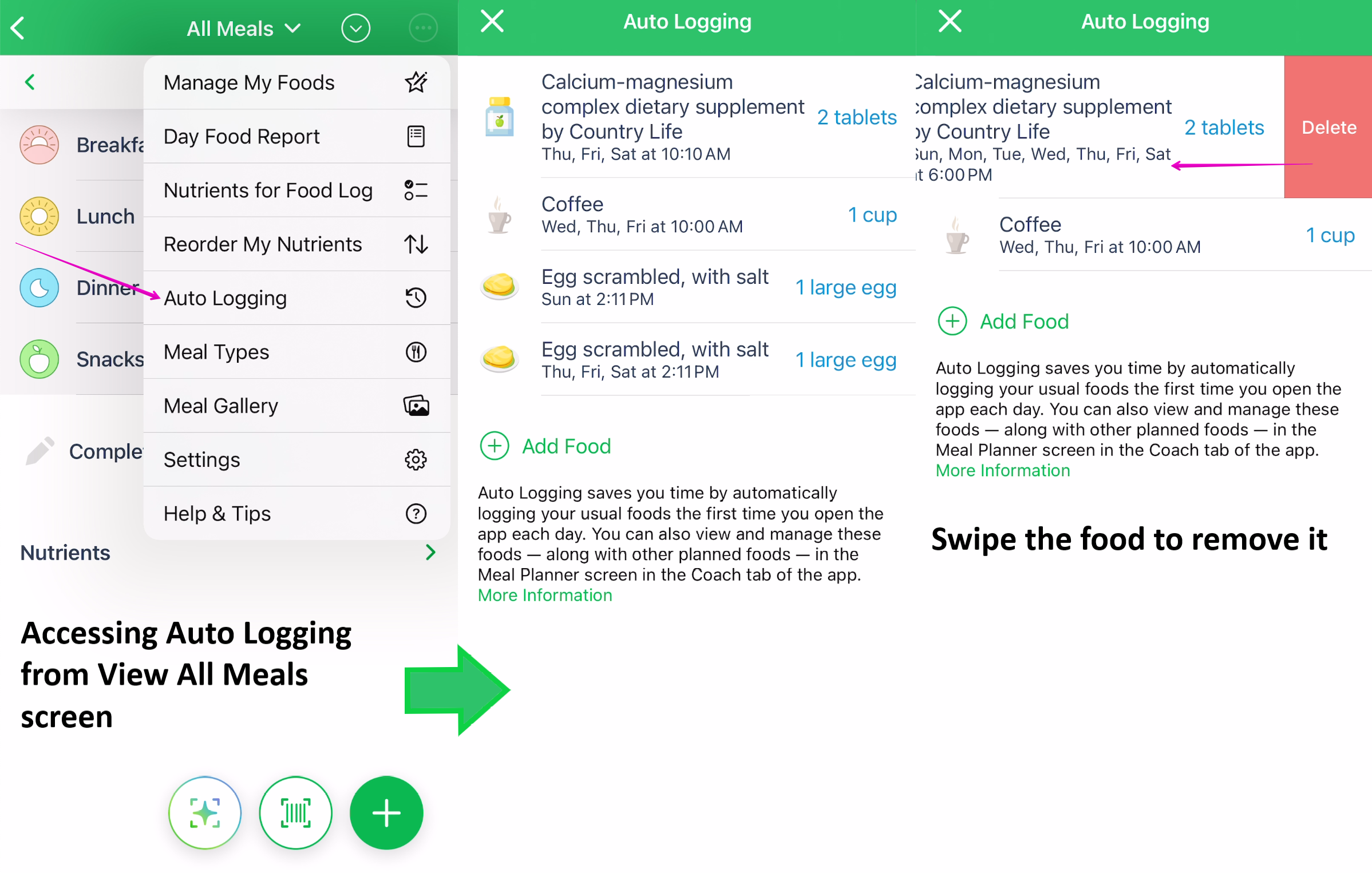
The second way to access the feature is through the Auto Logging screen located under any Meal tab. Open any meal (eg. Breakfast) and then tap on "3 dots" in the upper right corner to find Auto Logging.
Tap Add Food to schedule a new item, or tap an existing food to edit its schedule or add additional times. You can also swipe left to remove a food.
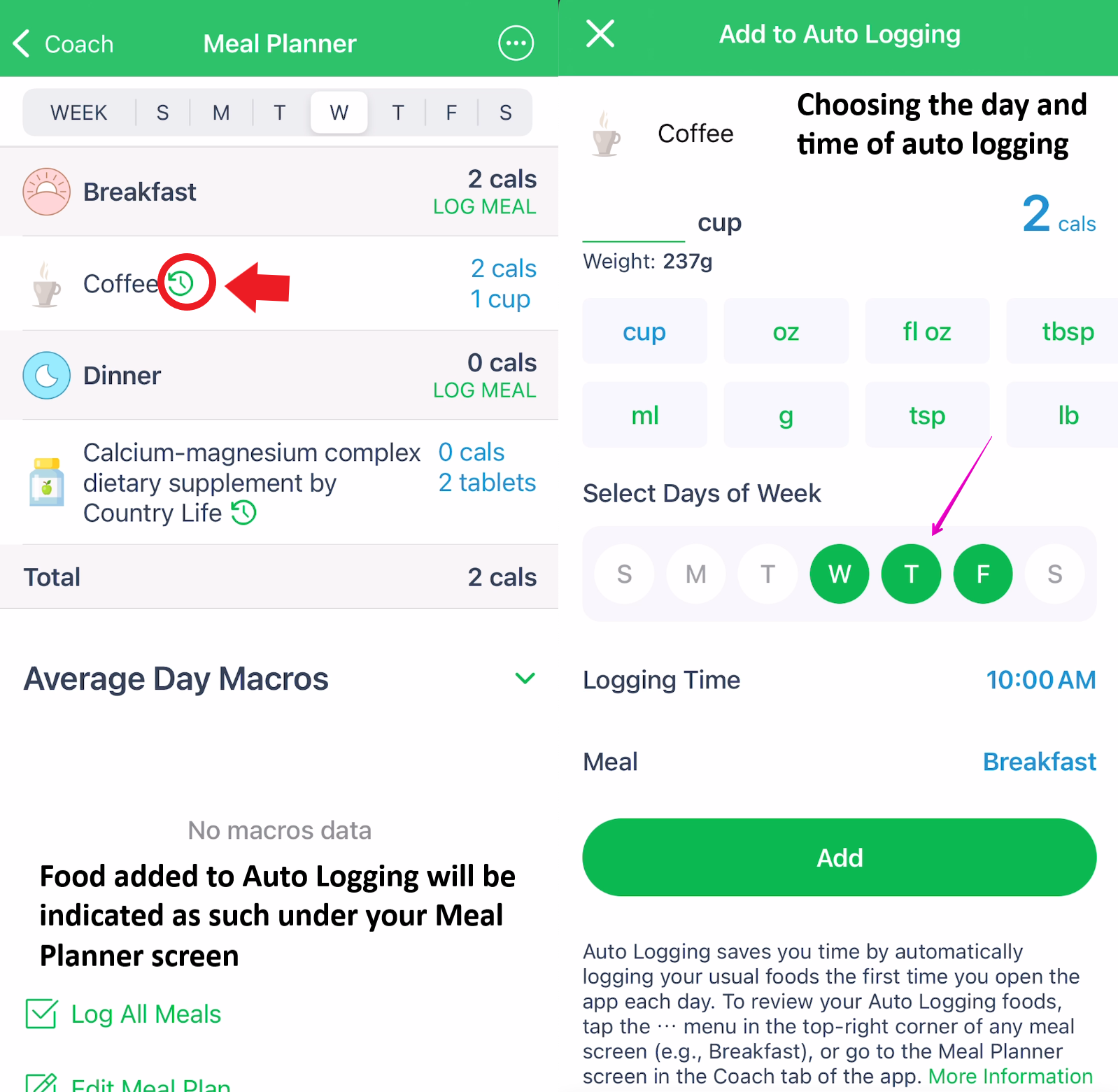
A third way to use the feature is through the Meal Planner tool. Foods with an Auto Logging schedule are marked with a green icon Tap the food to set, adjust, or remove its Auto Logging schedule.
Food under your Auto-Logging screen can be sorted alphabetically or by days of the week. Please note the food will not be auto logged before your indicated logging time.
Example: if your coffee has a logging time of 10:00 AM then you will not see it logged when opening the app at 08:00 AM, but once you open the app after 10:00 AM - the food will be auto logged by our app.
Auto Logging Interface on Android
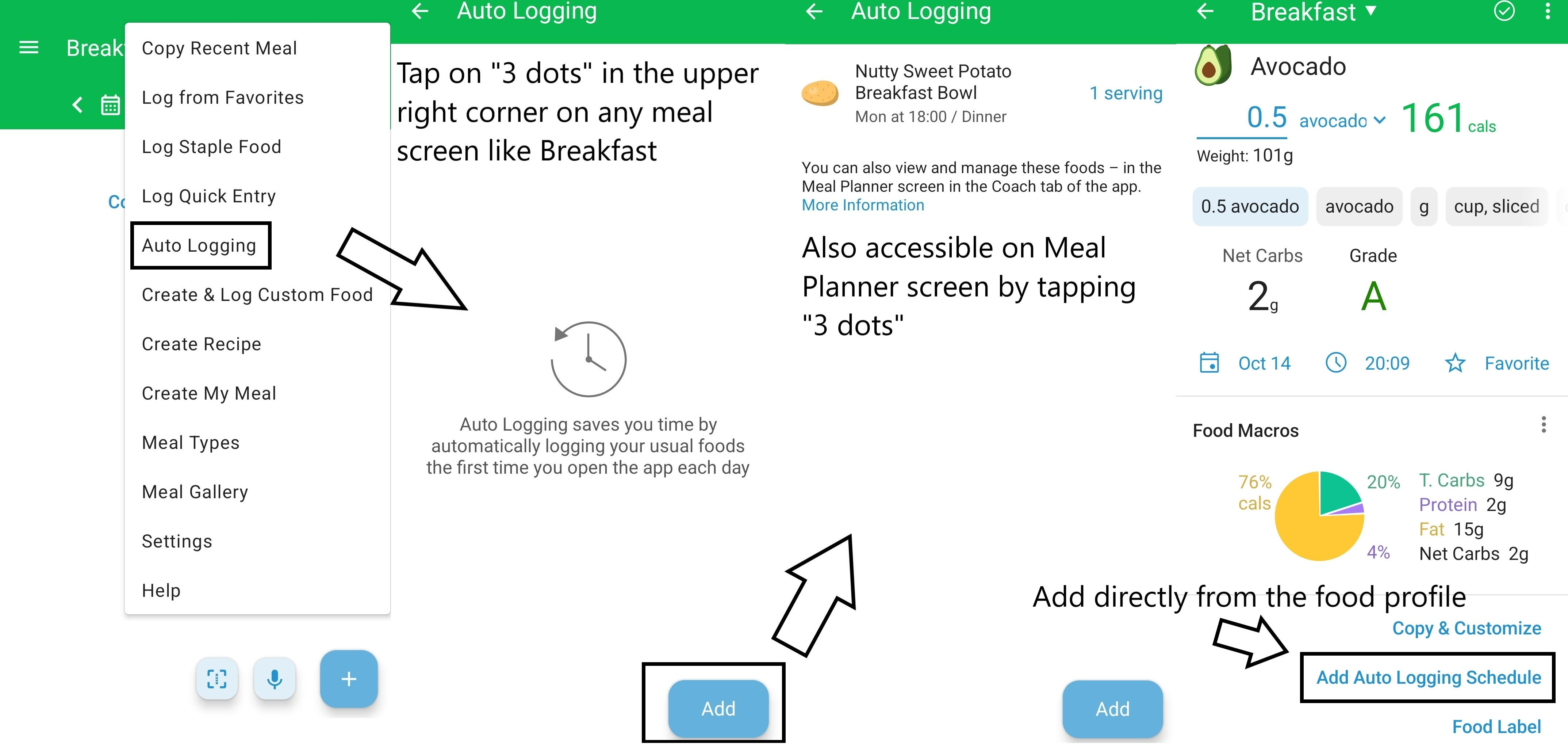
Outside of slight design differences, the feature is very similar to the iOS version and works the same way. You can access it from any meal screen, Meal Planner, View All Meals screen, or directly from the food profile.
Just like with iOS version, food added to Auto Logging will have an indicator next to it in your Meal Planner.