There are two options to copy a previous food entry to another day or meal.
Copying from the Currently Open Meal
If you are in the food log, looking at the meal or food entry you want to copy, you can use Group Copy/Edit Food Entries button at the bottom of the screen or Copy/Edit Food Entries menu item from the top-right menu. Select all the food you want to copy and tap the Copy or Move button at the bottom of the screen. Select the day and meal you want to copy or move to.
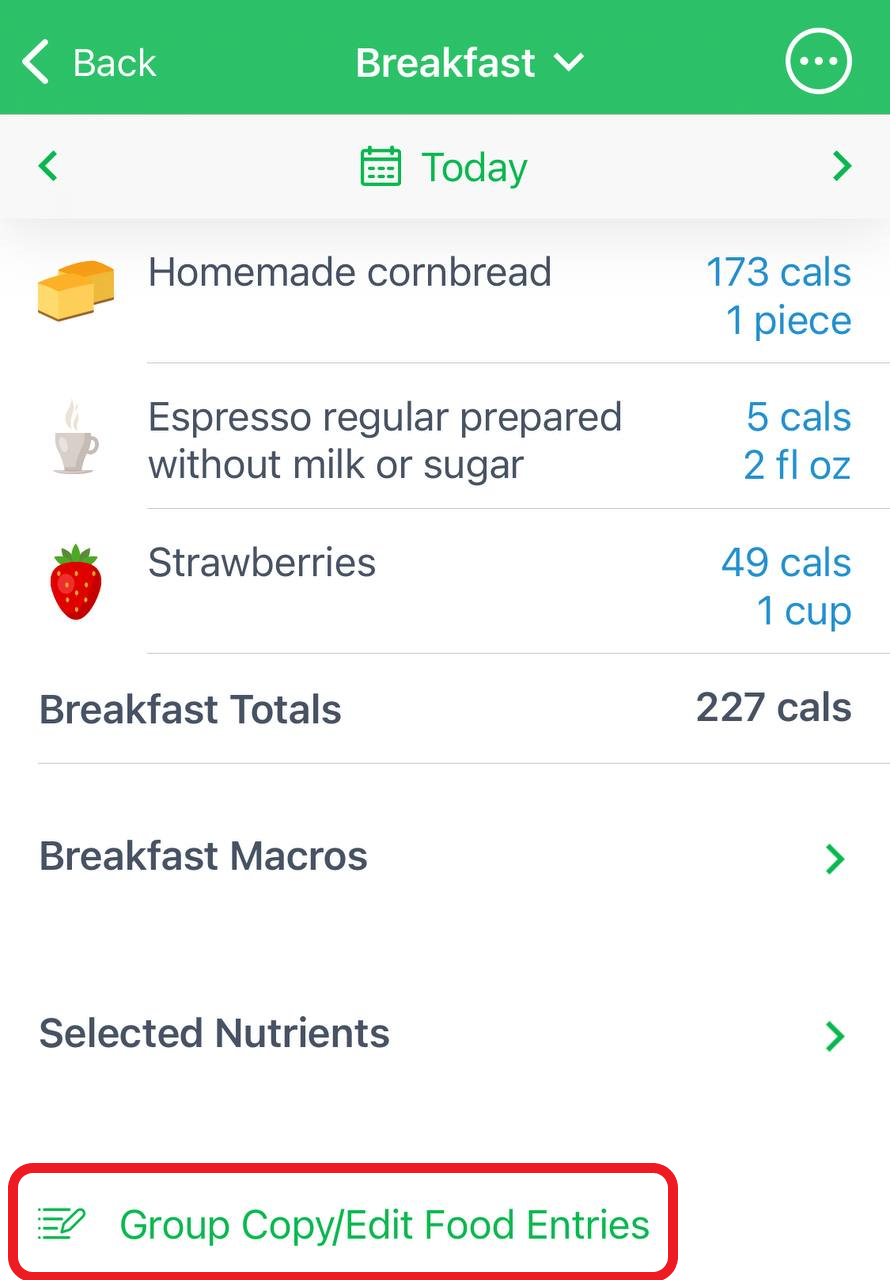
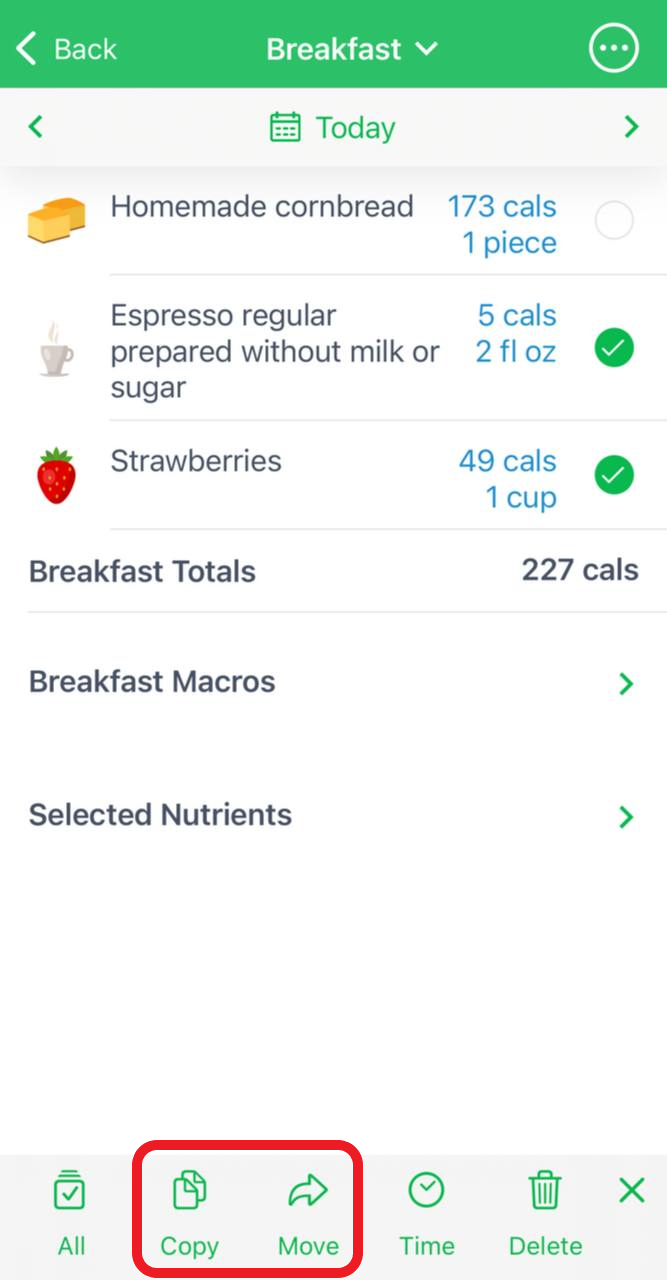
You can also use this Group Copy/Edit Food Entries tool to copy, delete, or change timestamps of many food entries at once.
Copying to the Current Meal or Day
Another option is to tap on any meal, use the "+" button, then go to the Recent tab in food search, scroll to the day you want to copy from. On that day, tap on the meals you want to copy from to expand them, then select the food entries or entire meal you want to copy. Click Log.
With this option, you can copy multiple food entries or even all meals from a recent day to the current day you are logging.
Copying and moving food on Android
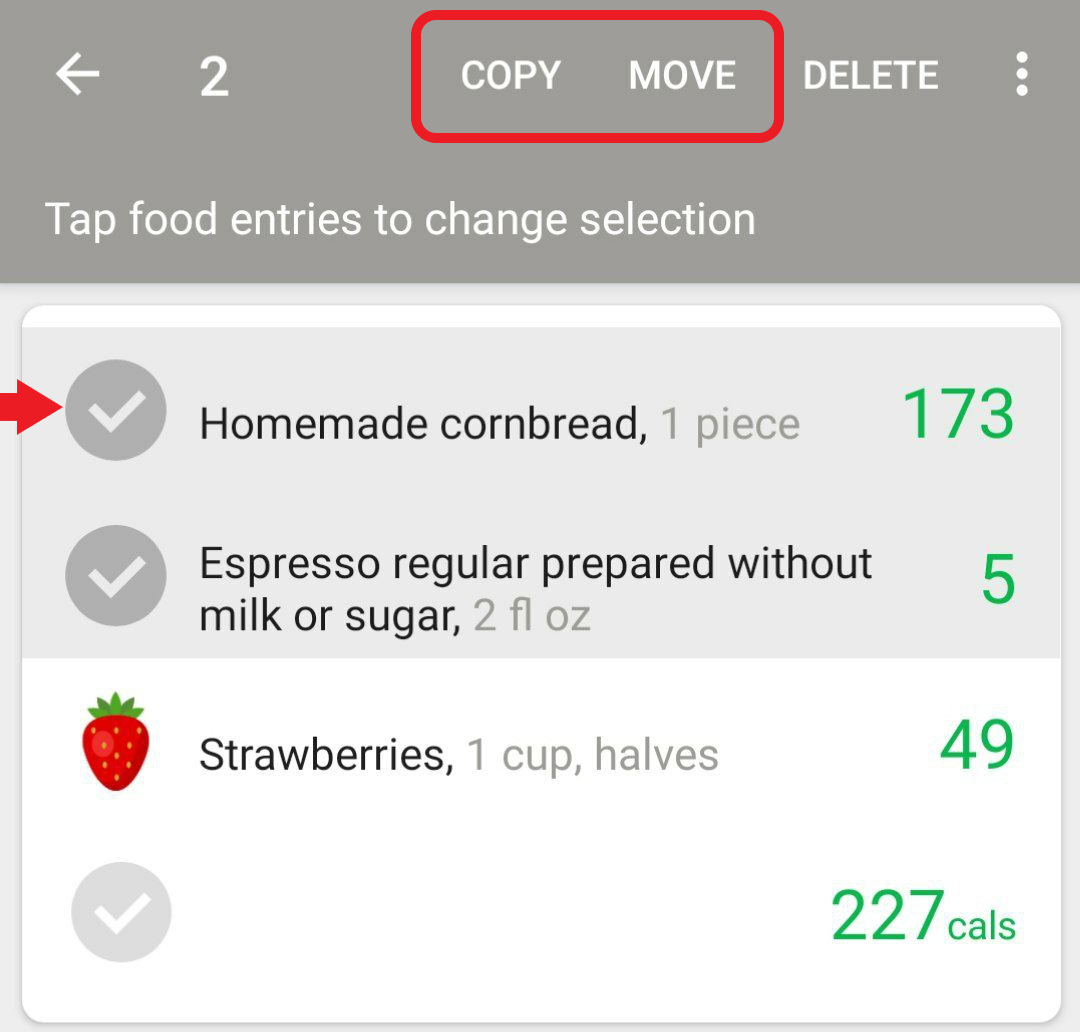
Tap and hold the food entry under any meal (Breakfast, Dinner, etc.). You should see the grey menu opening above with options Copy and Move:
Check out this particular functionality in this brief demo video and more about advanced food logging in this tutorial video.