Customizing meal types in our app allows you to accurately track your eating patterns according to your personal schedule and preferences. Whether you need multiple snack meals, special meals for drinks and supplements, or pre- and post-workout meals, the app supports all of these options.
Here's how to personalize your meal types:
- Open our app: Start by opening our app on your device.
- Navigate to Settings: On the iPhone\Android apps, tap on the 'Me' tab, and then select 'App Settings'. On the iPad app, tap the '<' icon on the upper-right corner and choose the 'App Settings' from the left-side menu.
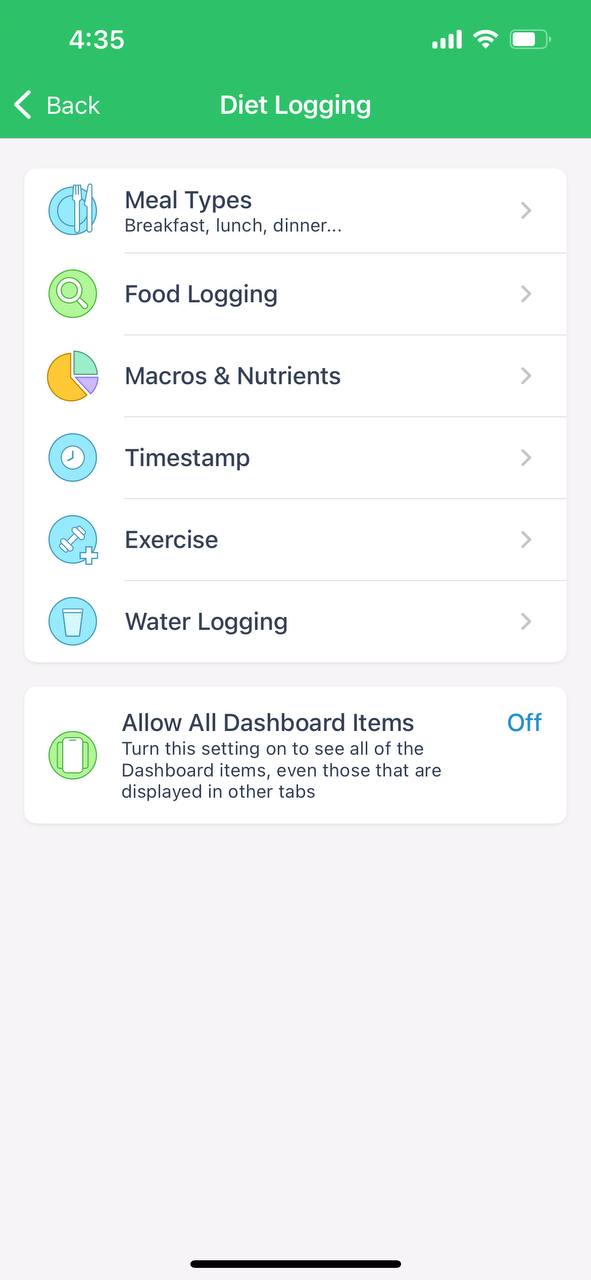
- Access Diet Logging: In the App Settings, find and tap on 'Diet Logging'.
- Modify Default Meal Settings: Scroll to find 'Default Meal Settings'. This is where you can adjust your meal structure.
- Add or Edit Meal Types:
- To add a new meal type, tap on the 'Add Meal Type' button. Enter the name of the new meal type, such as "Morning Snack" or "Pre-Workout".
- To customize or rename existing meal types, tap on the meal you wish to change. Here, you can also re-order the meals by dragging them into your preferred sequence using the handle icon on the right.
- If you want a meal type to appear on your Dashboard for quick access, ensure the 'Show on Dashboard' option is toggled on.
- Select Meal Type Icon: Choose an icon that best represents your meal for easy identification.
- Saving Your Settings: Once you have made your changes, don't forget to tap 'Save' to ensure your custom meal types are updated.
- Review on Dashboard: Head back to your Dashboard or 'All Meals' screen to see your new meal structure in action.
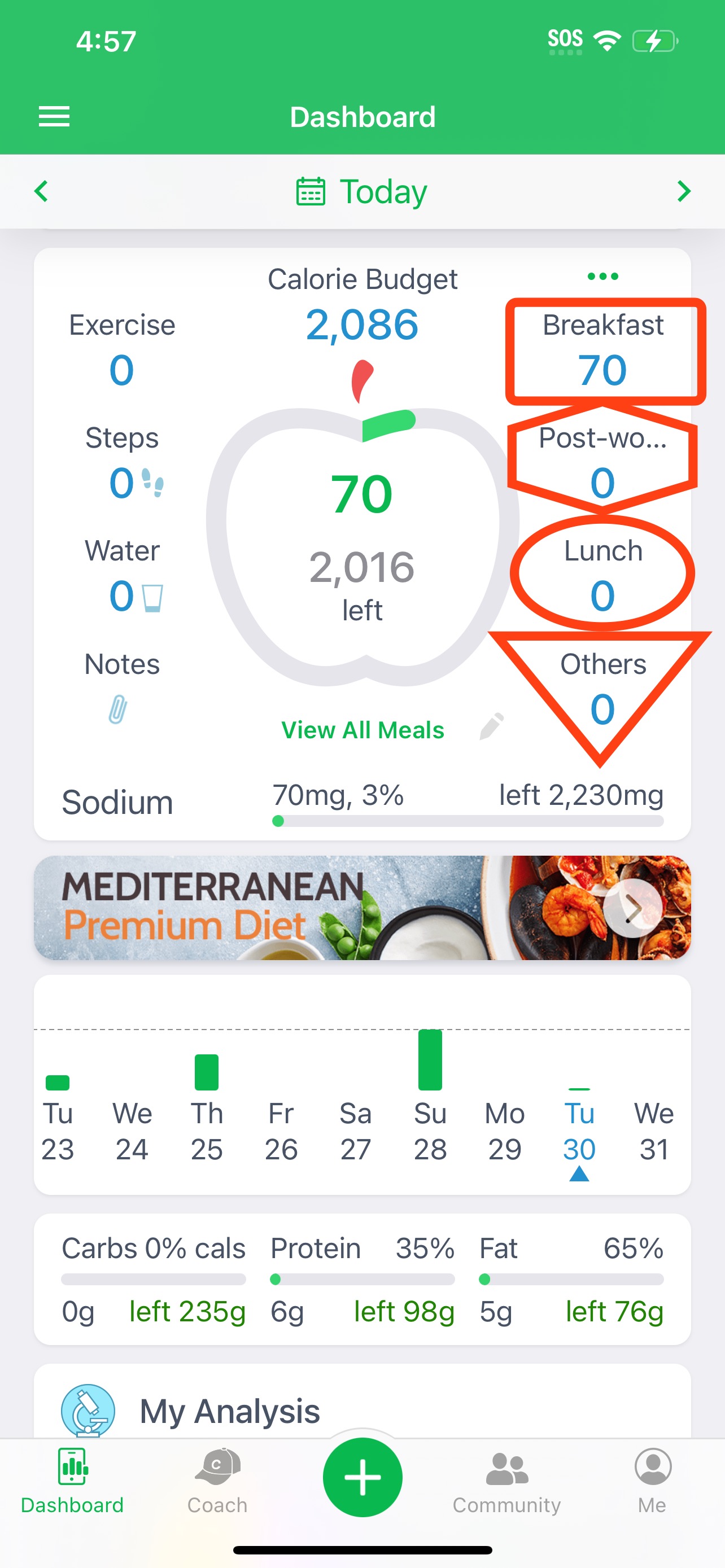
Remember, only three meals can be displayed individually on the dashboard, but you can access additional meals under the "Others" category.
By customizing your meal types, you'll be able to keep a more accurate diary that reflects your unique eating habits. If you encounter any difficulties or need further assistance, please reach out to our support team for help.
FAQs
Q: Can I create more than one snack meal type?
A: Absolutely! You can create multiple snack meals to suit different times of the day.
Q: What happens if I create more meal types than can be displayed on the dashboard?
A: Additional meal types beyond the three displayed will be listed in "Others" on your dashboard, but all can be accessed in the 'All Meals' screen.
Q: Can I change these settings later?
A: Yes, you can edit your meal types at any time by revisiting the 'Default Meal Settings' under 'Diet Logging'.