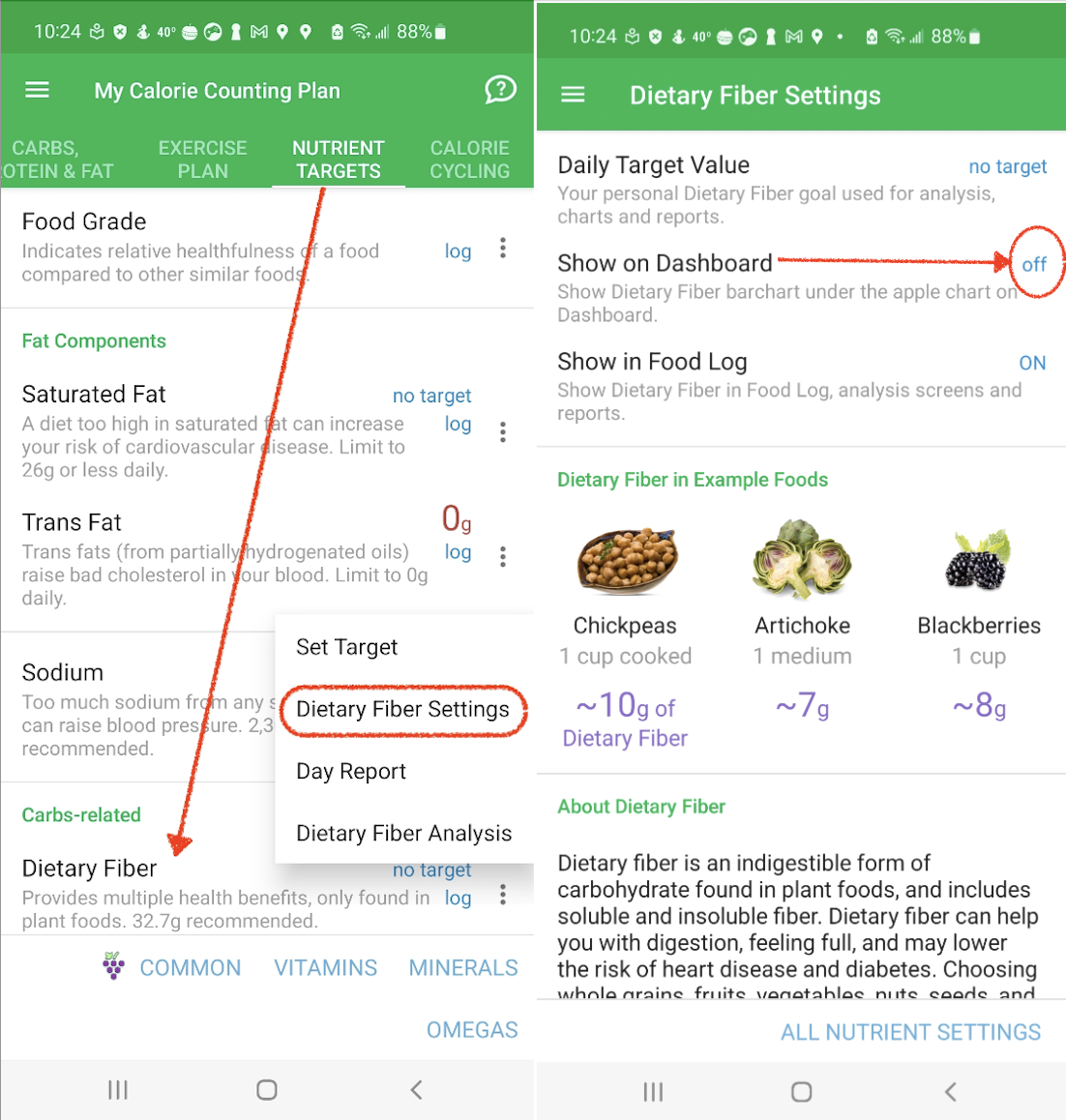
On the Home screen, you can enable the nutrient totals in the following way:
- navige to the My Weight Goal & Plan item
- swipe the top navbar to the left and tap the Nutrient Targets
- tap the three-vertical-dots to the right to a particular nutrient you want to unhide from the Dashboard (e.g., Dietary Fiber) and choose the Dietary Fiber Settings option from the popup menu
- on the Dietary Fiber Settings screen, tap the Dietary Fiber Visibility and, then, the Dashboard & Food Log
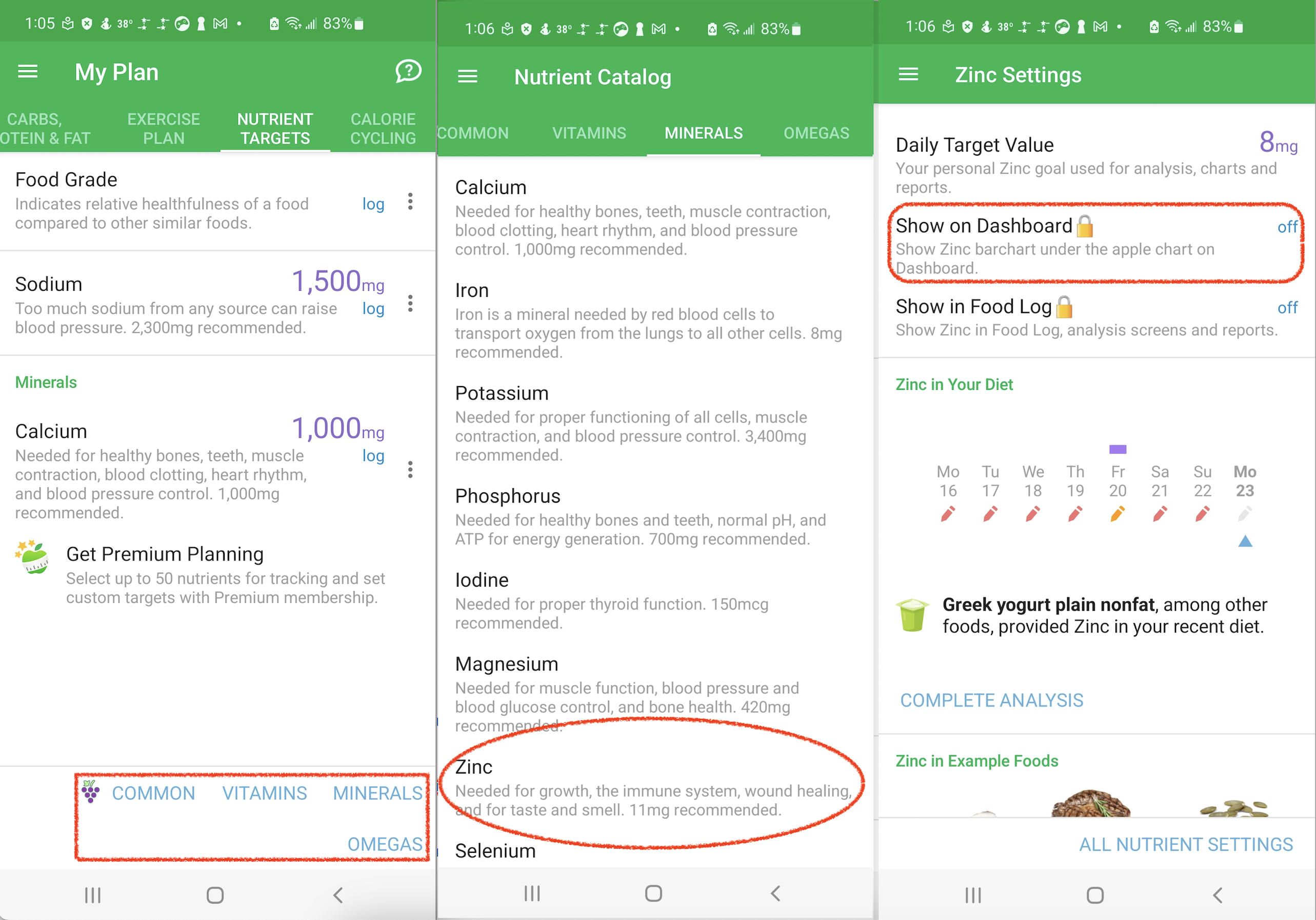
There is also another way to enable the nutrient totals on the Home screen. Enter one food for the day, go to Dashboard, and scroll to the bottom. Then, tap Customize, Show Nutrients, and tap the desired nutrient (e.g., 'Calcium'). Then, tap the Set Target > Calcium Settings > Calcium Visibility > Dashboard & Food Log.
Displaying nutrient totals on the Home screen requires a subscription. This feature expands on basic nutrient tracking by showing daily totals at a glance. With a subscription, you can enable this option in the settings of each specific vitamin, mineral, or other nutrient: