MyNetDiary and PlateAI allow users to create their own food, recipes, and meals. This article will explain how to access them on 3 different platforms, as well as provide some useful guidelines.
Managing your Food on iOS
Your custom-created food, recipes, and meals are located under Manage My Foods screen, which can be accessed by clicking Me for iPhone users and the left-side menu for iPad users
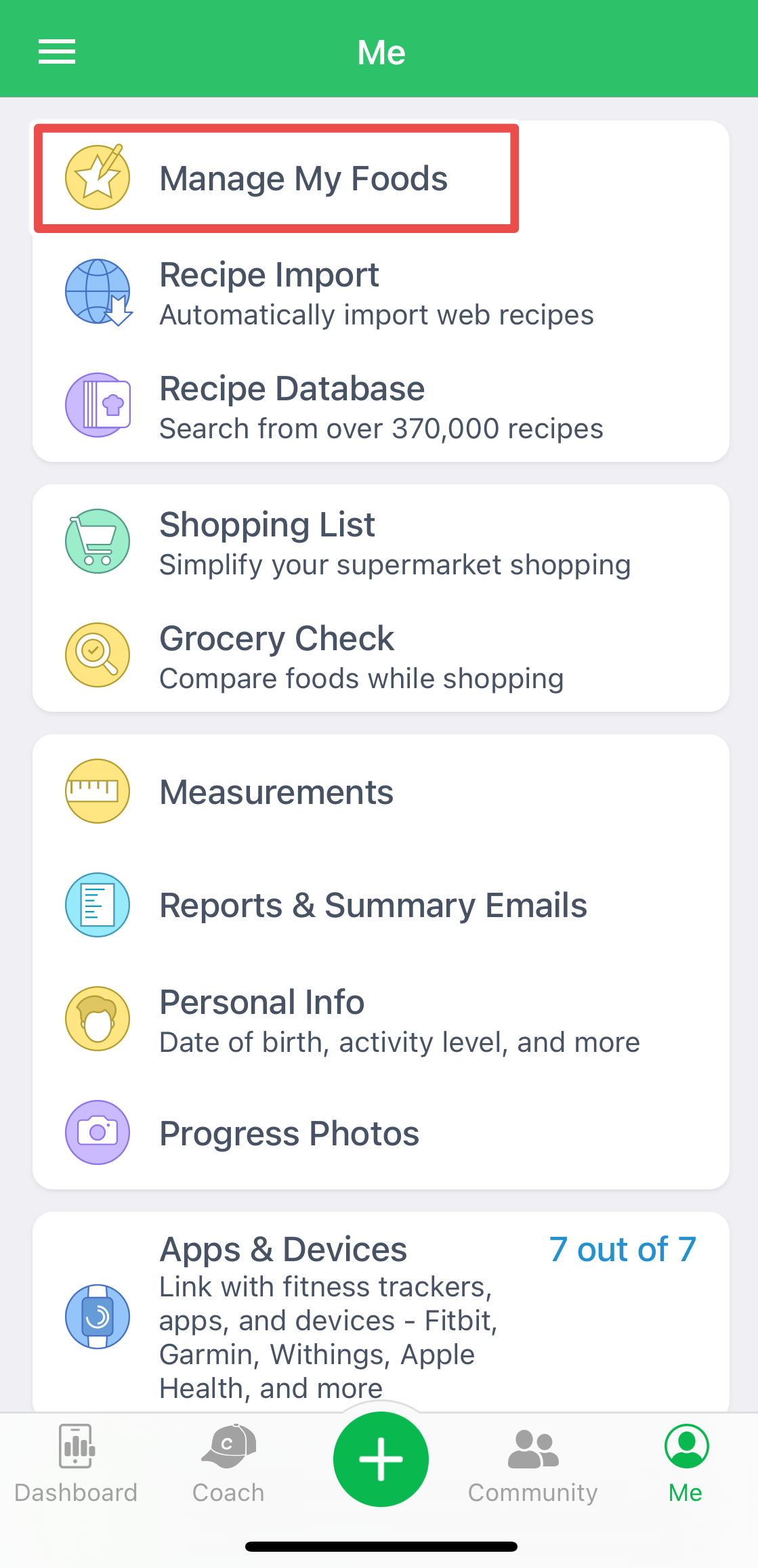
The upper bar with the tabs Favs and Frequent can be scrolled right and left to reveal more sections. Each of the three tabs (Custom, Meals, Recipes) will allow you to Create, Edit or Retire the entries.
You can also manage the entries on iOS while you are logging food. Scroll the bar with tabs Search and Scan to the left. You will be able to locate the three tabs (Custom, Meals, Recipes). To Edit the entry instead of logging it - tap it once. The resulting screen will contain the option to edit the entry. For recipes you would have to click View Recipe first.
Managing your Food on Android
Your custom created food, recipes, and meals are located under My Foods section which can be accessed by swiping the left edge of your screen to the right. Also, you can find it in Manage My Foods menu under the Me tab:
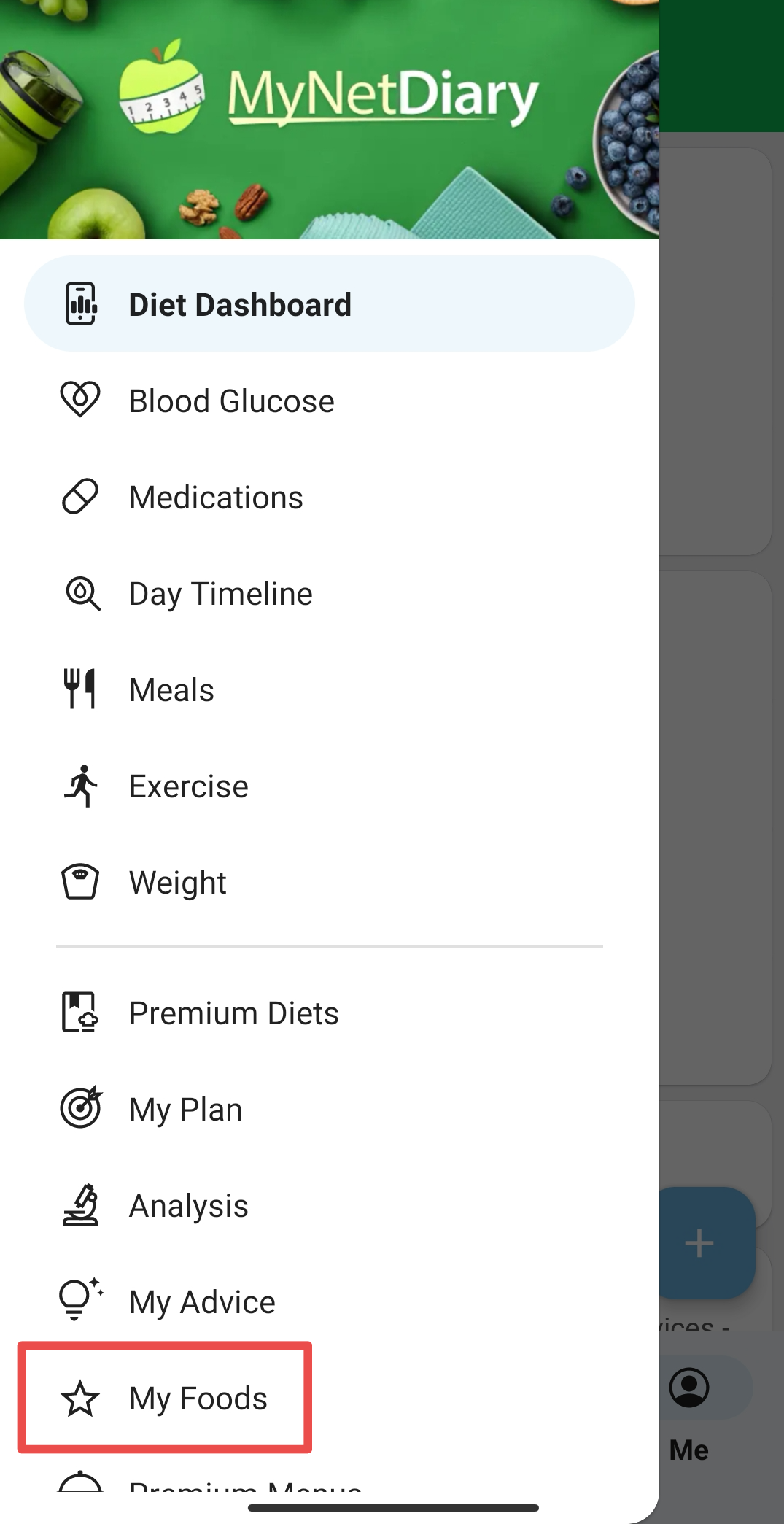
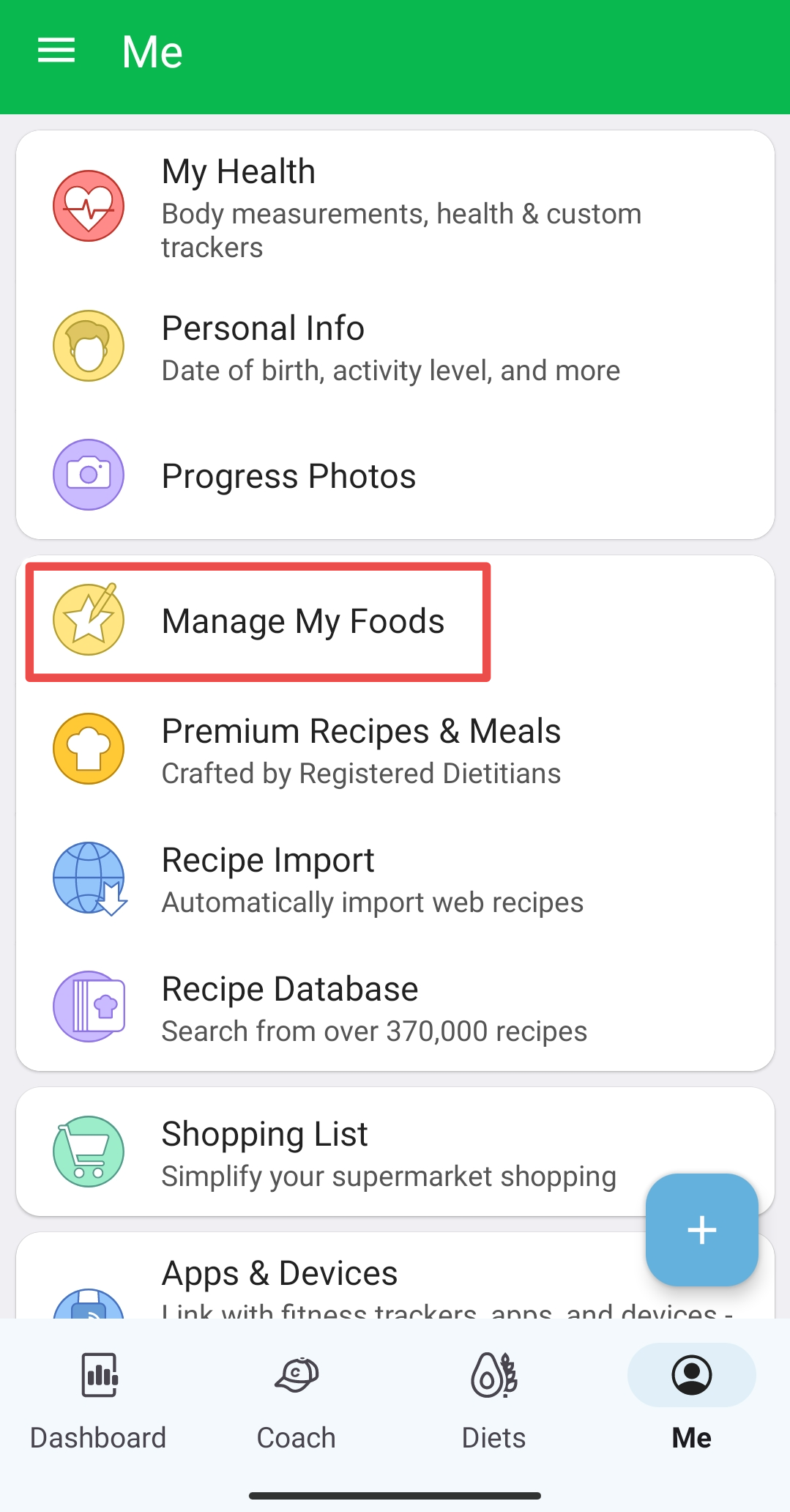
The upper bar with the tabs My Favorites and Frequent Foods can be scrolled right and left to reveal more tabs. Each of the three tabs (Custom Foods, My Meals, My Recipes) has an option to Create located in the lower right corner. To Edit or Retire the entries - click on the "3 dots" button next to a desired entry.
You can also manage the entires on Android while you are logging food. Click on the "3 dots" button in the upper right corner. An option to access My Foods will be displayed.
Managing your Food on the website
Your custom created food, recipes, and meals are located under My Foods page which can be accessed multiple ways. You can either click on the Search (magnifying glass) or Favorites (star). Clicking Add or More when you are typing food will also contain an option to access My Foods.
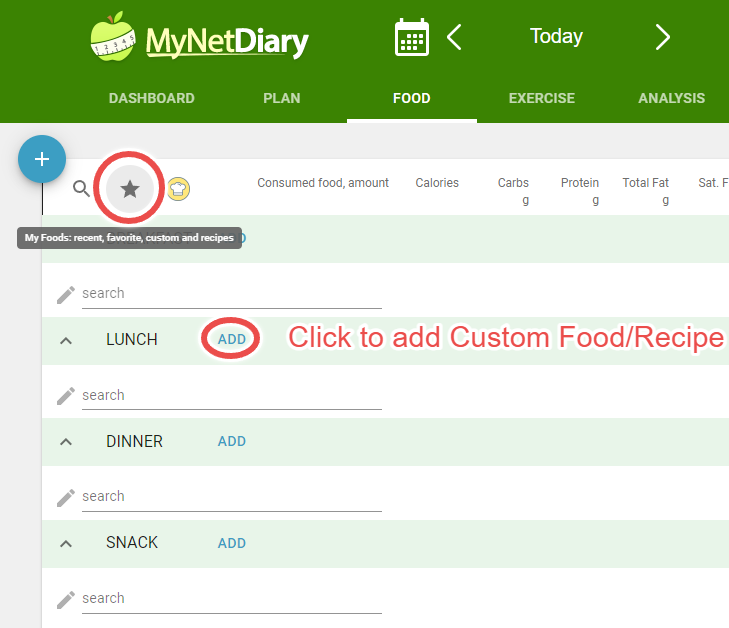
The resulting My Foods page will contain all three sections (Custom Foods, My Meals, My Recipes) and an option to Create a new entry. To Edit or Retire an entry, click on the "3 dots" button next to a desired entry.
For more guidance, please check our Recipe Editor video.