Linking and Switching Accounts
MyNetDiary and PlateAI support easy, automatic synchronization of user data between different devices, as well as access and online tracking at the mynetdiary.com website.
If you created a MyNetDiary or PlateAI account and used it to sign in on all of your devices and/or online at mynetdiary.com, all of them will be linked and synchronize updates made with each other. To link new devices, you should use the Sign In option on the Welcome screen, which is displayed after app installation. Online, you should use the Sign In page on the mynetdiary.com website.
Please see Creating MyNetDiary or PlateAI account (for backup and sync) and Sync my app with another phone, tablet, or www.mynetdiary.com for detailed instructions.
Additionally, MyNetDiary apps support switching between multiple user accounts on the same device. This may be helpful when a parent wants to track their diet in the app as well as the diet of a child.
Linking Devices that Already Have Some of Your Data
If you did not follow the linking procedure above, if you created a duplicate account by mistake on the website or another device and then entered some data there or upgraded to Premium, now you have two disconnected devices with different data that don't talk to each other.
In this case, you must use the "Switch Account" option inside your main mobile app, where you have most of your data.
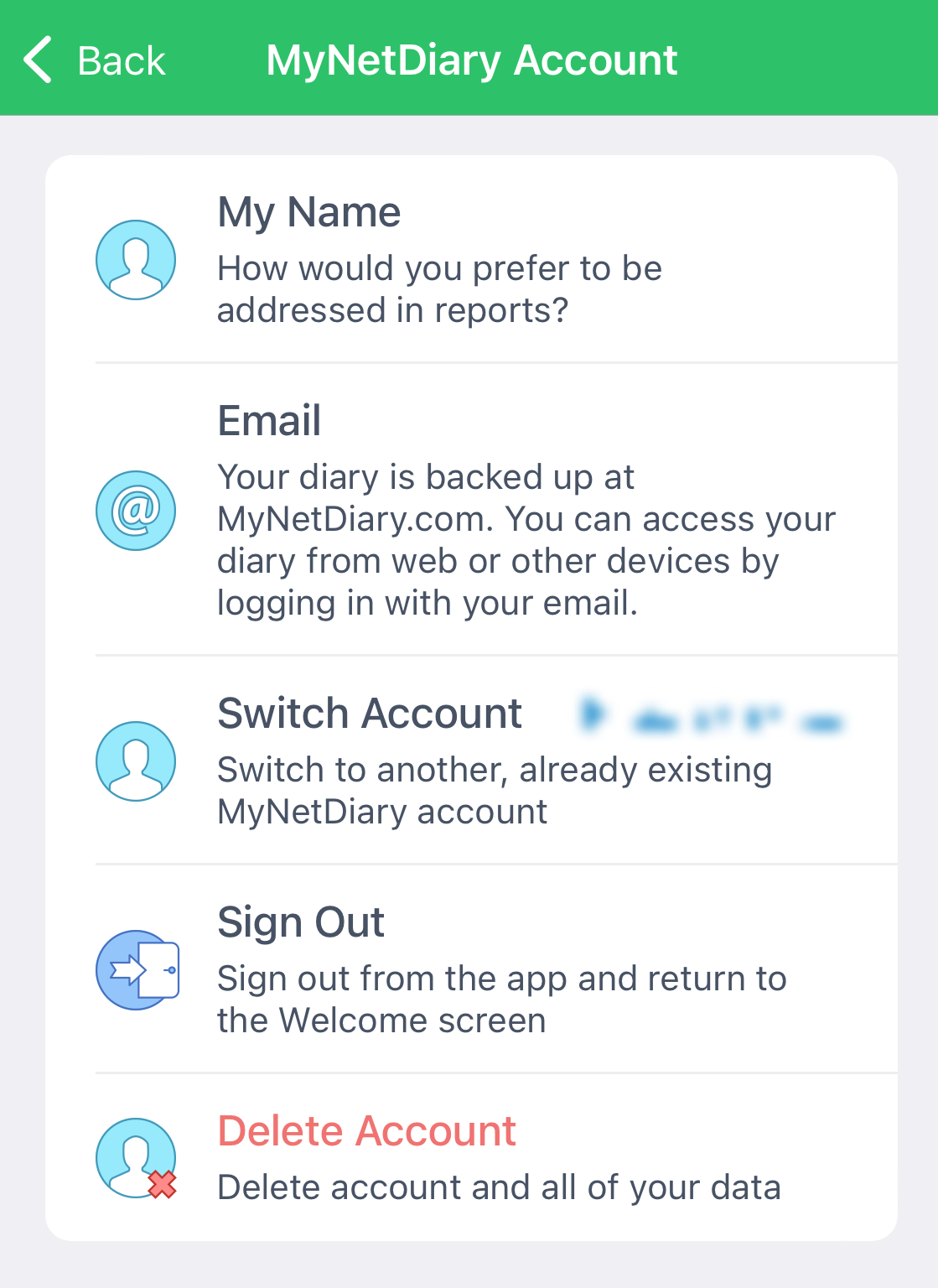
Once you enter credentials of your other MyNetDiary or PlateAI account (with either email or social sign-in), used either online or at mynetdiary.com, you will be offered to do either "merge" or "switch".
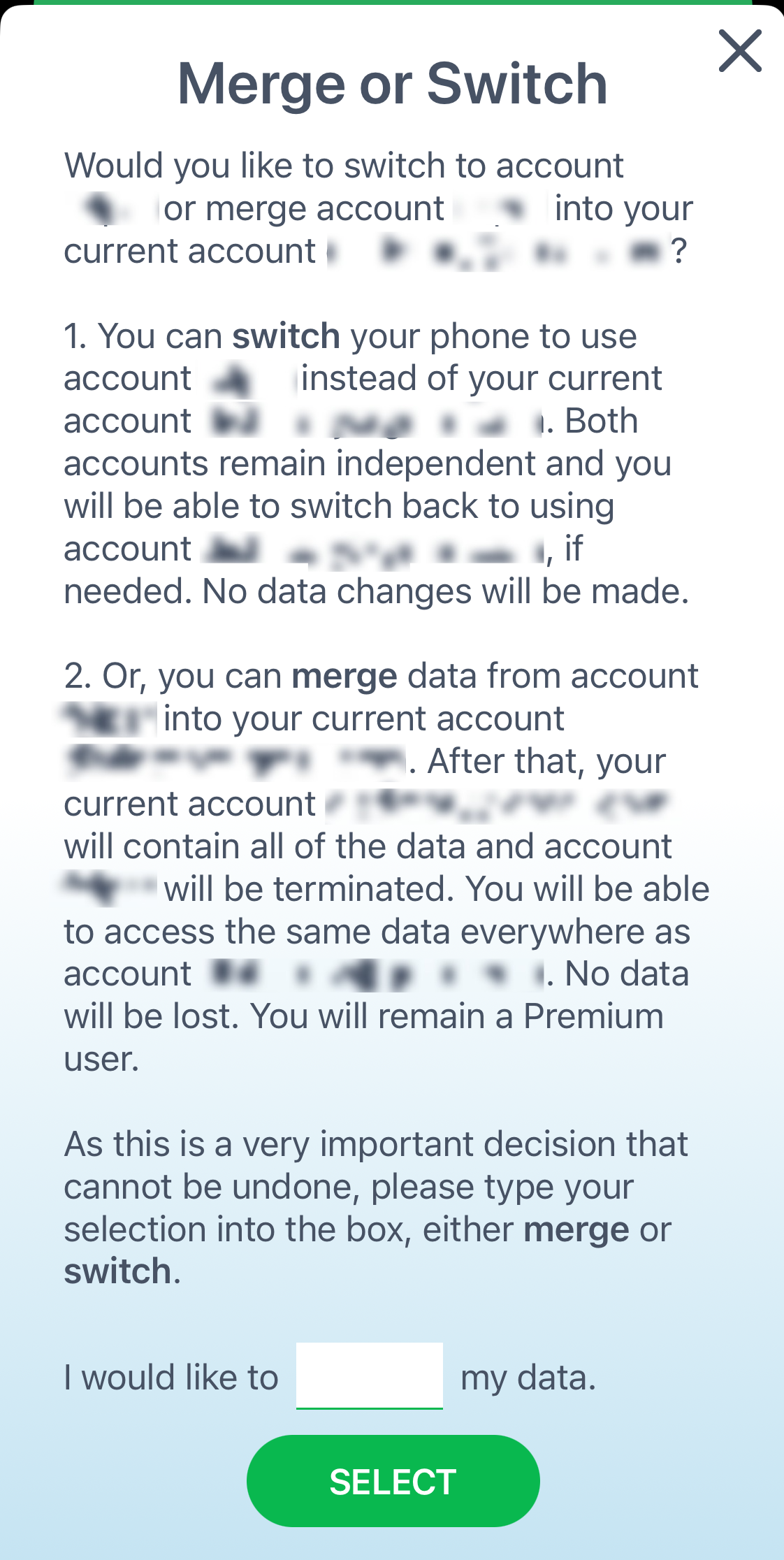
Please read carefully the explanations displayed. If you indeed have two sets of data and need to merge them into a single one and access them under the same account name, you need to type in the word "merge".
After that, if the other account was online, you can sign in using the same account name again.
If the other account were on a different device (not online at mynetdiary.com), you would need to delete the app from the other device, re-install it from the App Store (or Google Play), and sign in to your account from the Welcome screen.
Sign In to Switch Accounts on the Same Device
If you want to have two different accounts on the same device, such as a parent and a child or your spouse, you would also use the Switch Account option.
In this situation, when you are offered a choice between "merge" and "switch," you need to type in the word "switch".
Please notice that after you switch once, you won't be offered "merge" and "switch" options anymore. The app will be switching between the accounts immediately.
Please check our Data Sync Troubleshooting video for more guidance.