Please note our Community now allows a seamless way of sharing any food between MyNetDiary users who add each other as a Friend. To learn how to do this, please refer to this article.
Sending Recipes from iOS App
Sharing is easy! Open to view the recipe you want to share and tap the Share button at the bottom of the screen, then select the Share Recipe Link option. A standard iPhone sharing dialog will be displayed, allowing you to use any sharing tool you use on your phone, including iMessage, email, Airdrop, and any other messaging app you use.
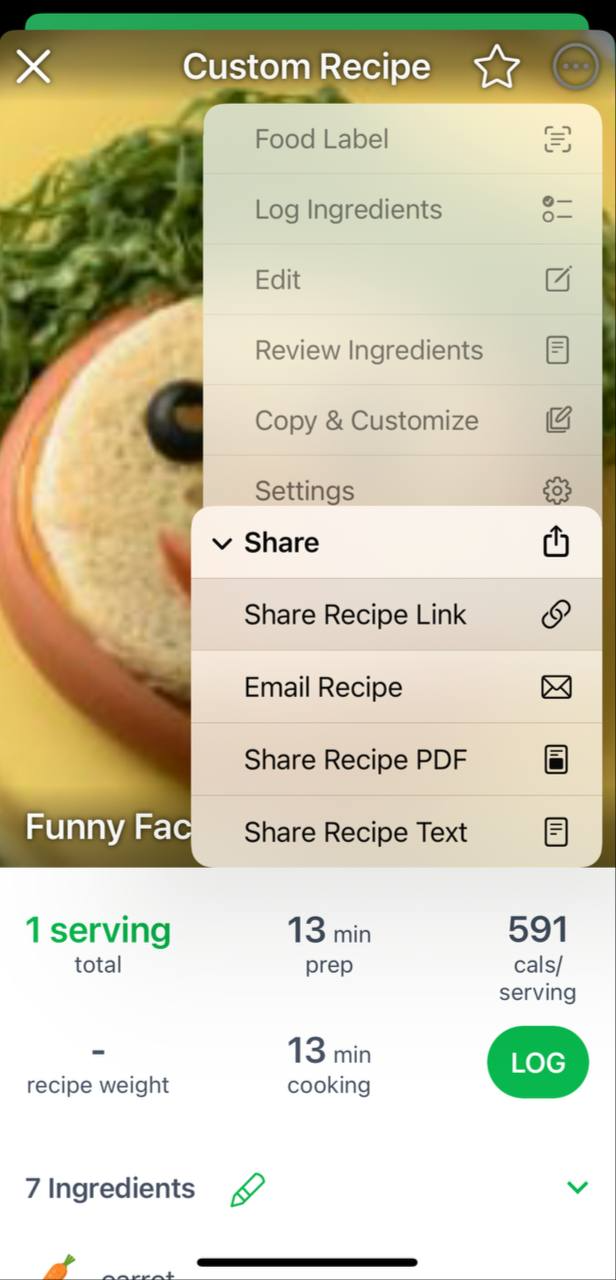
On the receiving side, the recipient should tap the link, and the MyNetDiary app will be launched and display the recipe received, offering to save it. Suppose the recipient does not have a MyNetDiary or PlateAI app installed. In that case, the link will open a web page with the recipe and buttons to download the app for iOS and Android; once the app is installed and set up, the link can be tapped again to import the recipe.
Sharing recipes with links allows sharing and importing recipes for people using the same app and people using different MyNetDiary and PlateAI apps, even between iPhone and Android versions. Moreover, you can share not only through iMessage but use email or any messaging app, WhatsApp and iMessage included.
Sharing recipes on Android
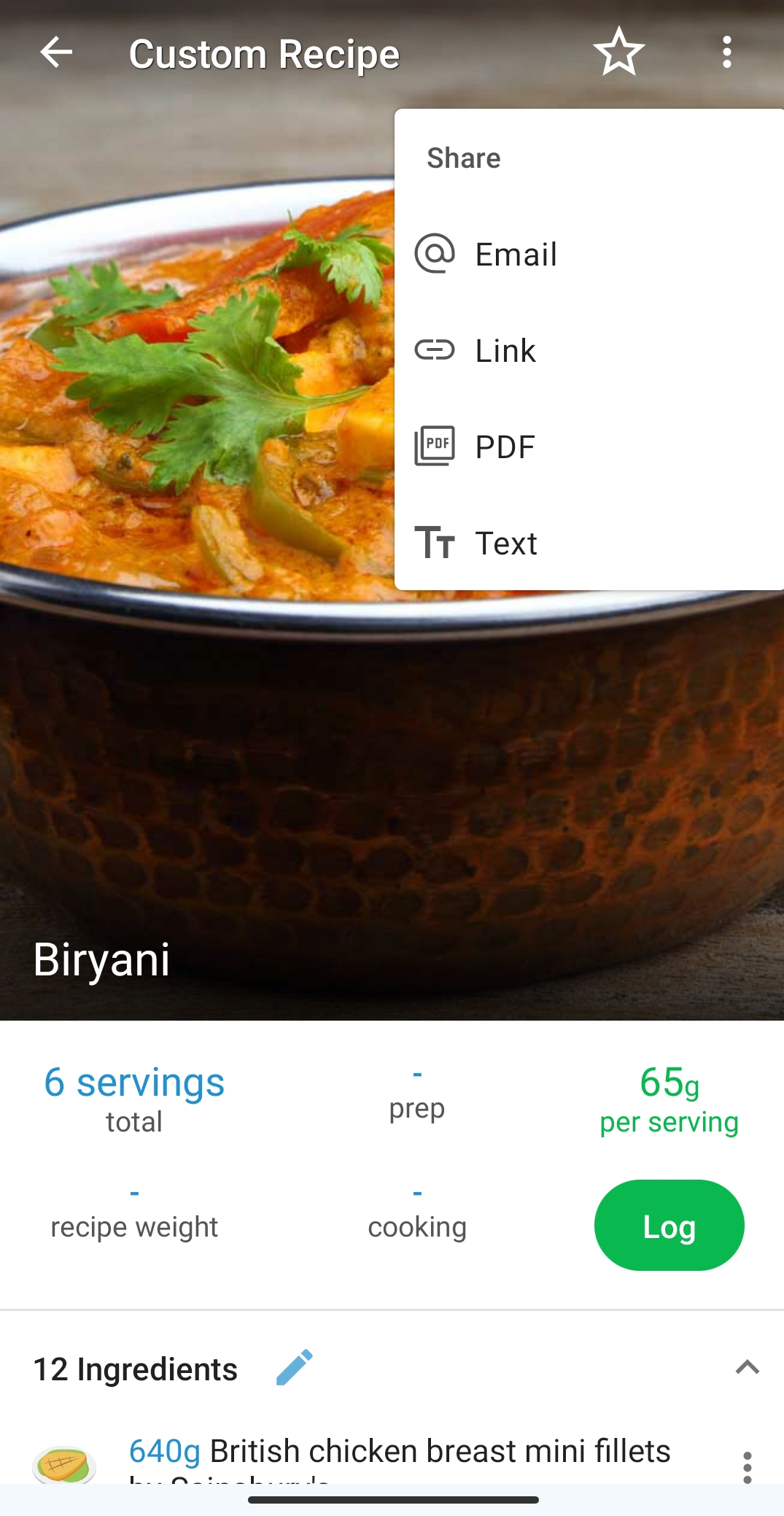
The process of sharing on Android app is largely the same. Find your recipe in the following way: Me tab - Manage My Foods - Recipes - View Recipe - 3 dots in the upper right corner - Share - Link.
Sending Recipes from iMessage app
MyNetDiary and PlateAI have a great iMessage app. It can be used to share and send meals to save time logging foods for your family members using MyNetDiary.
You can also send recipes from the MyNetDiary and PlateAI iMessage app if the recipient uses the same app for iPhone.
Open the Messages app on your iPhone and select MyNetDiary or PlateAI among the apps available, then open the Recipes tab to select the recipe to send. See MyNetDiary iMessage Help for detailed, step-by-step instructions.