MyNetDiary and PlateAI can import workouts from iOS Health App so that it can import workouts recorded by other fitness apps into the Health App.
To setup MapMyRun sync, first configure it to export workouts to the Health App, following the instructions below:
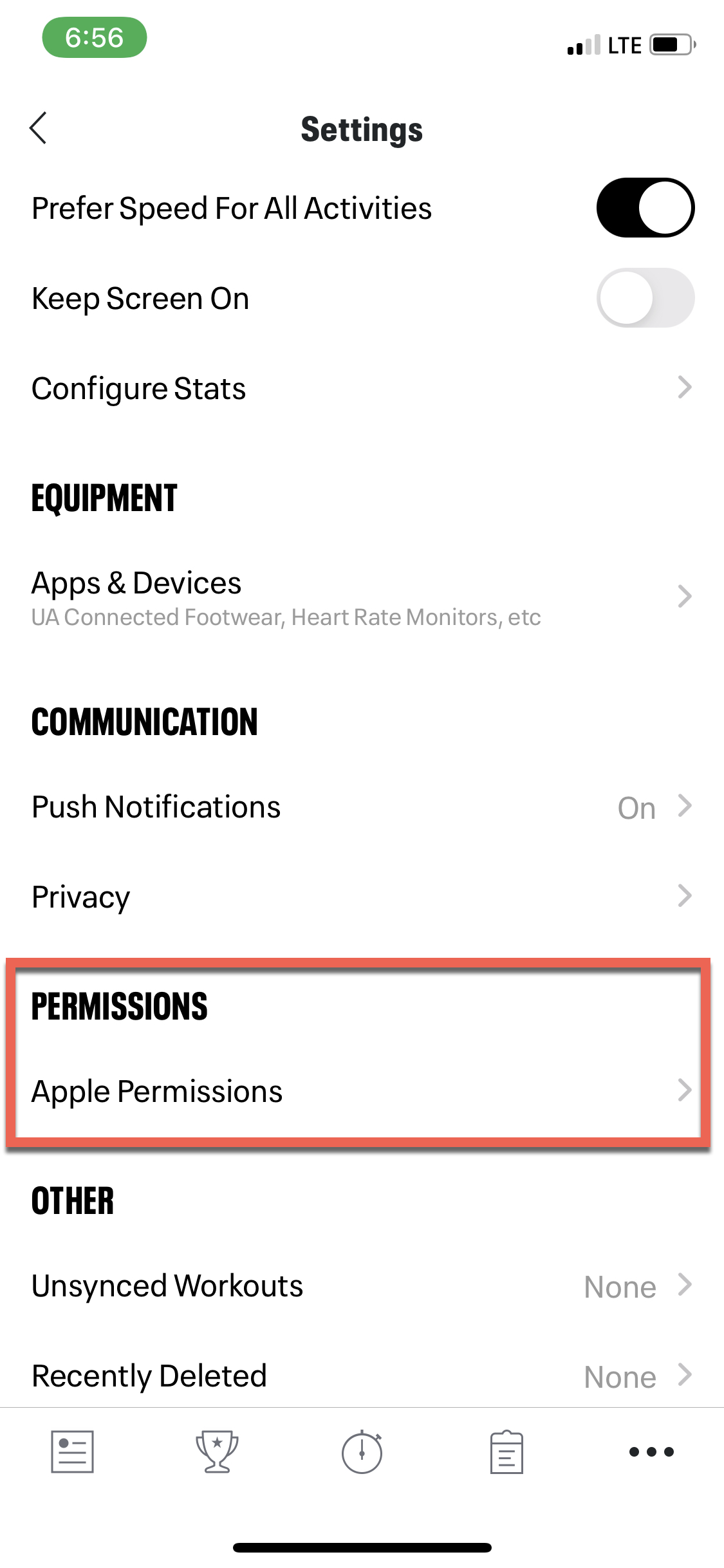
- Open the MapMyRun app and select the Menu ("...") at the bottom right. Next select Settings, then scroll all the way down and select Apple Permissions.
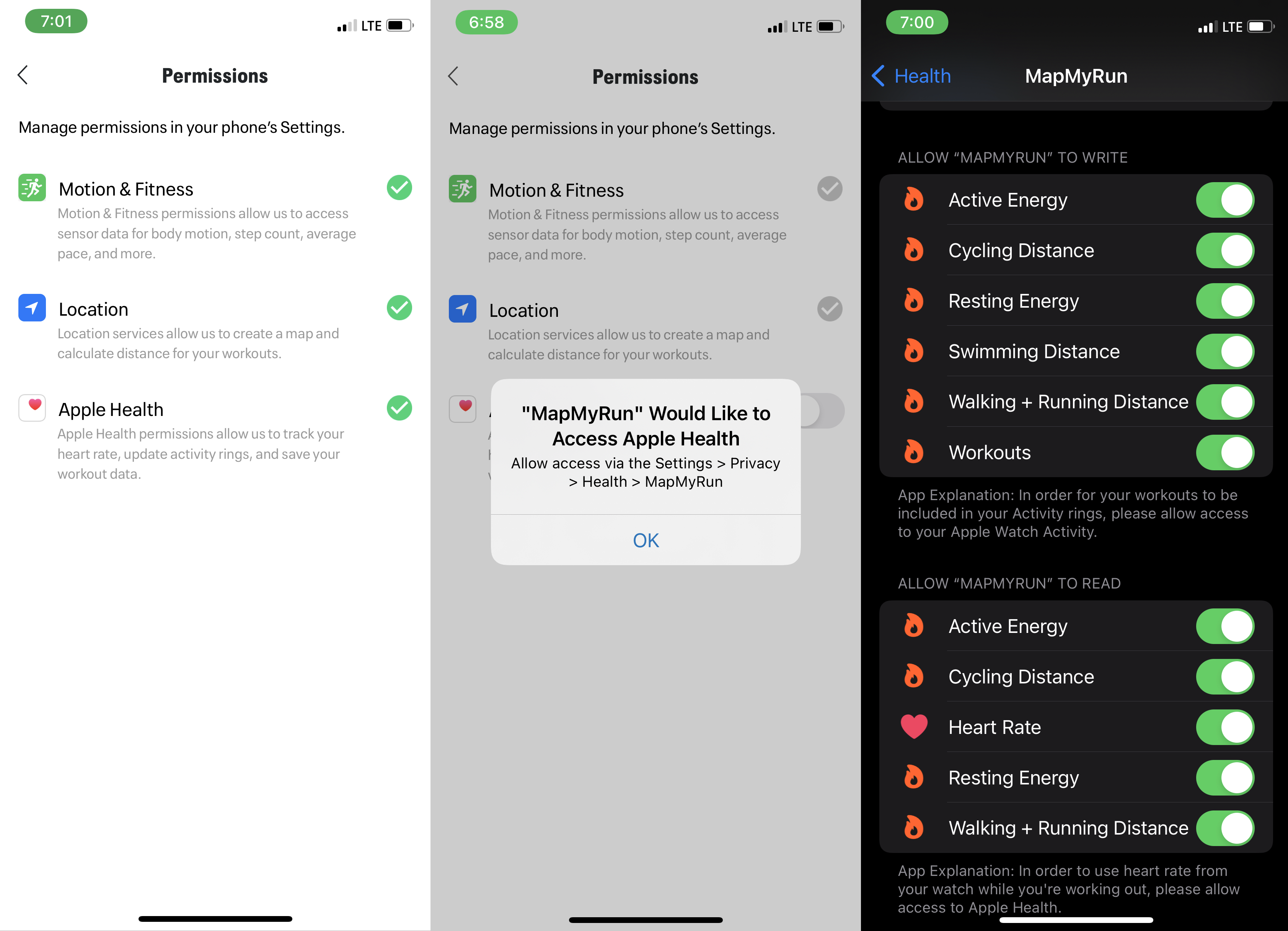
- Tap the toggle next to Apple Health to enable. If you see a pop-up asking for permission to access Health, tap OK.
-
You can also confirm the necessary permissions are granted by doing the following:
- Visit your iPhone's Settings app, choose Health, Data Access & Devices, locate the MapMyRun app in the list, ensure all categories are already toggled ON, or select Turn On All. Now, your future saved workouts has to sync with Apple Health.
Next, enable Health App sync in MyNetDiary or PlateAI by going to the Settings screen and selecting "iOS Health App Sync," turning on sync. When prompted, turn on the desired data types, most importantly, allow the workout data import. If you don't get prompted, go to the Health App, then to Source, locate our app and allow the desired data types, including workouts..
MyNetDiary and PlateAI allow specifying minimum workout calories for import. By default, it's 50 calories. Please adjust the minimal number in Settings if you want to import workouts with fewer calories.
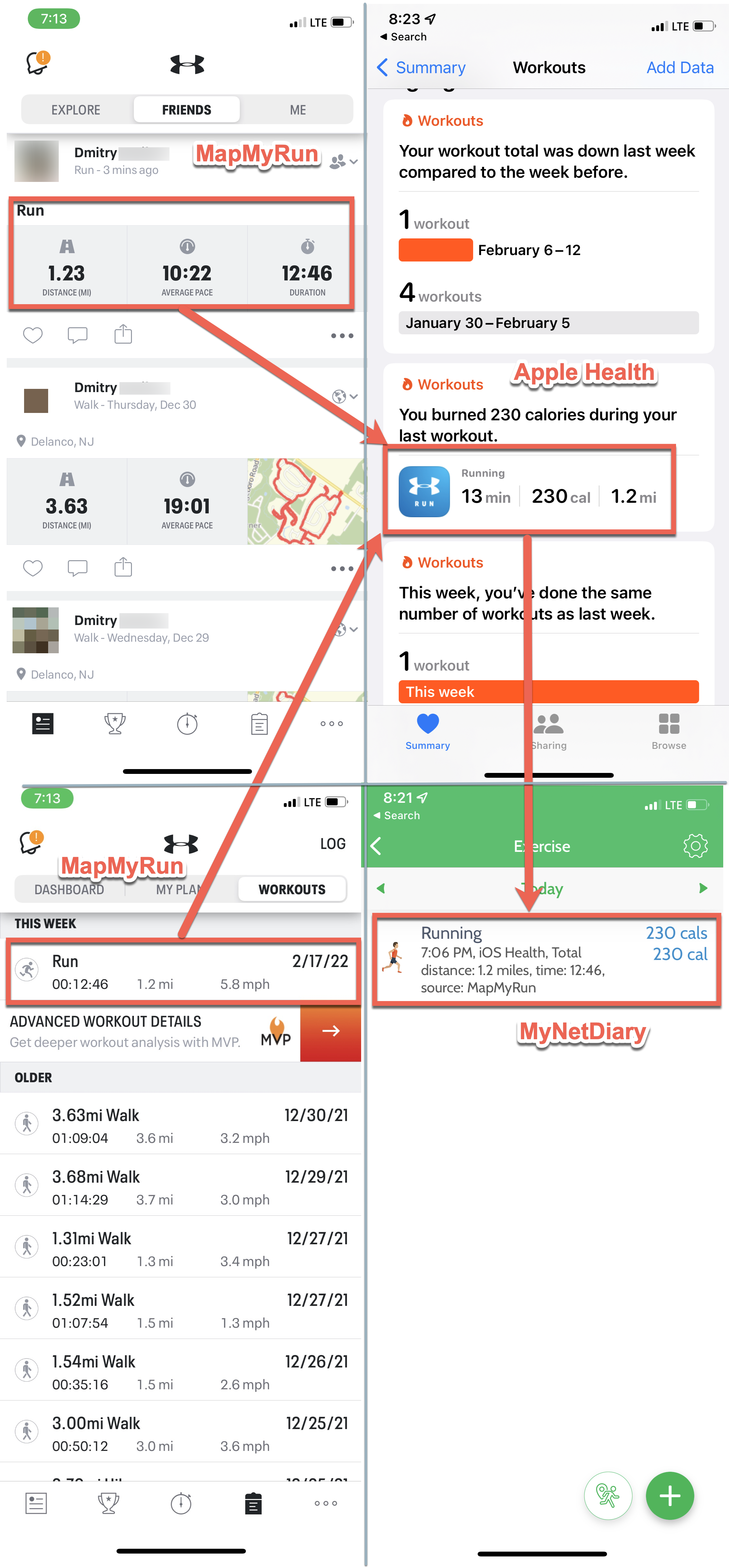
After completing your run with MapMyRun, open the Health App, go to the Workouts, and ensure the exported burned calories and other data. You're all set! Open the app. MyNetDiary or PlateAI have to import MapMyRun workouts from Apple Health for the last seven days:
If Health App workouts don't show up in MyNetDiary or PlateAI, please see Troubleshooting Health App Workout Import support article for detailed, step-by-step troubleshooting instructions.