You can create your own custom recipes and custom meals in our app to save time and track food more easily. Here's how each method works.
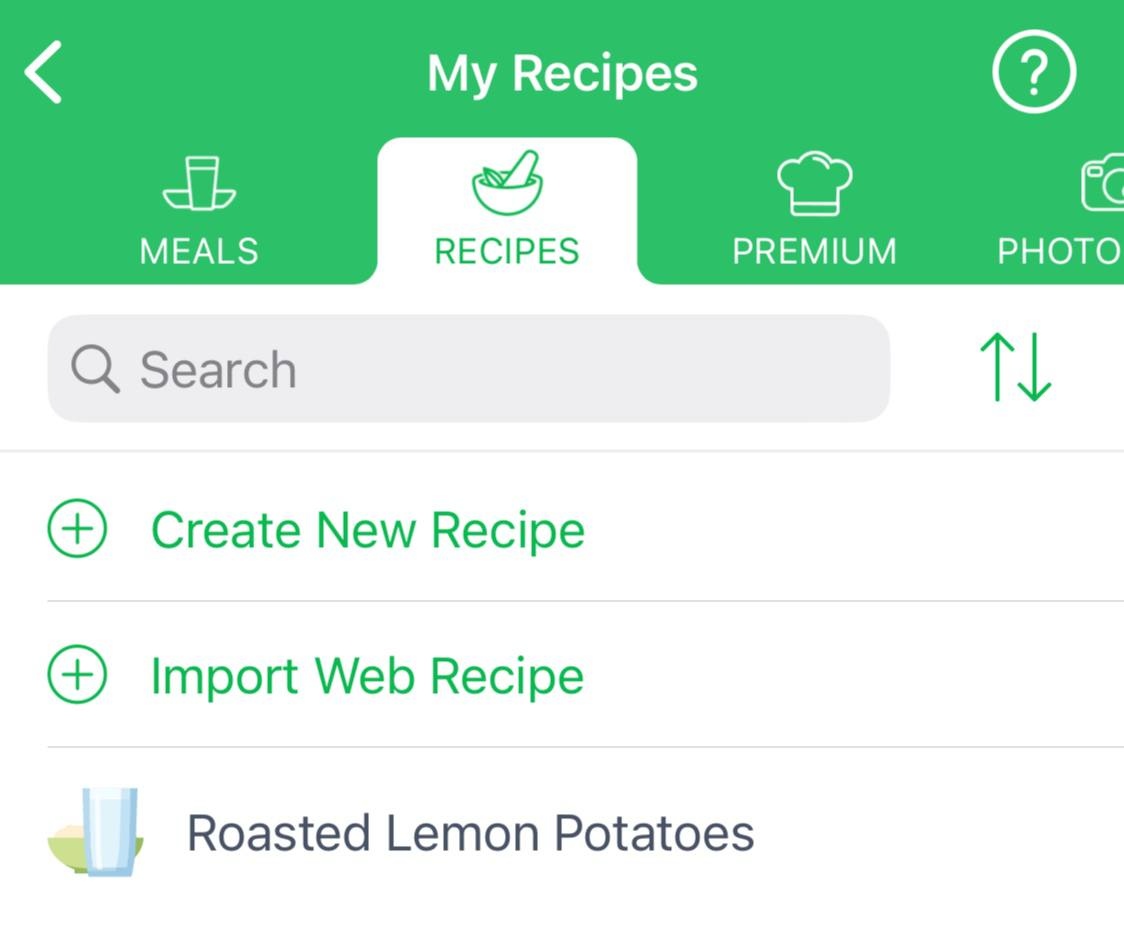
Create or import a custom recipe: To build a recipe from scratch or import one from the web, open the Me tab - Manage My Foods - Recipes, and tap Create New Recipe or Import Web Recipe. You can manually add ingredients or paste from websites to build your own dish.
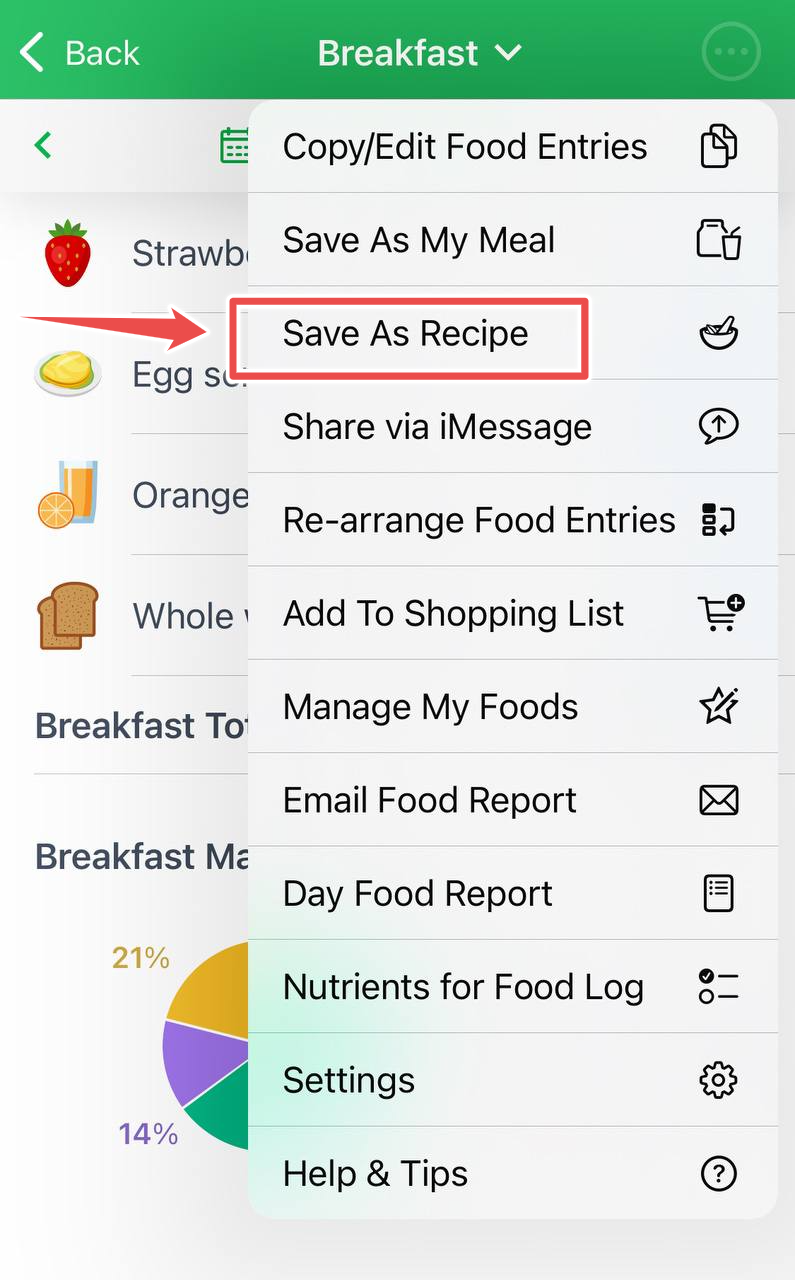
Save logged foods as a recipe: If you've already logged foods under Breakfast, Lunch, Dinner, or Snacks, you can save them as a recipe for future use. Just tap the menu button (⋮ or •••) in that meal section and choose Save As Recipe. This creates a recipe using the exact items you logged. When you log it later, it will appear as a single recipe entry in your meal.
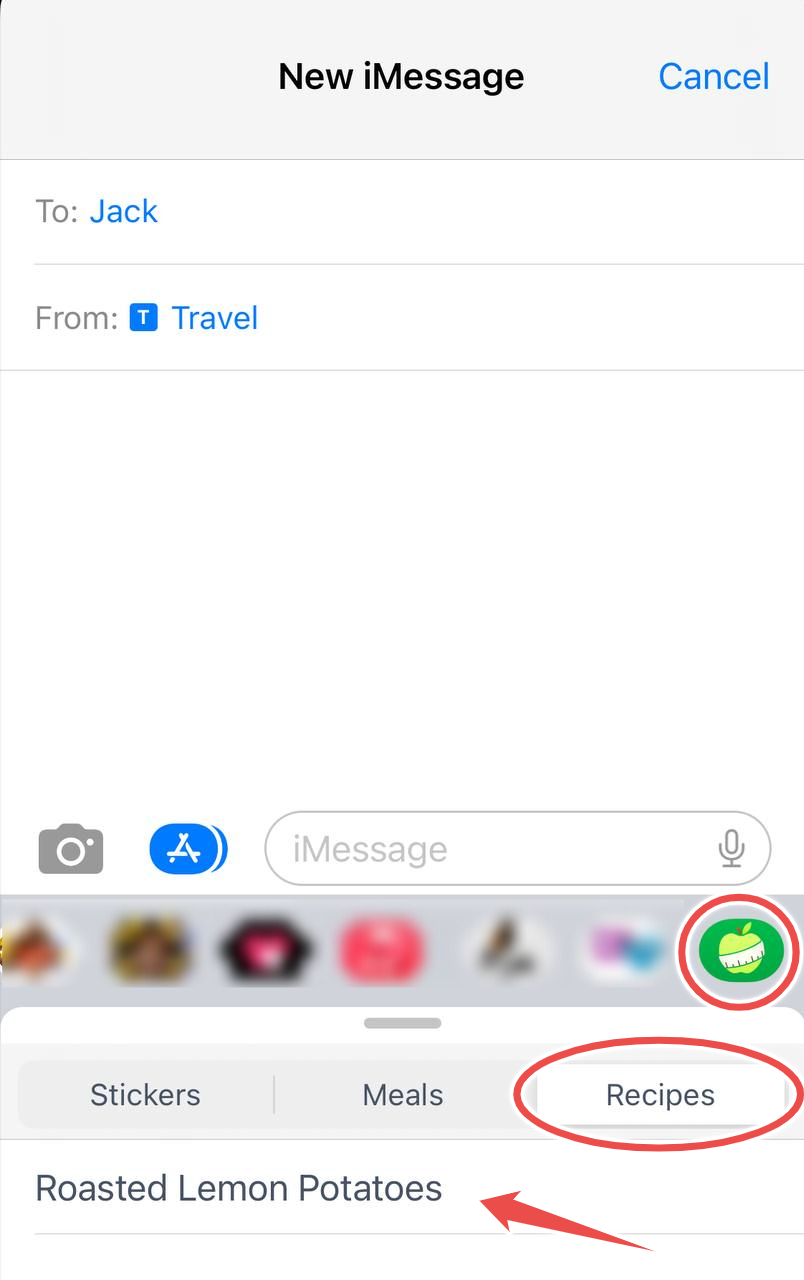
Share a recipe via iMessage (iOS only): You can also tap any recipe from the Recipes tab inside the app’s iMessage extension and share it instantly with others through iMessage.
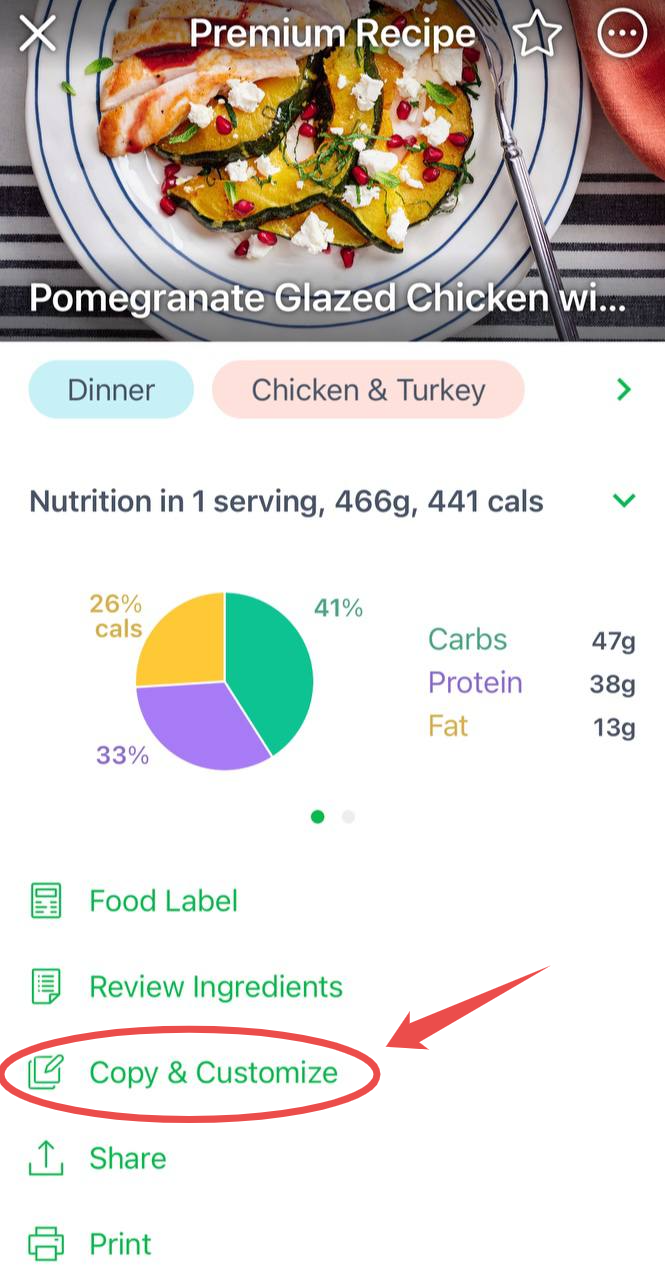
Copy & customize a recipe: To adjust the already created recipe or built-in system recipe, tap it and select Copy & Customize. You’ll be prompted to give the new recipe a name and can then change ingredients or quantities. This is useful when you want to adapt standard recipes to your own preferences.
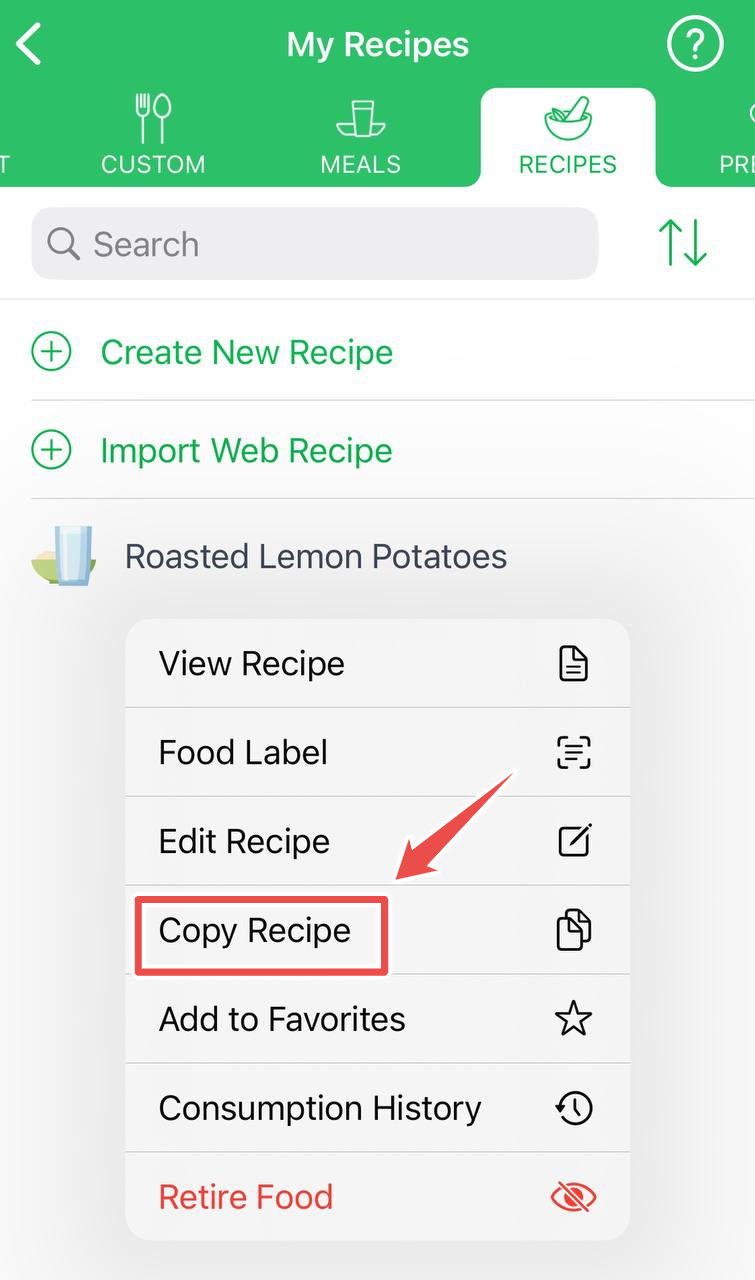
Copy one of your own recipes: You can also duplicate a recipe you've already created. In the Recipes tab under Manage My Foods, tap your saved recipe and choose Copy Recipe. This lets you keep the original and tweak the copy under a new name—for example, to create a lower-calorie or dairy-free version.
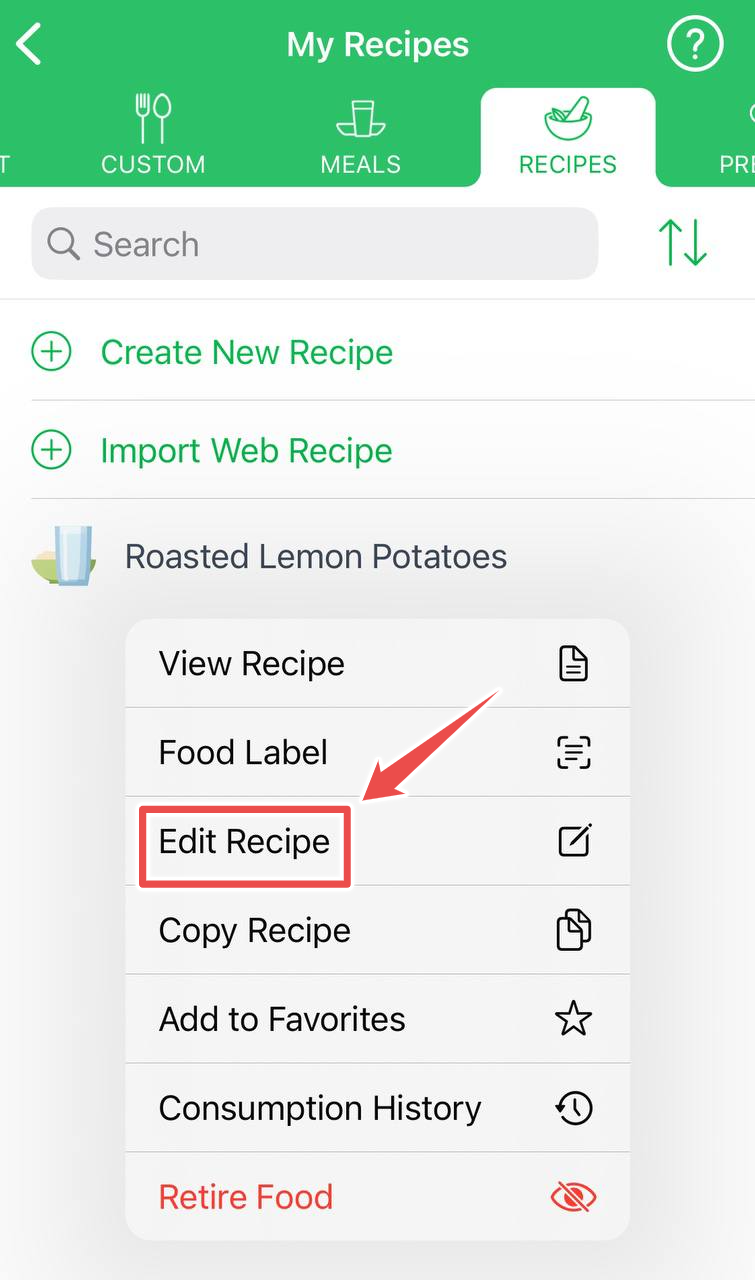
Edit your custom recipe: To update ingredients or amounts in any recipe you’ve made, just tap it and select Edit Recipe. You can adjust ingredients, serving sizes, and instructions at any time.
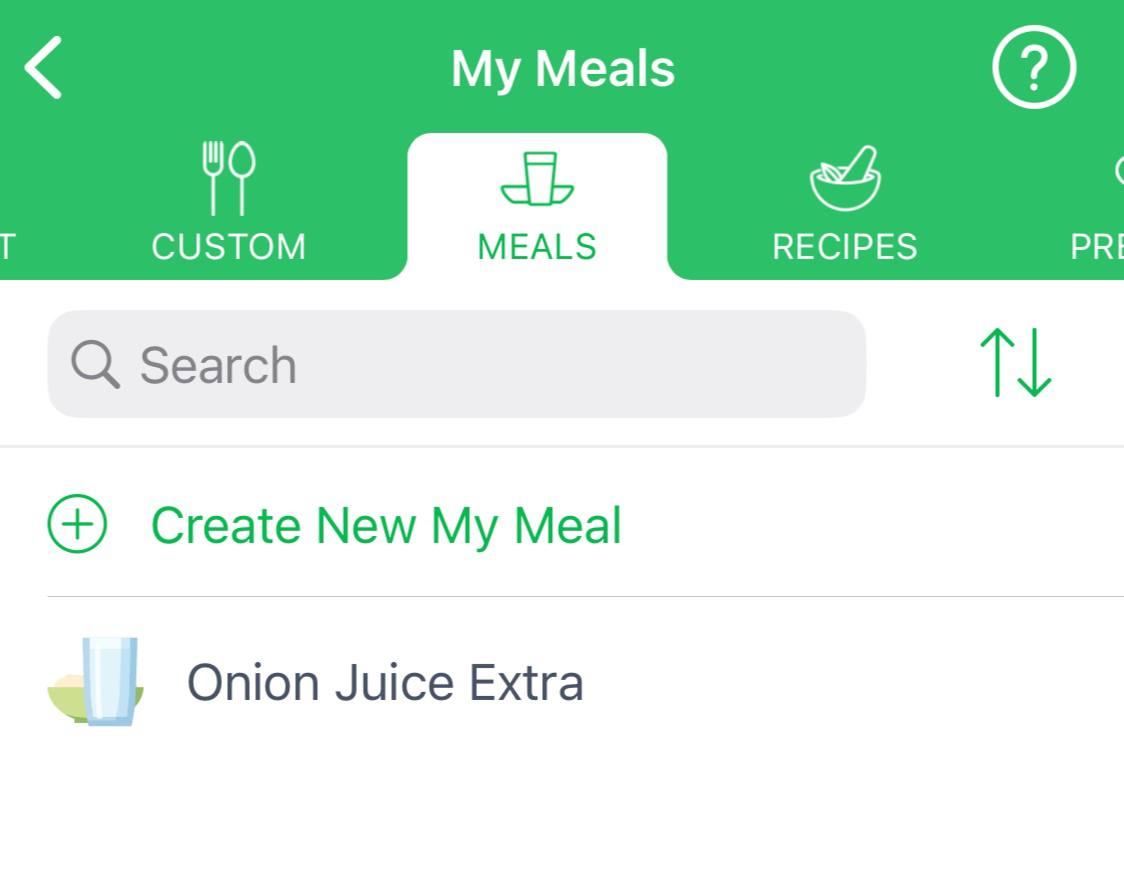
Create a custom meal from scratch: In Manage My Foods, go to the Meals tab to build a custom meal by adding foods you often eat together. This is similar to a recipe, but when logged, each ingredient stays separate in your food log.
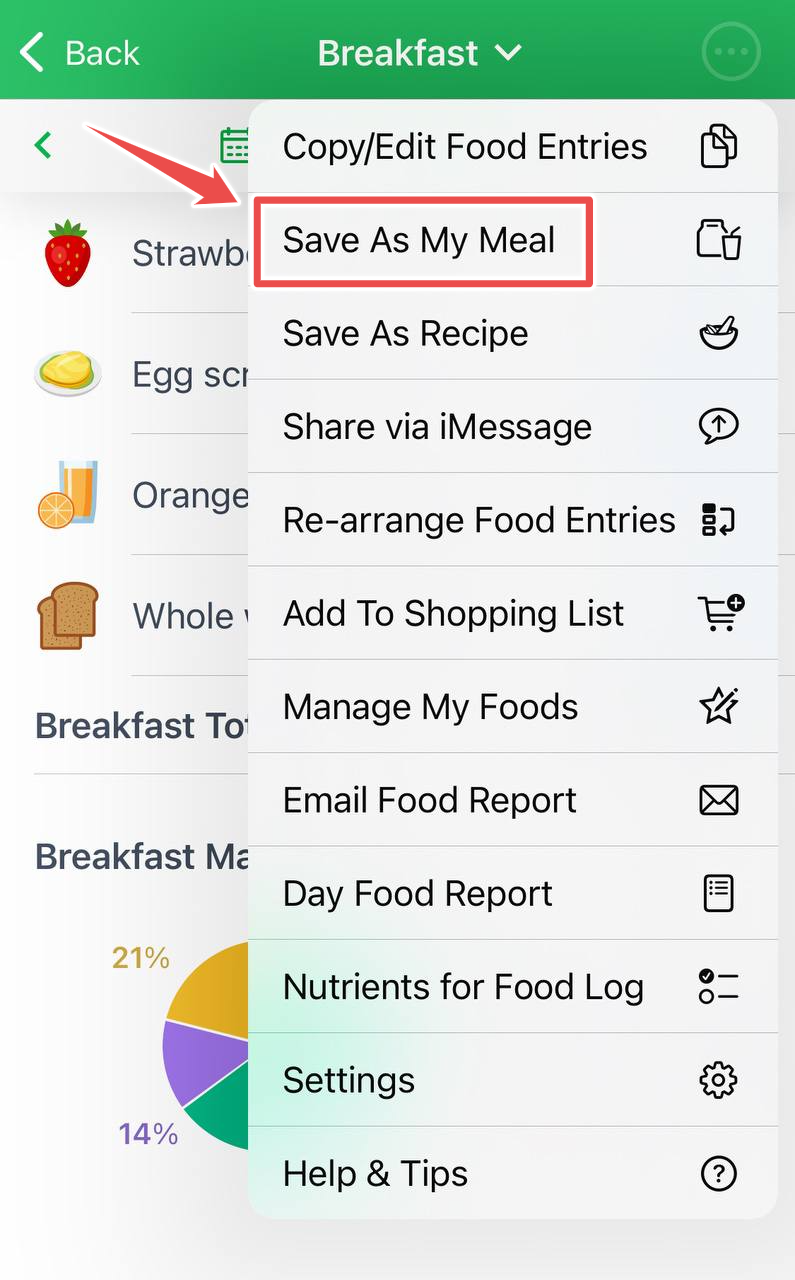
Save logged foods as a custom meal: If you've already logged a set of foods in a meal section, tap the menu button and select Save As My Meal. This saves the selected items under a custom meal name for quick reuse. When logged later, the foods will appear as separate entries in Breakfast, Lunch, Dinner, or Snacks, making them easier to adjust.
Add ingredients using Describe: While creating a recipe, enter its name. Under Ingredients, tap Search Ingredients > Describe. Type, paste, or dictate the ingredients and amounts, tap Recognize & Log, and then review the recognized foods and quantities before continuing.