How does Withings linking work?
Linking your account with Withings enhances your health tracking by automatically importing various health metrics directly from the Withings website. Once connected, the following data from your Withings activity tracker will be synced to MyNetDiary or PlateAI:
- Daily Caloric Burn: Recorded as exercise entries, contributing to your calorie balance and analysis.
- Daily Steps: Your steps are counted and recorded.
- Sleep Duration: Hours of sleep are tracked and logged.
- Weight Measurements: Updates your weight records within MyNetDiary.
- Blood Pressure and Heart Rate: Both systolic/diastolic blood pressure and heart rate data are added to your daily tracking and measurement records.
The synchronization process is automatic, occurring once daily or shortly after you log food in our app, limited to one update per hour. If no food is logged for 10 consecutive days, MyNetDiary or PlateAI will pause the data sync from Withings. Resuming food logging in the app will also resume the data download from Withings.
To manually initiate the download of today's data sooner, navigate to the Account tab, select the Withings link to access the Withings Settings page, and then press the “Verify link” button.
When your Withings device syncs with the Withings website, MyNetDiary and PlateAI are promptly notified and automatically download any new data, covering the last 10 days of activity each time the link is established or reconnected.
The integration is one-way; linking your accounts allows the website to access and display your Withings data in your account across various tabs and screens for exercise, daily steps, sleep, weight, blood pressure, and heart rate monitoring.
You have the flexibility to select which data types to sync from Withings through the Withings Settings page in MyNetDiary and PlateAI.
How do I link?
Before linking, you should have a Premium account.
Step 1: Set up Withings account
You can get started by following the directions on the Withings website. Once you have a Withings account, ensure you see the data uploaded from your Withings device to the website.Step 2: Start linking at MyNetDiary and PlateAI
In the app, choose Apps & Devices under the Me tab and tap Withings Activity Trackers.
On the website, go to the Settings tab, then click Apps & Devices and choose Withings device.

Notice, that this page shows if Withings is already linked and allows you to verify the link.
Step 3: Click "Link to Withings" button
You will be redirected to the account.withings.com website, where you will need to sign in to your Withings account.
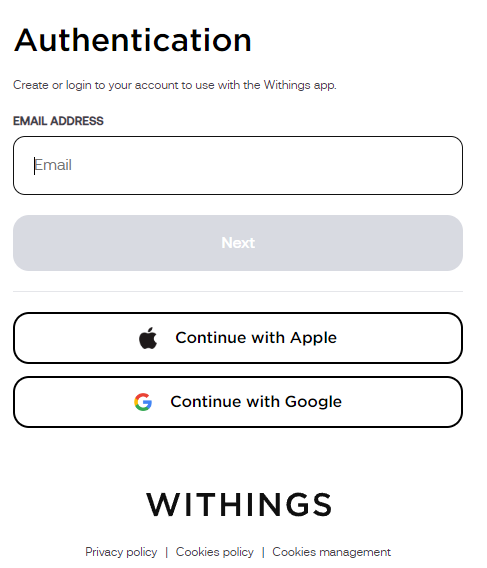
After successful sign-in, you will be asked if you allow our app to connect and access your data.
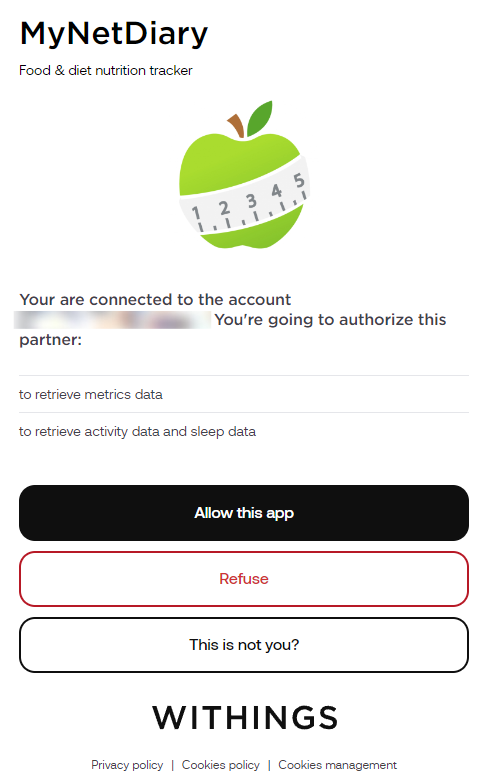
Step 4: Click "Allow" button
Once you click the Allow button, you will be returned to the mynetdiary.com Withings Settings page, where you should see "Status: Linked" message.
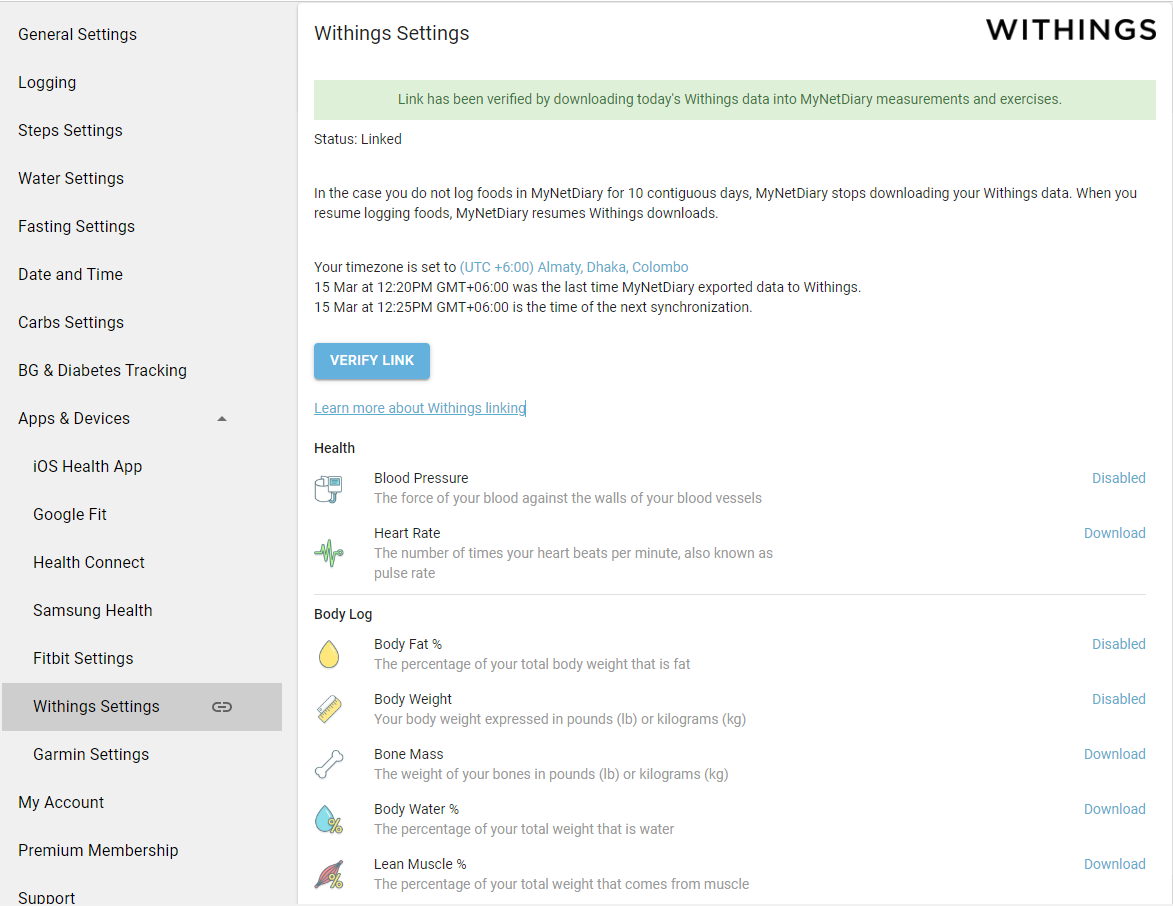
All exchanged data
- Blood Pressure
- Heart Rate
- Body Fat %
- Body Weight
- Bone Mass
- Body Water %
- Lean Muscle %
- Daily Steps
- Active Calories - please check the following article for an explanation on this data
- Total Calories Out - this data will appear under Exercise Notes section
- Active Minutes or Inactive Minutes
- Floors - an estimated equivalent of the number of floors climbed that day
- Total Distance Covered (Traveled)
- Activity Tracker BMR - the number of calories your body needs to maintain weight that does not include any other activities taken from your Withings account
- Hours of Sleep - including REM, deep sleep and wake hours
Unlinking Withings
You can terminate the link on Withings settings page.
Catching up on last several days
If you want to repeat Withings download for the last 10 days, please use the "Verify Link" button.