How does Garmin linking work?
MyNetDiary and PlateAI can download from Garmin Connect the total number of daily step counts, calories burned while walking and running, sleep hours, weight-ins, and individual workouts that you recorded with your tracker or logged manually in Garmin Connect. The specific information available depends on the Garmin device you use. For example, with vívofit® 2, you can download all of this information. With vívokí™, you can get daily step count, calories burned while walking and running, and workout calories.
After you link your account with Garmin Connect, MyNetDiary and PlateAI receive notification from Garmin Connect within several minutes after you sync Garmin trackers to the Garmin Connect and automatically downloads new data.
If information is available in your Garmin Connect account, MyNetDiary and PlateAI will download your daily step count, sleep hours, and weight-ins and create exercise records in. This way, your activities and exercise registered by your Garmin tracker will be accounted for in your daily calorie balance in our app.
You can verify data downloaded into MyNetDiary or PlateAI by going to Garmin Connect:
1: Go to Daily Summary screen in Garmin Connect.
2: You can see total burned calories there. MyNetDiary and PlateAI create a special Garmin Active Calories exercise record while importing data from Garmin Connect. This record represents a part of your total calories - what you burned in excess of estimated Weight Maintenance calories for your activity level in our app.
Garmin mobile app and Garmin Connect website calculate and display all calories burned during the day as Total Calories. MyNetDiary and PlateAI subtracts the estimated Weight Maintenance calories from Garmin's Total Calories for your activity level in the app. These include only calories you burn beyond expected, so avoid double counting. The exercise log will display the number as Garmin Active Calories exercise record.
This way, Total Calories calculated by Garmin will be completely and properly accounted for in our apps.
For example, if you see in Garmin Connect 3,500 Total Calories, and your personal Weight Maintenance Calories in MyNetDiary and PlateAI are 2,800. Mynetdiary will create Garmin Active Calories exercise with 700 calories, calculated as 3500 - 2800.
If Total Calories in Garmin are smaller than Weight Maintenance, then our app will create an exercise record of Garmin Active Calories with zero calories.
3: You can see your sleep hours on the same page under the Sleep tab. Please note that Garmin Connect shows hours and minutes, while our Sleep Measurements displays hours, so for example, 7:30min in Garmin will be displayed as 7.5 hours in our app.
4: Go to the Weight page in Garmin Connect to see your weight-ins.
If you see large differences between Garmin Connect and our app, please ensure your timezone is set correctly in Garmin Connect.
Note: Garmin changed how it sends data to its partners like us. Garmin no longer provides a way to download data on demand, so verifying the link from our side is impossible. Instead, Garmin is sending data to partners when any change is detected.
Garmin data is transferred only from Garmin Connect to MyNetDiary or PlateAI. By creating a link, you authorize the our website to read your Garmin data and write these data under your account.
Garmin exercise appearing in MyNetDiary or PlateAI do not include your basal (BMR) calories, only calories burned during the exercise.
How do I link?
Linking with Garmin (along with many other great features) is provided for Premium accounts.
Step 1: Set up Garmin Connect account
You can start by following the directions at the Garmin Connect website. Once you have created a Garmin Connect account, make sure you can see the Garmin Connect website data uploaded from your Garmin device.Step 2: Start linking at MyNetDiary or PlateAI
In the app, choose Apps & Devices under the Me tab and tap Garmin Activity Trackers.
On the website, go to the Settings tab, then click Apps and Devices - Garmin Settings.

Please notice that this page shows if Garmin is already linked.
Step 3: Click "Link to Garmin" button
You will be redirected to the connect.garmin.com website, where you will need to sign in to your Garmin Connect account.
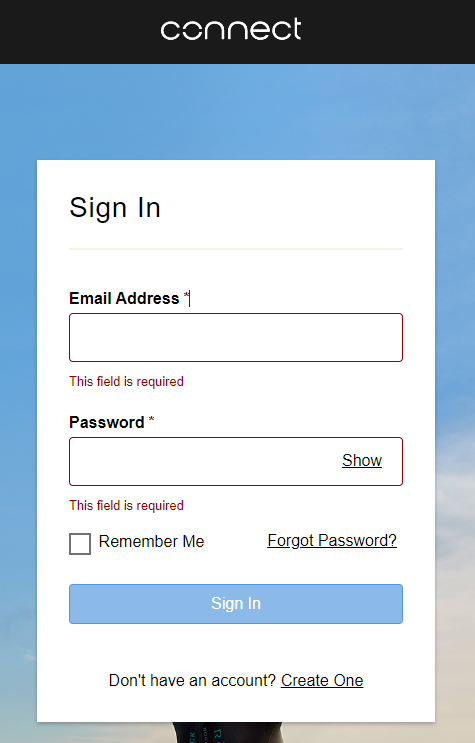
After successful sign-in, you will be asked if you allow our app to connect and access your data.
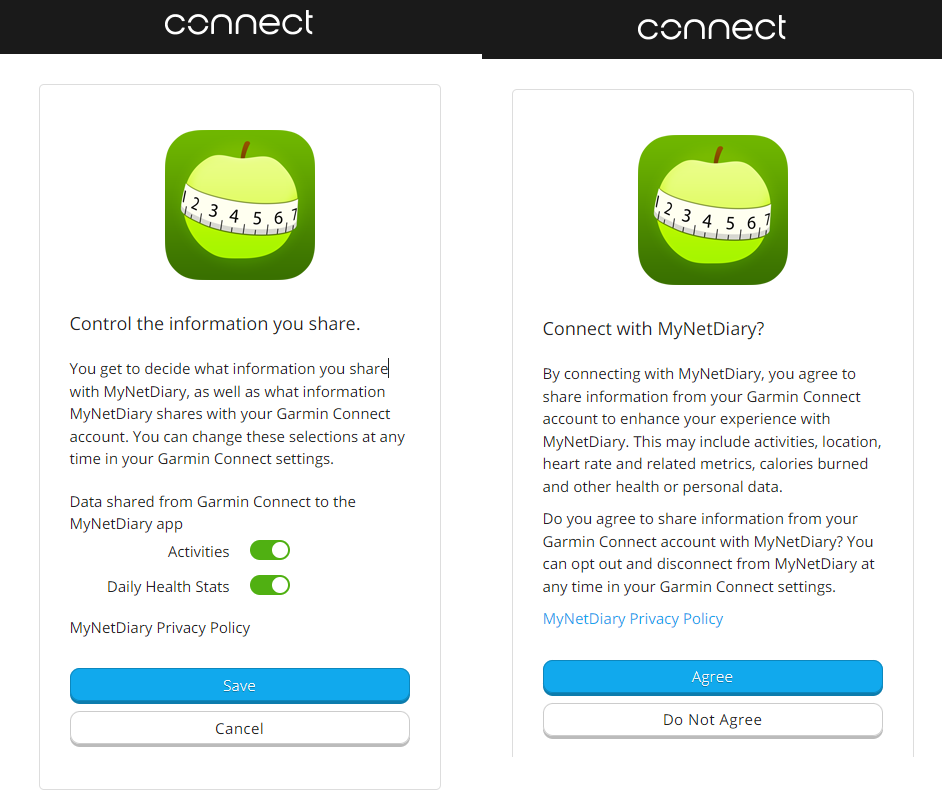
Step 4: Click "Save" and "Agree" buttons
Once you click the Save and Agree, you will be returned to the mynetdiary.com Garmin Settings page, where you should see the "Status: Linked" message.
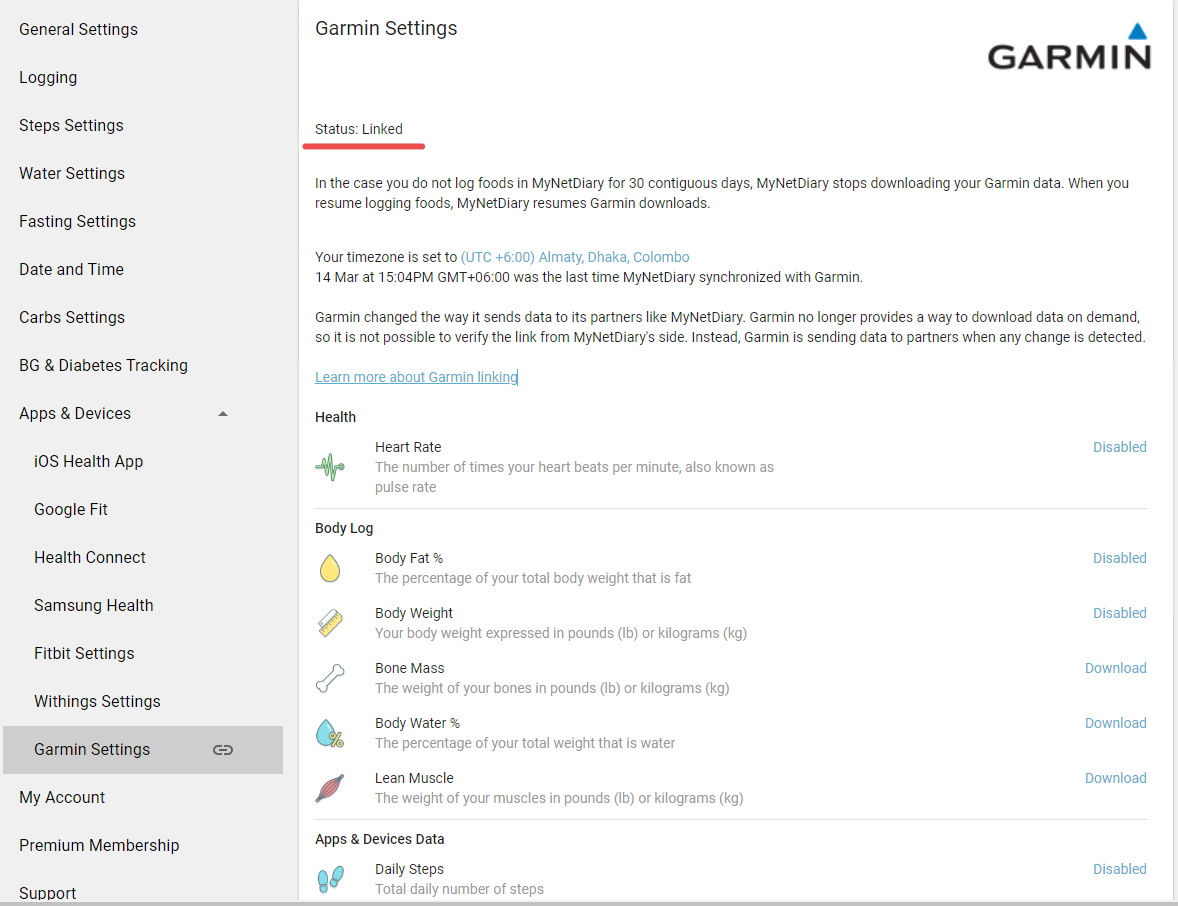
All exchanged data
- Heart Rate
- Body Fat %
- Body Weight
- Bone Mass
- Body Water %
- Lean Muscle %
- Daily Steps
- Active Calories - please check the following article for an explanation on this data
- Total Calories Out - this data will appear under Exercise Notes section
- Active Minutes or Inactive Minutes
- Floors - an estimated equivalent of the number of floors climbed that day
- Total Distance Covered (Traveled)
- Activity Tracker BMR - the number of calories your body needs to maintain weight that does not include any other activities taken from your Garmin account
- Hours of Sleep - including REM, deep sleep and wake hours
Unlinking Garmin
You can terminate the link at the Garmin settings page.